

Configuring parallel processing
4 Tasks
20 mins
Intermediate
Case Management
English
Scenario
At TGB, candidates for an open position are interviewed by multiple team members. The existing interview Process in the HRApps application only allows for one interviewer. The Human Resources (HR) department has requested this Process be updated to support more than one interviewer for a candidate.
The following list includes the recommended tasks for completing this assignment.
- Create a new Embedded Data field to hold the list of interviews
- Update the ScheduleInterview View to add a table sourced by the Interviews property to enable adding and removing interviews.
- Replace the ConductInterview subprocess with a Split For Each shape configured to call the ConductInterview flow for each interviewer.
- Rename the ScheduleInterview Assignment and Flow Action to reflect multiple interviews.
- Update the Assess Candidate View to display the assessment average rating.
The following table provides the credentials you need to complete the challenge.
| Role | User name | Password |
|---|---|---|
| Senior System Architect | SSA@TGB | pega123! |
Note: This challenge does not have a demo video. Please refer to the Detailed Tasks for step-by-step instructions to complete the challenge.
Detailed Tasks
1 Create a Interviews Embedded Data field
- In the Pega instance for the challenge, enter the following credentials:
- In the User name field, enter SSA@TGB.
- In the Password field, enter pega123!.
- In App Studio, select the Candidate Case Type. In the Data Model tab, create a list of records Embedded Data field named Interviews that is sourced from the existing data object TGB-FW-HR-Data-Interview.
2 Update the Schedule Interviews Step to add a table
- In the Schedule Interviews Step, click Configure User Action to update the View.
- In the View, delete the existing fields and add the Interviews Embedded Data field.
- Click the Interviews field, set the Display as to Table, and Add/edit records to Table rows.
- In the columns, delete Primary fields and add Interviewer, Location, and Start time fields.
- Rearrange the fields to the following order:
- Interviewer
- Location
- Start time

- Click Submit to save the View.
- Save the Candidate Case Type.
3 Edit the Interview Candidate flow to add a Split for Each shape
- In the Candidate Case Lifecycle, in the Interview Candidate Process, click the Configure Process icon.
- Click Open process in Dev Studio to open the Flow Rule.
- Add a Split for Each advanced shape.
- In the Split For Each properties window, configure the details as shown in the following image by using the .Interviews property and the ConductInterview subflow.

- Replace the existing Conduct Interview subprocess shape with the Split For Each smart shape.

- Save the flow changes.
4 Update AssessmentRating Declare Expression
- Update the AssessmentRating Declare Expression to calculate the average of all interview ratings.
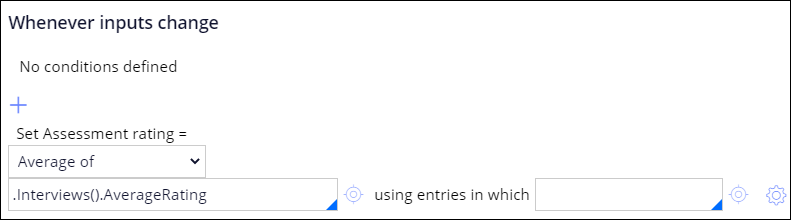 Tip: Use the Average of computation type to calculate the average value for a property in a page list. Leave the using entries in which field blank.
Available in the following mission:
If you are having problems with your training, please review the Pega Academy Support FAQs.
Want to help us improve this content?