

Creating an internal email treatment designed in an external tool
5 Tasks
10 mins
Beginner
English
Scenario
The marketing department of U+ Bank wants to promote their Rewards credit card through email. They want to send the email to qualified customers in an always-on outbound environment.
In preparation, a consultant has already created the Rewards card action. The bank wants to use email content that is designed and personalized in an external tool. A member of the marketing team designed the email, and you are now expected to personalize it, create an internal treatment for the offer and test the email Treatment.
Use the following credentials to log in to the exercise system:
| Role | User name | Password |
|---|---|---|
| Decisioning Architect | DecisioningArchitect | rules |
Your assignment consists of the following tasks:
Task 1: Download the exercise artifacts file and extract the .html file
Download the Exercise Artifacts file, and then extract the RewardsCardEmail.html to a local drive on your computer.
Task 2: Modify the extracted .html file to use Pega reference tag for personalization
Modify the extracted RewardsCardEmail.html file to update the email salutation, Dear Sir/Madam, to use a Pega reference tag for customer full name personalization.
Dear <pega:reference name=".Customer.FullName"></pega:reference>
Task 3: Create an internal email treatment for the Rewards card
Create the Rewards card internal email treatment.
Task 4: Configure the treatment
Make the necessary changes in the treatment to use the RewardsCard.html file.
|
Field |
Value |
|
Keycode |
REWARDSEMAIL |
|
Email Subject |
"Hi "+.Customer.FirstName+", here's your U+ Bank card" |
Task 5: Add the email treatment to Rewards card
Configure the Rewards card action with the new Rewards card email treatment.
Task 6: Confirm your work
Confirm your work by using [email protected] and Stephen Gold seed list as recipients.
Challenge Walkthrough
Detailed Tasks
1 Download the exercise artifacts file and extract the .html file
- Download the Exercise Artifacts file, and then extract the RewardsCardEmail.html to a local drive on your computer.
2 Modify the extracted .html file to use Pega reference tag for personalization
- Open the RewardsCardEmail.html file in an HTML editor such as Notepad ++.
- Search for Dear Sir/Madam, and then replace the text with Dear <pega:reference name=".Customer.FullName"></pega:reference>
- Save the file.
3 Create an email treatment for Rewards card
- On the exercise system landing page, click Pega CRM suite.
- Log in to Customer Decision Hub as a Decisioning Architect:
- In the User name field, enter DecisioningArchitect.
- In the Password field, enter rules.
- In the navigation pane of Customer Decision Hub, click Content > Actions.
- On the Actions landing page, click Rewards card to open the action details.
- Click Check out to make changes to the action.
- Click the Treatments tab, and then Add channel > Email to add a new email treatment.
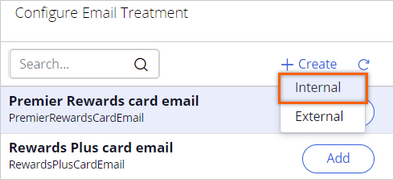
- In the Configure Email Treatment window, click Create > Internal to create an internal email treatment.
- In the Description field, enter Rewards card email.
- Click Create and open.
4 Configure the email treatment
- In the Content section, in the Subject field, enter "Hi "+.Customer.FirstName+", here's your U+ Bank card".
Note: The configuration of the dynamic placeholder in the email subject line generates the full customer name. You can use the placeholder as is for the Rewards card template.
- In the Details section, in the Key code field, enter REWARDSEMAIL.
- In the Content section, click Load template from file to import the RewardsCard.html file.
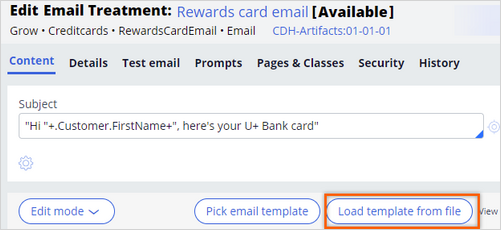
- Click Choose file, select the RewardsCard.html file you have just modified, and then click Submit.
- Click Save to save the changes made to the treatment.
- Close the email treatment.
5 Add the email treatment to Rewards card
- In the Rewards card action, refresh the Configure Email Treatment window.
- In the Rewards card email row, click Add to add the treatment to the action.
- Click Apply to confirm the treatment selection and close the window.
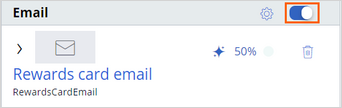
The treatment is now added to the action. - In the Email section, ensure that the switch for the email treatment is on.
- Click Check in to save the changes to the action.
- In the Check-in comments text box, enter Email treatment added, and then click Check in.
If you are having problems with your training, please review the Pega Academy Support FAQs.
Want to help us improve this content?