

Designing complex Views with Constellation
4 Tasks
45 mins
Intermediate
User Experience
Constellation
English
Scenario
Your work on the Tell Us More application continues partly through the project. In this challenge, you use Constellation to build Views associated with the and Steps. You will configure several Partial Views, Conditional Visibility, and custom routing.
Note: This challenge has been configured with Single sign-on (SSO) using your Pega Academy credentials. If you are not automatically signed-in to the challenge environment after initializing the instance, you may use the credentials provided.
The following table provides the credentials you need to complete the challenge:
| Role | User name | Password |
|---|---|---|
| System Architect | Author@SL | pega123! |
Note: This challenge does not have a demo video. Please refer to the Detailed Tasks for step-by-step instructions to complete the challenge.
Detailed Tasks
1 Configure Field Groups in the Eligibility check View
- In the navigation pane, click Case Types, and then click Incident.
- On the Incident Case Type, click the UX tab, click Other Views, and then open the Eligibility check View.
- In the Review field group, click Add > Views, select Review Inner, and then click Add.
- In the Review Inner View row, click the gear icon, clear Show heading, and then click Save.
- In the Eligibility decision field group, click Add > Fields, select Eligibility Type, and then click Add.
- In the Eligibility Type field row, click the gear icon, configure the following settings, and then click Save:
- Display as: Radio buttons
- Label: Custom > Eligibility
- Horizontal display: Selected
- Helper text: Identify if the incident is eligible for further processing.
- In the Dispatching field group, click Add > Views, select Dispatch Incident, and then click Add.
- In the Dispatch Incident View row, click the gear icon, clear Show heading, and then click Save.
- Click Save.
2 Add Partial Views in the Eligibility decision Field Group
- In the Eligibility decision field group, click Add > Views, select Eligibility Info Accept and Eligibility Info Reject, and then click Add.
- Open the Eligibility Info Accept View, click Add > Fields, select Eligibility Info Accept, and then click Add.
- In the Eligibility Info Accept field row, click the gear icon, set Label to Custom > Next action, and then click Save.
- Click Back.
- Open the Eligibility Info Reject View, click Add > Fields, select Eligibility Info Reject, and then click Add.
- In the Eligibility Info Reject field row, click the gear icon, set Label to Custom > Next action, and then click Save.
- Click Back.
- In the Eligibility Info Accept View row, click the gear icon, clear Show heading, and set Visibility to Custom Condition.
- Click the Configure Visibility Condition gear.
- In the Condition Builder, set Field to Eligibility Type, set the conditional operator to is equal to, enter the Value Eligible, and then click Submit.
- Click Save.
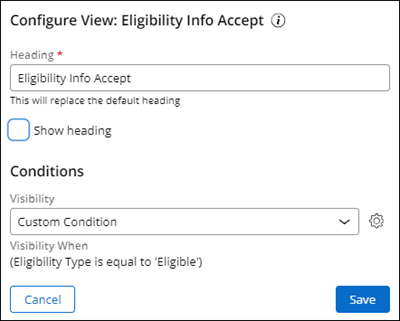
- In the Eligibility Info Reject View row, click the gear icon, clear Show heading, and set Visibility to Custom Condition.
- Click the Configure Visibility Condition gear.
- In the Condition Builder, set Field to Eligibility Type, set the conditional operator to is in list, enter the comma-separated Value Scam, Spam, Not eligible, Missing details, and then click Submit.
- Click Save.
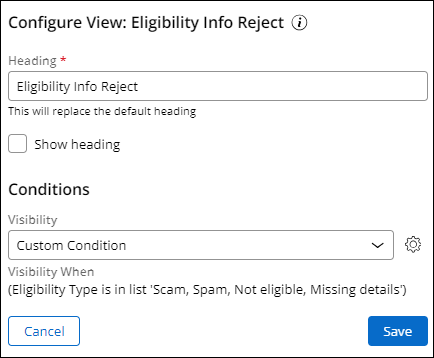
- Click Save.
3 Update the display headers for Eligibility Info Partial Views
- On the Incident Case Type, click the Settings tab, then open Data initialization.
- Click Open Data Transform.
- Add a Set row: Target .EligibilityInfoAccept, Source "Incident will be approved for further processing".
- Add a Set row: Target .EligibilityInfoReject, Source "Incident will be rejected".
- Click Save.

4 Modify the Handle ticket View and routing
- On the Incident Case Type, click the Workflow tab, and then click the Handle Ticket Step.
- In the Step settings, in the Route to field, select Custom.
- Set Assignment type to Work Queue, set Router to ToRouteToOverwrite, and then click Save.

If you are having problems with your training, please review the Pega Academy Support FAQs.
Want to help us improve this content?