

Managing runtime configuration
3 Tasks
20 mins
Beginner
Robotic Process Automation
English
Scenario
MyTown users want to manage automation performance and assign tasks using the Pega Robot Manager™ application. The MyTown robotic development teams are now creating automations using the latest version of Pega Robot Studio and plan to deploy these automation packages for storage within a package repository created in Pega Robot Manager. To ensure these packages are available for the Water Department employees, update the Robot Manager configuration files to use the new package repository and then make the file available to the appropriate department.
Complete the following tasks:
- Create a new version of the main configuration file.
- Edit the new configuration file to refer to the new package repository.
- Apply the configuration file to the correct department.
Note: Complete the preceding challenges in order before attempting to complete this task.
The following table provides the credentials you need to complete the challenge:
| Role | User name | Password |
|---|---|---|
| Robot Manager System Administrator | RMSysAdmin | myt0wn@pp1 |
Challenge Walkthrough
Detailed Tasks
1 Save a copy of the master Runtime configuration file
- In the Pega Platform instance for the challenge, enter the following credentials:
- In the User name field, enter RMSysAdmin
- In the Password field, enter myt0wn@pp1.
- In the header of Dev Studio, clickLaunch portal > Robot Managerto open the Robot Manager portal.
- In the navigation pane of Robot Manager, click Runtime configs to display the Runtime configs landing page.
- On the Runtime configs landing page, click the link to display the configuration file.

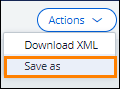
- In the upper-right corner of Pega Robot Manager, click Actions > Save as.
- In the Save as dialog box, update the settings:
- In the Settings name field, enter Package Repository Enabled.
- In the Description of settings contents text box, enter Enable the new package repository for storing automation packages.
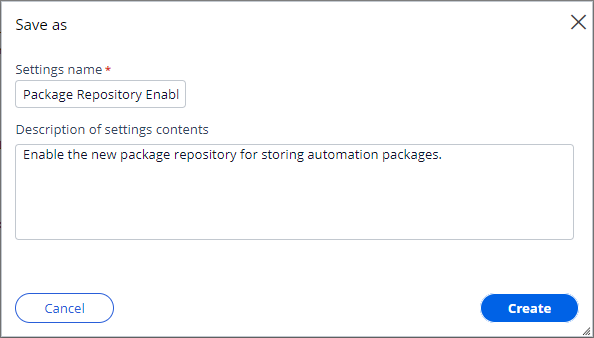
- Click Create to dismiss the Save as dialog box and create the new configuration file.
2 Edit the Runtime configuration file
- In the breadcrumb navigation at the top of the configuration page, verify you are now on the Package Repository Enabled landing page.

- On the configuration file page, click to display the Configuration File in edit mode.
- Go to line number 326 of the configuration file to display Robotics settings.
- Update the Package Server configuration to use the Package Repository by adding UseRobotManagerPackageRepository="true" inside the closing tag '/>' and after the existing parameter, as shown in the following figure:

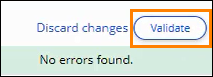
- Click Validate to check for errors in the configuration file.
- Wait for the No errors found message.
- Click Save.
- In the Save changes dialog box, in the text box, enter Package repository enabled for automation packages.
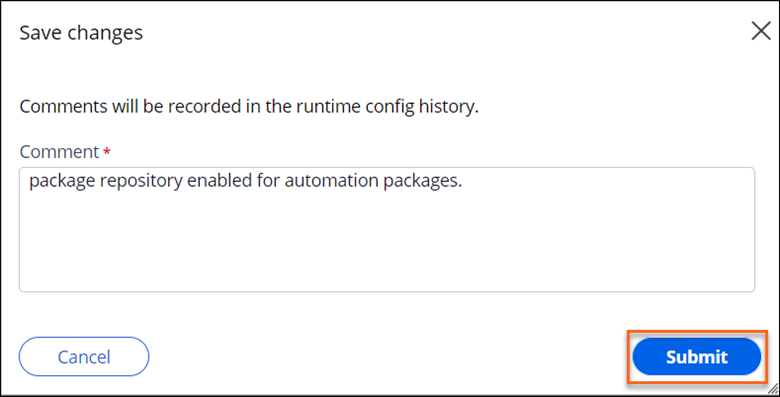
- Click the Submit button to save the configuration.
3 Manage the new Runtime configuration file
- In the navigation pane of Robot Studio, click Organization > Departments.

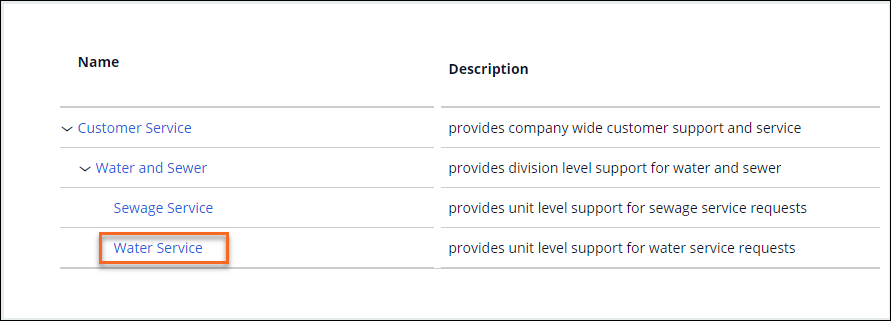
- On the Departments landing page, click Water Service to display the department landing page.
- Click Override to display the Override dialog window.

- In the Select setting list, select Package Repository Enabled.

- Click Submit to save the configuration setting.
Available in the following mission:
If you are having problems with your training, please review the Pega Academy Support FAQs.
Want to help us improve this content?