
Reviewing log files
Archived
2 Tasks
15 mins
Intermediate
Enterprise Application Development
Performance
English
Scenario
During the employee evaluation process, employees undergo an evaluation period to regularly assess their performance as new hires. To check the status of the evaluation period in the employee evaluation case type, the IsEvalPeriodEnded when rule checks if the entered evaluation date has passed. If the date entered by the user is within the evaluation period, the case moves to the next process of Assess employee. When the user enters a future date outside the evaluation period, the Assessment step is skipped, and the case moves to the Review stage.
While the correct syntax to evaluate the When condition for skipping the Assess employee process should read "Invalid Evaluation End date + .Enddate," a developer has misspelled the property as ".Emddate." At runtime, you notice the process is not returning the expected values. Review the log to discover this discrepancy.
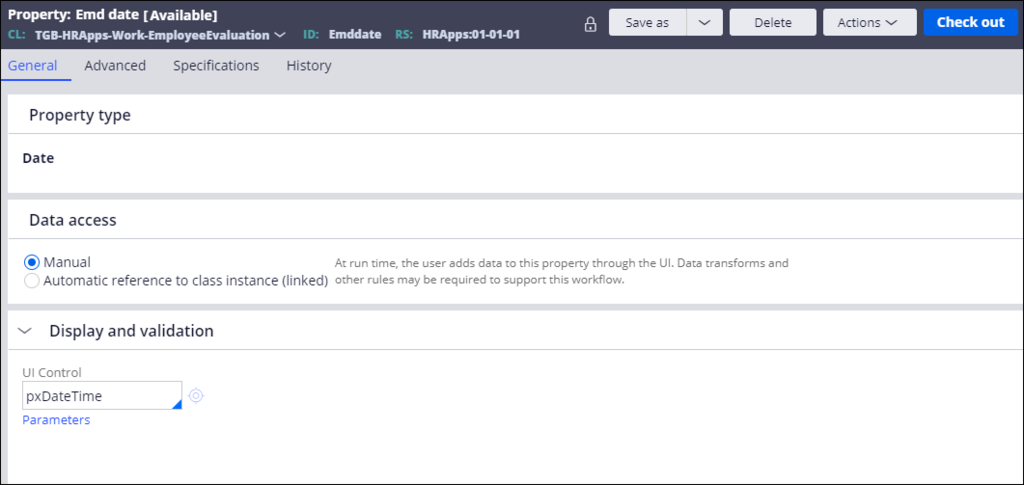
- Consider a scenario where the developer has created a new Property named Emddate
- In the Existing when condition IsEvalPeriodEnded the developer has misspelled EndDate as Emddate
- Create an activity that uses the Log-Message method to write a message to the PegaRULES log file only when the IsEvalPeriodEnded returns true
- Add this activity in the Run activity field under the Actions tab in the IdentifyAssessmentPeriod_0 flow action.
- Run the case and view the log file generated to see the message "Invalid Evaluation criteria End date"+ .Enddate
The following table provides the credentials you need to complete the challenge.
| Role | User name | Password |
|---|---|---|
| Senior System Architect | SSA@TGB | rules |
Note: Your practice environment may support the completion of multiple challenges. As a result, the configuration shown in the challenge walkthrough may not match your environment exactly.
Challenge Walkthrough
Detailed Tasks
1 Introduce the misspelled property
-
In the EmployeeEvaluation class, create a property Emddate of Date type.
-
In the same class, Open the existing when rule named IsEvalPeriodEnded and modify the End date with Emddate

2 Create an activity to add a message to the log file
-
In the EmployeeEvaluation class, create an activity record named WriteToLog.
Tip: To create an activity record, in the Application Explorer, right-click the class name and select Create > Technical > Activity. - In the first step of the activity, add an Enable when condition, and then set the following values: When IsEvalPeriodEnded, if true Skip Step ,if false Continue Whens

- In the Method field, enter or select Log-Message.
- In the Message field, enter "Invalid Evaluation criteria End date" + .Emddate
-
In the LoggingLevel field, enter InfoForced.
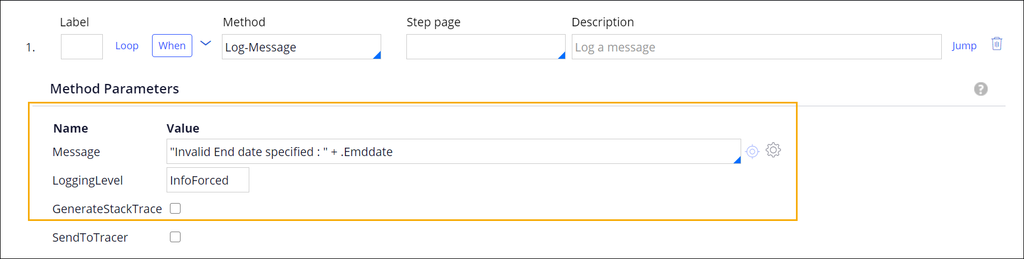 Note: By default, the PegaRULES log only records messages with the logging level set to Error. Setting the level to InfoForced overrides this limitation without changing the logging level setting for the server.
 -
Save the activity.
Note: Justify the Guardrail warnings before check-in, as creating a new Activity will prompt warnings. -
In the Employee Evaluation class, open the IdentifyAssessmentPeriod_0 flow action.
Tip: Flow action records are located in the Process category in the Application Explorer. - Click the Action tab.
- In the Post-processing section of the Action tab, in the Run activity field, enter or select WriteToLog to add your activity to the flow action as a post-processing action.
- Save the flow action to commit your configuration change.