
Using Pega Robot Simulator
5 Tasks
55 mins
Beginner
Robotic Process Automation
English
Scenario
MyTown wants to use Pega Robot Simulator to mimic a multi-robot scenario for specific Work Groups and assignment types. By simulating the scenario, testers can identify potential obstacles and test how Pega Robot Manager works under different conditions. Testers intend to use the Pega Robot Simulator to check the connection and configuration of Robot Manager, its supporting applications, and robots to ensure proper alignment with business needs for the MyTown RM application.
To finalize testing, complete the following tasks:
- Download and configure the Pega Robot Simulator to begin Pega Robotic Process Automation™ (RPA) services for each Case Type and register robots for each Work Group.
- Create Cases for each assignment type to test the robots' access to the correct assignment types based on the settings configurations.
Note: Enter the Operator IDs and passwords in the Robot Simulator precisely as you created them in the previous challenges because they are case-sensitive. If you receive any errors, verify your Operator ID and password and re-enter as needed. You might need to restart the Robot Simulator to re-enter the credentials.
The following table provides the credentials you need to complete the challenge:
| Role | User name | Password |
|---|---|---|
| Robot Manager System Administrator | RMSysAdmin | myt0wn@pp1 |
Detailed Tasks
1 Verify the case type installation
- In the Pega Platform™ instance for the challenge, enter the following credentials:
- In the User name field, enter RMSysAdmin.
- In the Password field, enter myt0wn@pp1.
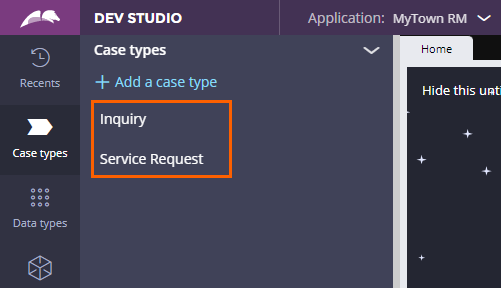
- In the navigation pane of Dev Studio, click Case Types.
- Confirm that the two new Case Types, Inquiry and Service Request, are associated with the assignment types and Work Groups.
2 Install RPA Simulator
- Click the following link to download the Robot Simulator setup files to a local directory:
PegaRPASimulatorSetup_23 2.zip (2.64 MB)
- Extract the contents of the Robot Simulator Setup ZIP file to the RobotManagerChallengeAssets folder.
Note: Create a new folder on your desktop named RobotManagerChallengeAssets if you have not already done so in the Configuring Organization Structure challenge.
- In the extracted Pega Robot Simulator Setup folder, double-click PegaRPASimulatorSetup.exe to start the application.

- On the setup screen, click Next, select I Accept, and then click Next to follow the instructions for the Pega RPA Simulator Setup.


- Click Install to complete the installation for the Pega RPA Simulator.

- Click Finish to complete the setup for the Pega RPA Simulator.

- Open the programs on your desktop, and then verify that the Pega RPA Simulator program is ready for use.

3 Open and configure the RPA Simulator
- Double-click PegaRPARobotSimulator.exe to start the application.
Note: A dialog box stating either Getting endpoints failed or Not Found might be displayed if you have previously started the Pega Robot Simulator application. In that case, click Ok to close it, and then continue logging into the simulator. If the issue continues, delete the RpaRobotSimulator folder (C:\ProgramData\Pegasystems\RpaRobotSimulator) on your computer if you have administrator access.
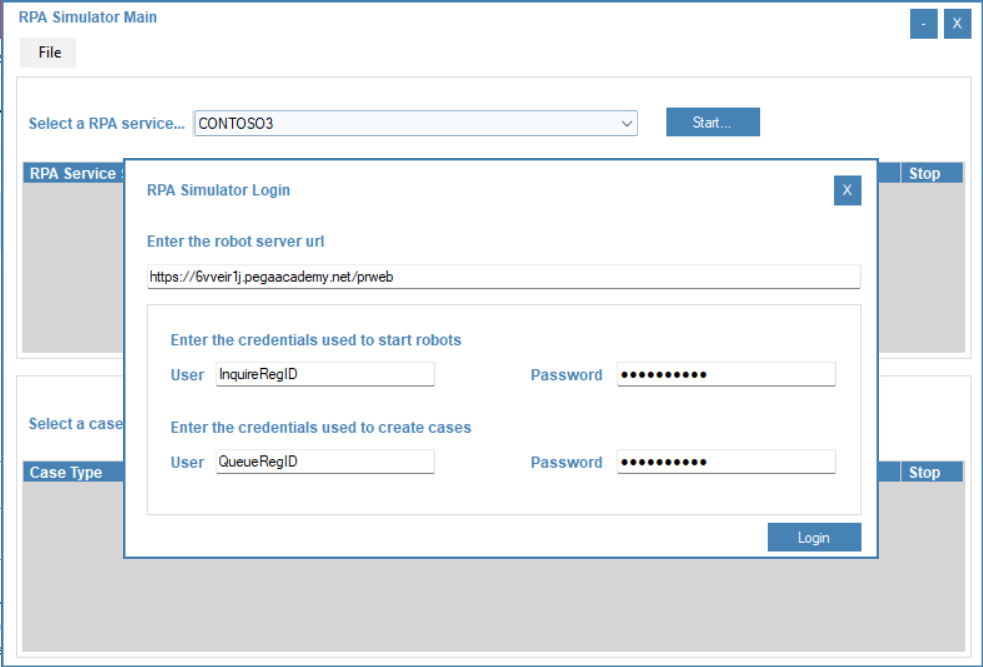
- In the RPA Simulator Login window, in the Enter the robot server URL field on the , enter https://#######.pegaacademy.net/prweb to connect the Robot Simulator to your Pega training instance.
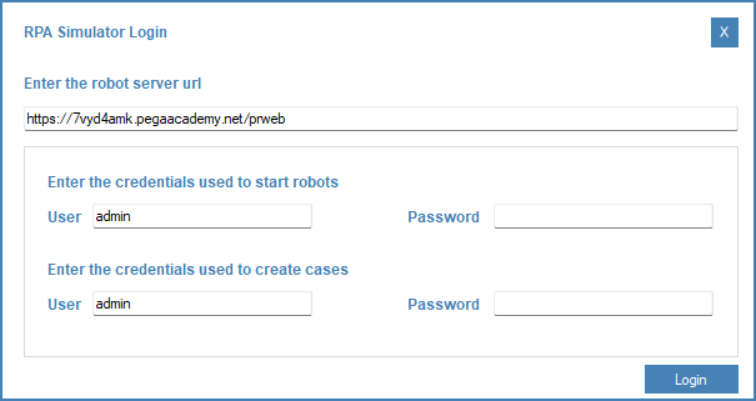
- In the Enter credentials used to start robots section, enter the login information:
- In the User field, enter InquireRegID.
- In the Password field, and InqRobot1!
- In the Enter credentials used to create cases section, enter the login information:
- In the User field, enter QueueRegID.
- In the Password field, and QueRobot1!
Note: The entered credentials are case-sensitive.
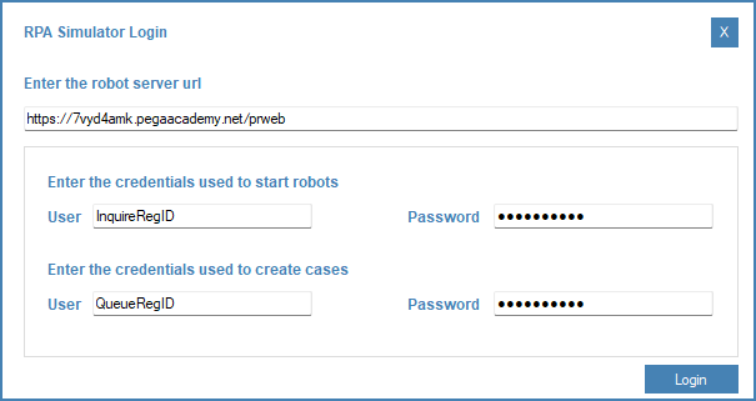
- On the RPA Simulator Login window, click .
The RPA Simulator Main window is displayed.Note: Confirm the URL, user, and password values if you receive an error message stating you cannot connect or that your credentials are incorrect.
4 Start RPA Services for Service Request and Inquiry
- In the upper-left corner, click File > Load simulation template.
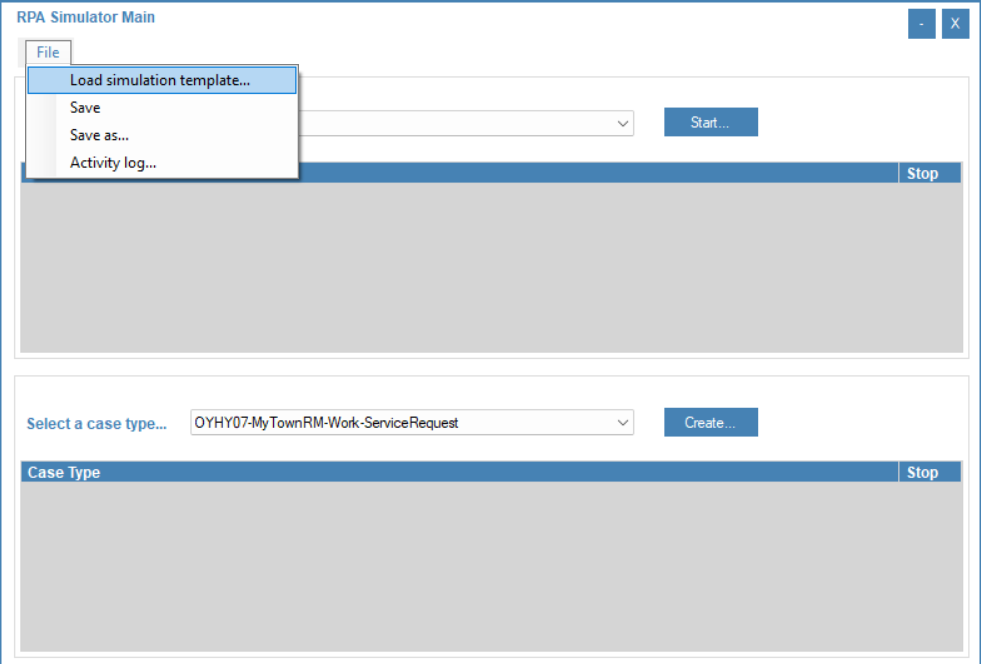
- Download the following file to the RobotManagerChallengeAssets folder:
default_profile_RPA.zip (749 bytes)
- In the File Explorer, select the default_profileRPA.sim file, and then click Open.

- In the RPA Simulator Login window, click Login to load the template.
- In the RPA Simulator Main window, in the Select a RPA Service list, select REQRPA.
- Click Start.
The RPA Simulator Configure RPA Service window is displayed.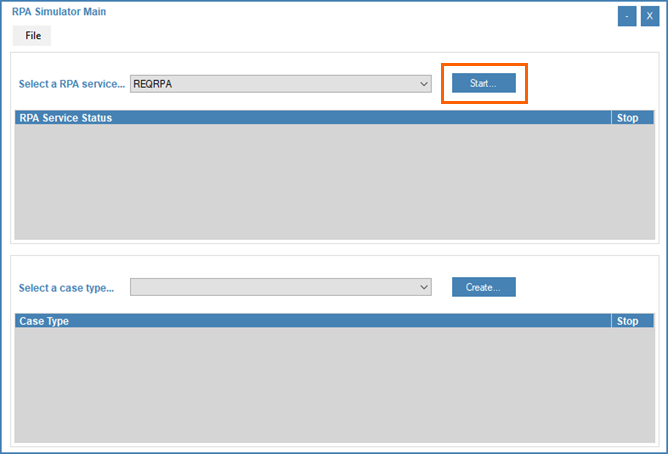
- In the RPA Simulator Configure RPA Service window, clear the Use Default credentials check box, and then enter the following credentials:
- In the User field, enter SvcReqRegID
- In the Password field, enter SvcRobot1!

- Leave all default values, and then click to close the configuration window and update the RPA Service Status.

- In the header of Dev Studio, click Launch portal > Robot Manager to open the Pega Robot Manager dashboard.

- In the navigation pane of Robot Manager, click Unattended RPA > Work Groups to access the Work Groups landing page.
- On the Work Groups landing page, click Service Request WG to access the Work Group details page.
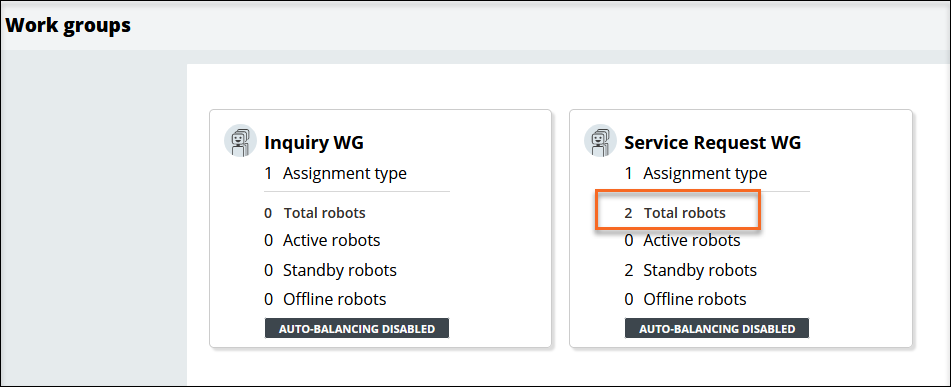
- On the Work Group details page, confirm that the SRQ00 and SRQ01 robots are in the Work Group in Standby mode.
 Note: If the robots are not displayed in the Work Group, stop the RPA Simulator Main window and exit the Robot Simulator. Validate the credentials for the needed service and attempt to restart.
 -
Repeat steps 4-10 to start the INQRPA Service by selecting the Use default credentials check box in the RPA Simulator Configure RPA Service window.
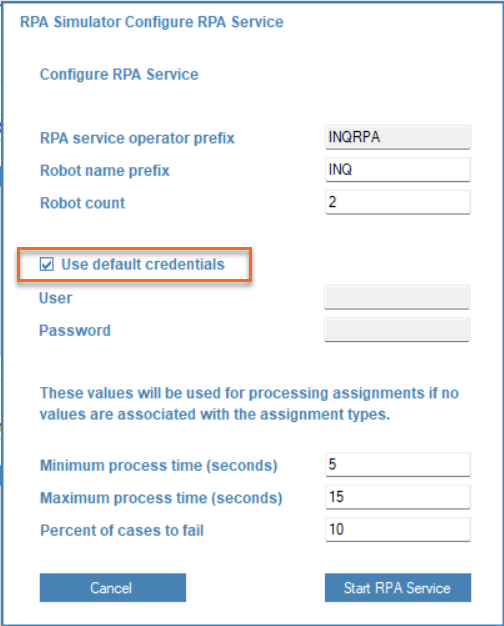
- In the navigation pane of Robot Manager, click Unattended RPA > Work Groups to return to the Work Groups landing page.
- Verify that the Inquiry Work Group now has two robots.

5 Process Cases with Pega Robot Simulator
- On the Work Groups landing page, click the Service Request WG tile.
- In the row for the SRQ00 robot, click More > Start.

- In the Start robots dialog box, click Yes to confirm that you want to start the selected robot.
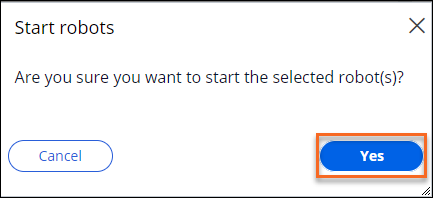 Note: If you do not see the confirmation dialog box, wait a few minutes, refresh the page, and then check that the Robots have started.
 - Refresh the page, and then verify the status icon changes from blue to green after the robot starts successfully.

- Repeat steps 3-4 to begin the start process for the SRQ01 robot.
- Return to the RPA Simulator Main window, and then in the Select a case type list, select MyTownRM-Work-ServiceRequest.
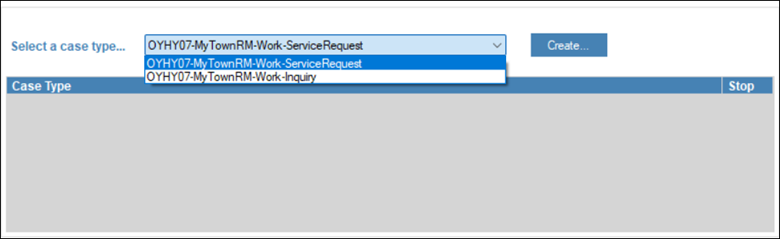
- Click Create.
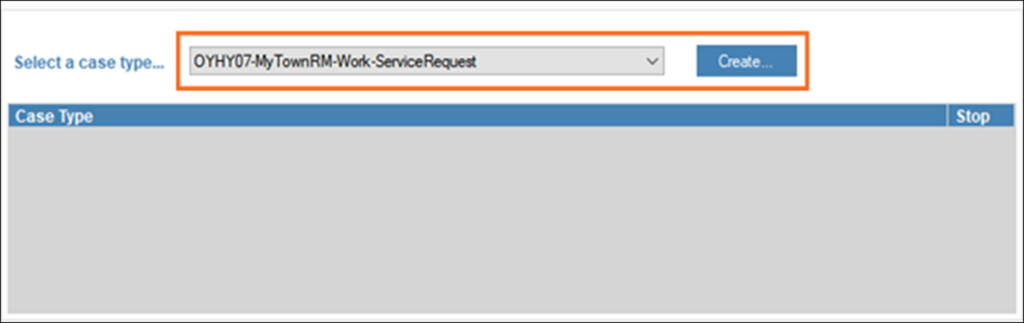
- In the RPA Simulator Case Creation window, clear the Maintain case load automatically check box.
- In the list, select Service Requests AT@MyTownRM.
Note: There might be instances when the queue name does not populate. If that occurs, select the second queue in the list.

- In the Cases to create field, enter 10, and then click Start Case Creation.
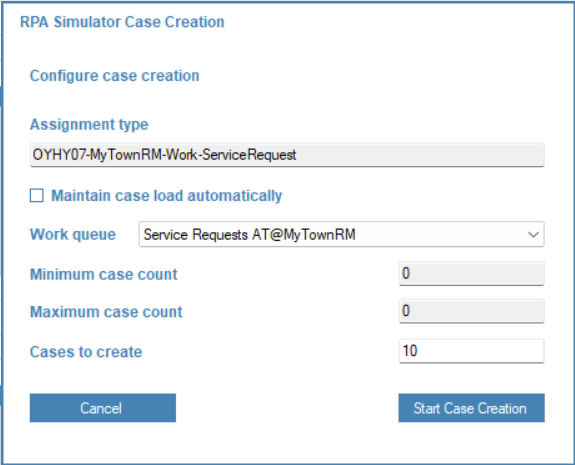
- In the Case Creation confirmation dialog box, click OK.
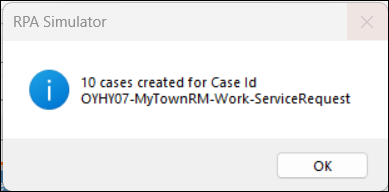
- In the window, click Cancel.
- Return to Pega Robot Manager and confirm that the 10 Cases are in the Assignment types queue.
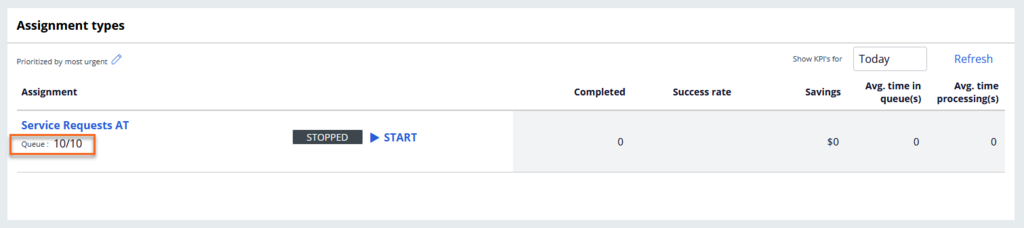
- In the Assignment types section, click Start to begin the queue processing.
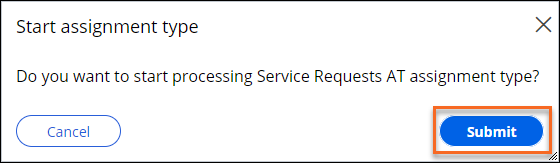
- In the Start assignment type dialog box, click Submit.
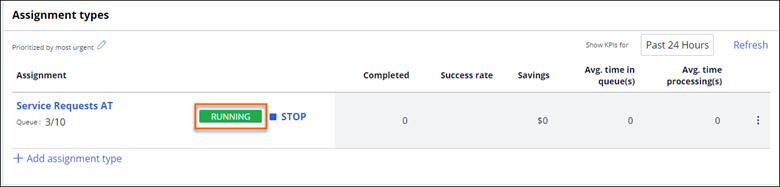
- Confirm that the status message on the assignment type changes from Standby to Running and that the robots begin processing the Cases in the assignment type.
 Note: Processing Cases can take a few minutes; you might need to refresh the page to view an updated list.
 - After all Cases are complete, click Stop to stop the Assignment Type.
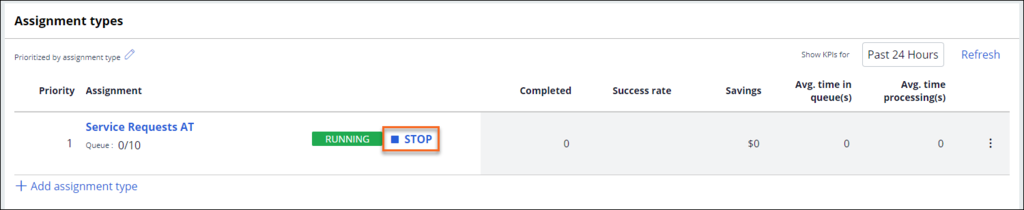
- In the Stop Assignment type dialog box, click Submit.
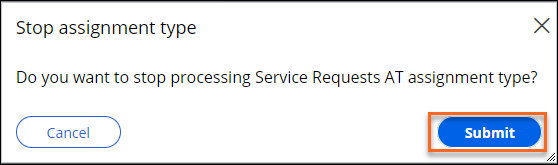
- Confirm that the status message changes from Running to Standby and that the robots stop processing the Cases in the assignment type.
- In the Robots section, select the checkbox for both robots.
- In the upper-right corner, click Bulk actions > Stop.

- In the Stop robots dialog box, click Yes to confirm you want to stop the robots.
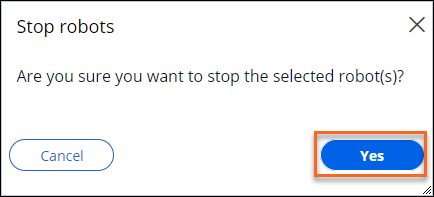
- In the navigation pane of Robot Manager, click Unattended RPA > Robots to access the Robots landing page.
- On the Robots landing page, verify that two robots in Standby mode are now assigned to the Service Request Work Group.
IMAGE
Available in the following mission:
If you are having problems with your training, please review the Pega Academy Support FAQs.
Want to help us improve this content?