
Collaborating in Spaces and Pulse
3 Aufgaben
10 Min.
Pega Platform 8.8
Anfänger
Case Management
Englisch
Szenario
Throughout the case lifecycle of the GoGoRoad application, members of the CSR team must stay in contact with one another. One of the most efficient ways for users to stay in contact is through the Pega Platform™ collaboration tools, Spaces and Pulse. As a manager in the CSR organization, you are tasked with creating a new Space called CSR Q&A to facilitate communication with your team. Once you create the Space, send a welcome message to your CSR teammates.
The following table provides the credentials you need to complete the challenge.
| Role | User name | Password |
|---|---|---|
| Manager | manager@gogoroad | pega123! |
| Customer Service | csr@gogoroad | pega123! |
Challenge-Schritte
Genaue Übungsschritte
1 Create a space
- In the Pega instance for the challenge, enter the following credentials:
- In the User name field, enter manager@gogoroad.
- In the Password field, enter pega123!
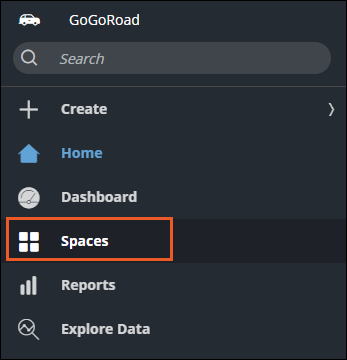
- In the navigation pane of the user portal, click Spaces.
- In the upper-right corner of the Spaces landing page, click Create space.
- In the Create a new space window, in the Name field, enter CSR Q&A.
- In the Description text box, enter Customer service representatives can ask and answer support questions.
- In the Space type list, select Anyone can request access. Owner must approve or invite.
- Click Done to close the Create a new space window.
2 Add a user to a space
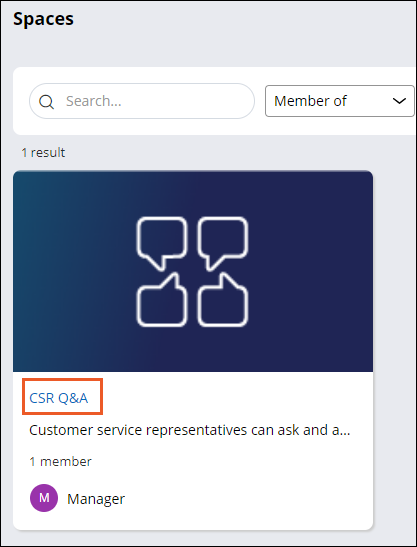
- On the Spaces landing page, click CSR Q&A to open the new space.
- In the CSR Q&A space, click Add member.
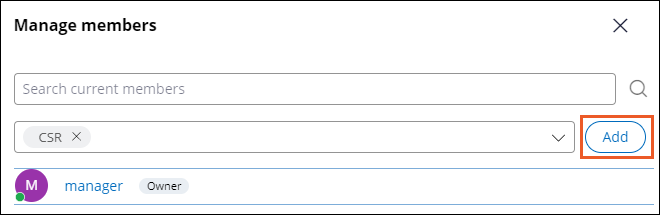
- In the Manage members window, in the second field, enter or select CSR, and then click Add.
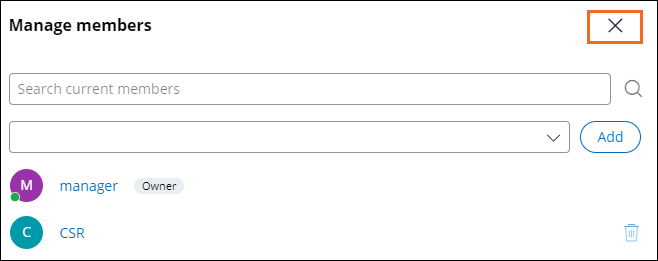
- Click Close to close the Manage members window.
3 Send a Pulse message
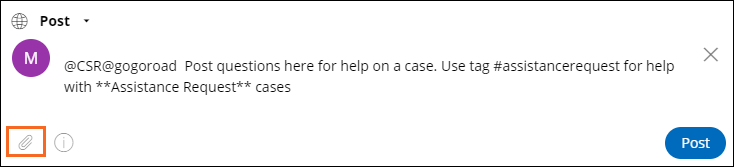
- In the Post section, enter @CSR, and then click the CSR account.
- In the Post section, enter Post questions here for help on a case. Use tag #assistancerequest for help with **Assistance Request** cases.
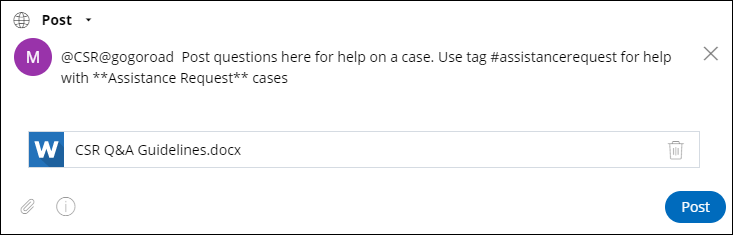
- Click Add Attachment, select a file, and then click Open to attach the file.
- Click Post to send the message.
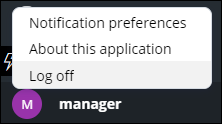
- In the lower-left corner of the user portal, click the user icon, and then select Log off to log out of the application.
Wenn Probleme mit den Lerninhalten auftreten, lesen Sie bitte die Pega Academy Support FAQs.
Möchten Sie uns dabei helfen, diesen Inhalt zu verbessern?