
Creating a churn prediction using an ML model
2 Aufgaben
15 Min.
Anfänger
Englisch
Szenario
U+ Bank implements Pega Customer Decision Hub™ to personalize the credit card offer a customer is presented on their website. If a customer is eligible for multiple offers, artificial intelligence (AI) decides which offer to show.
To customers that are likely to leave the bank soon, the bank wants to make a proactive retention offer instead of a credit card offer. The bank has recorded historical churn data for its customer base, which a data scientist used to create a churn model. You create a prediction that is driven by the churn model. This prediction can then be used by a decisioning architect in an engagement strategy.
Use the following credentials to log in to the exercise system:
| Role | User name | Password |
|---|---|---|
| Data scientist | DataScientist | rules |
Vorsicht: This challenge requires specific artifacts. Ensure that you click Initialize (Launch) Pega instance for this challenge to get the correct exercise system.
Your assignment consists of the following tasks:
Task 1: Create a new prediction
As a data scientist, create a new prediction to calculate churn risk.
Task 2: Replace the scorecard with the churn model in the new prediction
Replace the placeholder scorecard with the ChurnPML model from the Model list in the new prediction.
Hinweis: The prediction is created in a branch in the development environment. A system architect needs to merge the branch to the application to ensure that the prediction is part of the CDH-Artifacts ruleset. Only then can the changes be deployed to the other environments using the enterprise change pipeline.
Challenge-Schritte
Genaue Übungsschritte
1 Create a new prediction
- On the exercise system landing page, click Pega CRM suite to log in to Customer Decision Hub.
- Log in as a data scientist with user name DataScientist and password rules.
- In the navigation pane on the left, click Intelligence > Prediction Studio.
- In the upper-right corner, click New to create a prediction.
- Ensure that Customer Decision Hub is selected, and then click Next.
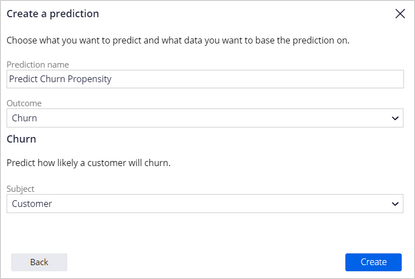
- In the Prediction name field, enter Predict Churn Propensity.
- In the Outcome field, select Churn.
- In the Subject field, select Customer.
- Click Create.
- In the upper-right corner, click Save.
2 Replace the scorecard with the churn model in the new prediction
- On the Models tab, in the Churn section, click the More icon for the Predict Churn Propensity prediction.
- Click Replace model.

- Ensure that Model is selected, and then click Next.
- Clear the Compare the models checkbox.
- In the Model list tab, select the ChurnPML model.
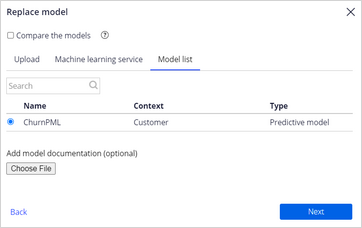
- Click Next.
- Click Replace.
- When the status of the Churn model changes to Ready for review, click ChurnPML (M-1).

- In the upper-right corner, click Evaluate.
- Ensure that Approve candidate model and replace current active model is selected.
- In the Reason field, enter the appropriate information.
- Click Save.
- Confirm that the Churn model has replaced the placeholder scorecard as Active in the prediction.

Wenn Probleme mit den Lerninhalten auftreten, lesen Sie bitte die Pega Academy Support FAQs.
Möchten Sie uns dabei helfen, diesen Inhalt zu verbessern?