
Creating a Digital Messaging channel interface
2 Aufgaben
10 Min.
Anfänger
User Experience
Constellation
Englisch
Szenario
U+ Bank wants to set up its chatbot to respond to service requests received from several digital channels. As an initial step, the bank first wants to create a Digital Messaging interface to respond to requests received from its website.
As an admin, create a Digital Messaging interface for Web Messaging channel to implement the business scenario.
Use the following credentials to log in to the exercise system:
| Role | User name | Password |
|---|---|---|
| CS Application Administrator | CSAppAdmin | password123! |
Your assignment consists of the following tasks:
Task 1: Create a new Digital Messaging channel interface
Create a new Digital Messaging channel interface to respond to service requests received from the U+ Bank website.
Task 2: Set up the Digital Messaging for Web Messaging channel
Set up a connection between the retail bank and Web Messaging.
Task 3: Confirm your work
On the U+ Bank website, confirm that the chat widget is added, and the welcome message is displayed.
Challenge-Schritte
Genaue Übungsschritte
1 Create a Digital Messaging channel interface
- Log in as an application administrator with User name CSAppAdmin using Password password123!.
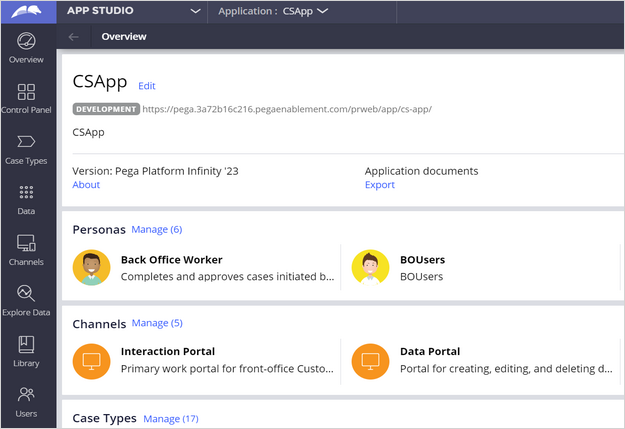
- In the navigation pane of App Studio, click Channels to create a new channel interface for Digital Messaging.
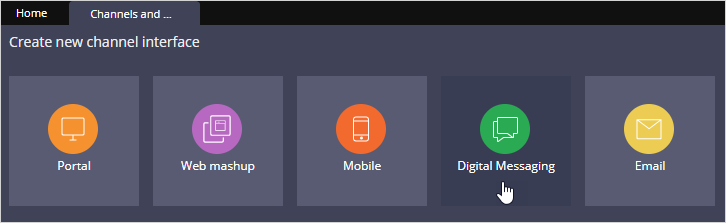
- In the Create new channel interface section, click Digital Messaging to create a channel.
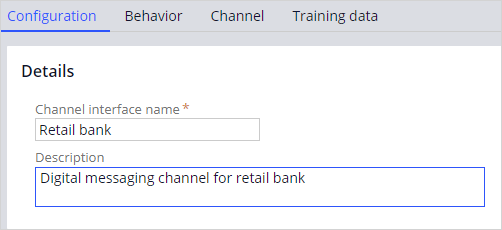
- On the Configuration tab, enter the following details:
- Channel interface name: Retail bank
- Description: Digital messaging channel for retail bank
- On the Behavior tab, in the Text Analyzer, uncheck Enable small talk.
- On the Connection tab, In the Set up section, enter Template Operator as CSAppAdmin.
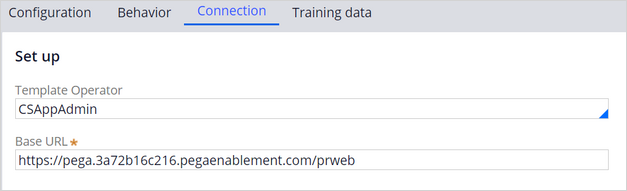
Hinweis: The Base URL gets automatically populated. Make sure the Base URL is same as your current enablement instance URL.
- Click Save.
2 Set up the Digital Messaging for Web Messaging channel
- In the Connection section, click Manage connections to set up the Intelligent Virtual Assistant (IVA) for Digital Messaging for multiple social messaging channels.
The system displays the Digital Messaging Manager window. - Click Add connection.
- Click Web Messaging to install a chat widget on the U+ Bank website.
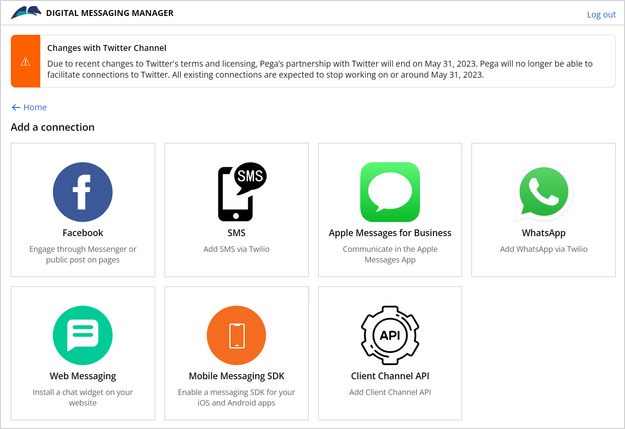
- On the New Web Messaging home screen, on the General tab, enter the following details:
- Name: Retail bank
- Chat heading: Let's chat
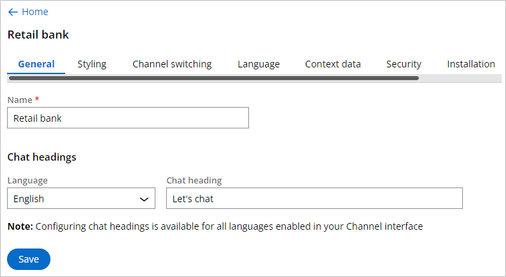
- Click Save to make a successful connection between the retail bank and Web Messaging.
- On the Installation tab, copy the URL, and then close the Digital Messaging Manager window.
Hinweis: You can paste the URL into each web page where you want the Web Messaging widget to display.
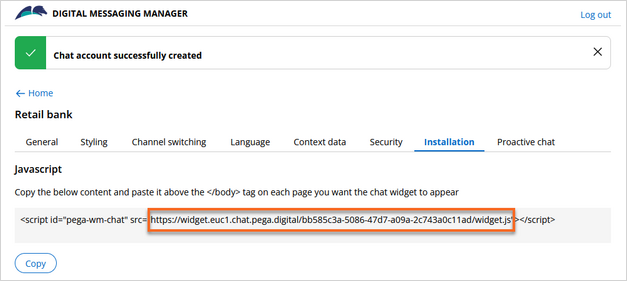
In der folgenden Mission verfügbar:
Wenn Probleme mit den Lerninhalten auftreten, lesen Sie bitte die Pega Academy Support FAQs.
Möchten Sie uns dabei helfen, diesen Inhalt zu verbessern?