

Creating reports that combine data from multiple classes
2 Aufgaben
10 Min.
Mittel
Reporting
Englisch
Szenario
The business partners in the Human Resources (HR) department request two reports.
The first report must track the progress of candidate Cases generated in the HRApps application. This report must return a list of open Cases and display the status, Urgency, assigned workbasket, and current Task for each Case.
The second report must comply with government regulations that require employees to enroll in a health insurance plan. For each onboarding Case, this report must return the last name of the associated employee, the ID of the benefits enrollment child Case, the current status of benefits enrollment child Case, and the medical insurance plan that the employee selects.
Hinweis: Before you begin, generate five Candidate Case instances with varying Case work statuses and generate five Onboarding Case instances with varying medical plan selections.
The following table provides the credentials you need to complete the challenge.
| Role | User name | Password |
|---|---|---|
| Senior System Architect | SSA@TGB | pega123! |
Hinweis: Your practice environment may support the completion of multiple challenges. As a result, the configuration shown in the challenge walkthrough may not match your environment exactly.
Challenge-Schritte
Genaue Übungsschritte
1 Create a report that joins classes referencing an association Rule
- In the Pega instance for the challenge, enter the following credentials:
- In the User name field, enter SSA@TGB.
- In the Password field, enter pega123!.
-
In the Candidate Case Type, create a report definition named Candidates by workBasket.
Tipp: To create the report definition, in the Application Explorer, right-click the Case Type and select Create > Reports > Report Definition. -
In the Edit columns section, in the Column source and Column name fields, enter the following values. Use the pxWorkbasketAssignments prefix to identify the properties in the Assign-Workbasket class you want to use in the report.
Column source Column name .pyID Case ID .pyStatusWork Work Status pxWorkbasketAssignments.pxAssignedOperatorID Workbasket ID pxWorkbasketAssignments.pxUrgencyAssign Urgency of Assignment pxWorkbasketAssignments.pxTaskLabel Task Label Hinweis: Selecting one of the three properties with the pxWorkbasketAssignments prefix adds an association Rule to the report.After you enter the values, the columns look like the following image.
- Save your report definition.
2 Create a report that uses a class join in the report definition
- In the Onboarding Case Type, create a report definition named Employee medical selection.
- Click the Data Access tab.
- In the Class joins section, click Add class join to add a row.
- In the Prefix field, enter BE to create a prefix for benefits enrollment Cases; use this prefix to reference properties in the Benefits Enrollment class.
- In the Class name field, enter TGB-HRApps-Work-BenefitsEnrollment. This is the class to which you want to join the report class.
- Keep the default value in the Type field Only include matching rows.
- At the end of the row, click Edit Conditions to display the Enter filter Conditions dialog box.
- In the Column field, enter BE.pxCoverInsKey.
- In the Value field, enter .pzInsKey.
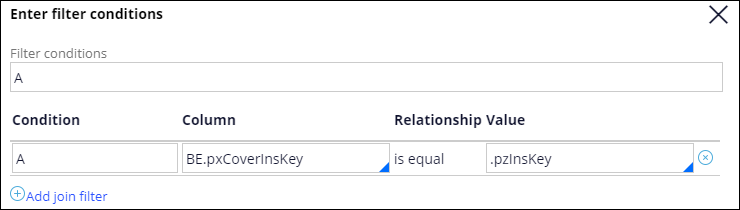
- Click Submit to save your filter Condition and close the dialog.
- Click the Query tab.
- In the Edit columns section, enter the following Column source and Column name values. Use the BE prefix to find properties in the TGB-HRApps-Work-BenefitsEnrollment class you want to use in the report.
Column source Column name .pyID Onboarding Case ID .Employee.pyLastName Last Name BE.pyStatusWork Benefits Enrollment Work Status BE.pyID Benefits Case ID BE.MedicalPlan.Name Plan name Hinweis: The Employee Medical Selection report references the Case ID (pyID) of two Case Types (Onboarding & Employee Benefits) but uses the same label of Case ID. A best practice with a report is to eliminate duplicate column names. - Save your report definition.
In dieser Challenge üben Sie, was Sie im folgenden Modul gelernt haben:
In der folgenden Mission verfügbar:
Wenn Probleme mit den Lerninhalten auftreten, lesen Sie bitte die Pega Academy Support FAQs.
Möchten Sie uns dabei helfen, diesen Inhalt zu verbessern?