
Creating an action
3 Aufgaben
5 Min.
Anfänger
Englisch
Szenario
The System Architect just completed running the Setup Wizard for Pega Customer Decision Hub™ for Financial Services industry. The Financial Services framework data model is installed as part of the setup.
As a Decision Architect, you are to create a set of artifacts in the development environment (actions, treatments, contact policy rules, and so on) to validate the setup and ensure that everything the business needs is configured and works end-to-end.
During the challenges, a test application, U+ Bank, simulating the bank's website, is used.
As a first step, The U+ marketing team wants to use a Standard card with "0% APR" and "no annual fee" as the first promotion.
Use the following credentials to log in to the exercise system:
| Role | User name | Password |
|---|---|---|
| Decisioning Architect | DecisioningArchitect | rules |
Your assignment consists of the following tasks:
Task 1: Create an action called Standard Card
Create an Action called Standard card under the Grow issue and Credit cards group.
Task 2: Enter action details
Enter action details such as Description and Benefits to capture the characteristics of the promotion to be displayed on the website.
Task 3: Verify the newly created action
On the Content > Actions landing page, verify that the newly created Standard card action is listed.
Challenge-Schritte
Genaue Übungsschritte
1 Create an action called Standard card
- On the exercise system landing page, click Pega InfinityTM.
- Log in as the Decisioning Architect:
- In the User name field, enter DecisioningArchitect.
- In the Password field, enter rules.
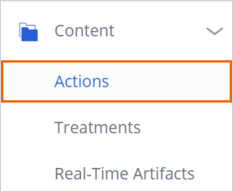
- In the navigation pane of Customer Decision Hub, click Content > Actions to open the Actions landing page.
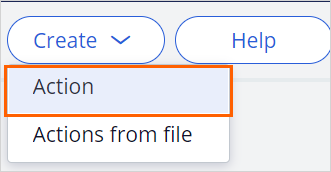
- On the Actions landing page, in the upper right, click Create > Action to open the Create Action window.
- In the Create Action window, enter or select the following information:
- Short description: Standard card
- Issue: Grow
- Group: Credit cards

- In the upper right, click Create and open to open the Edit Action form.

2 Enter action details
- In the Edit Action form, on the Details tab, enter the following details:
- Description: 0% APR and no annual fee
- Benefits: 0% intro APR for 15 billing cycles. $0 intro balance transfer fee. No annual fee.
- Thumbnail image: StandardCreditCard.png
- Key code: STANDARDCARD
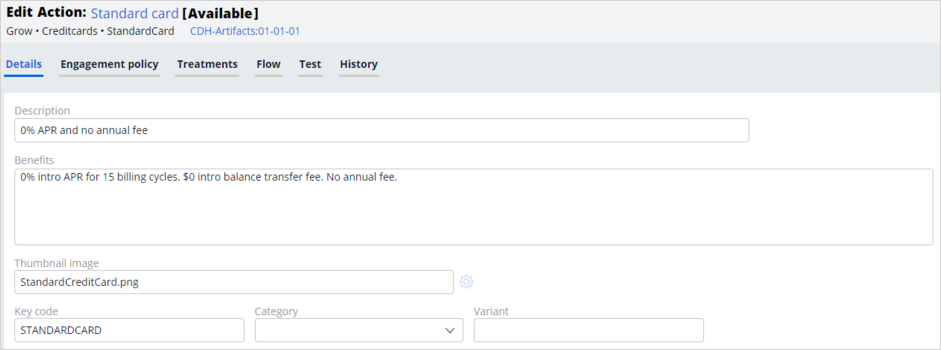
- Click Save to save the values that you entered.
3 Verify the newly created action
- Close the action to return to the Actions landing page.
- Refresh the Actions landing page to see the Standard card action in your results.


In dieser Challenge üben Sie, was Sie im folgenden Modul gelernt haben:
In der folgenden Mission verfügbar:
Wenn Probleme mit den Lerninhalten auftreten, lesen Sie bitte die Pega Academy Support FAQs.
Möchten Sie uns dabei helfen, diesen Inhalt zu verbessern?