
Creating a churn prediction using an ML model
2 Tâches
15 mins
Débutant
Anglais
Scénario
U+ Bank implements Pega Customer Decision Hub™ to personalize the credit card offer a customer is presented on their website. If a customer is eligible for multiple offers, artificial intelligence (AI) decides which offer to show.
To customers that are likely to leave the bank soon, the bank wants to make a proactive retention offer instead of a credit card offer. The bank has recorded historical churn data for its customer base, which a data scientist used to create a churn model. You create a prediction that is driven by the churn model. This prediction can then be used by a decisioning architect in an engagement strategy.
Use the following credentials to log in to the exercise system:
| Role | User name | Password |
|---|---|---|
| Data scientist | DataScientist | rules |
Your assignment consists of the following tasks:
Task 1: Create a new prediction
As a data scientist, create a new prediction to calculate churn risk.
Task 2: Replace the scorecard with the churn model in the new prediction
Replace the placeholder scorecard with the ChurnH2O model.
Note: When you create or modify a prediction, an automatic change request is generated in the current revision. Once the Revision Manager deploys the revision, the changes take effect.
Présentation du défi
Détail des tâches
1 Create a new prediction
- On the exercise system landing page, click Launch Pega Infinity™ to log in to Customer Decision Hub.
- Log in as a data scientist:
- In the User name field, enter DataScientist
- In the Password field, enter rules.
- In the navigation pane on the left, click Intelligence > Prediction Studio.
- In the upper-right corner, click New to create a prediction.
- Ensure that Customer Decision Hub is selected, and then click Next.
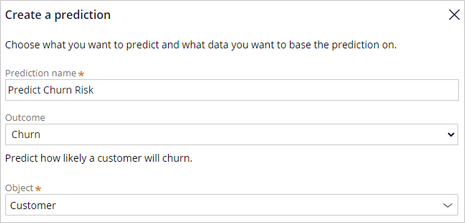
- In the Prediction name field, enter Predict Churn Risk.
- In the Outcome field, select Churn.
- In the Object field, select Customer.
- Click Create.
- In the upper-right corner, click Save.
2 Replace the scorecard with the churn model in the new prediction
- Download the ChurnH2O.zip file to your local machine, and then extract the ChurnH2O.mojo file.
- On the Models tab, in the Churn section, click the More icon for the Predict Churn Risk prediction.
- Click Replace scorecard.

- In the Introduce challenger model dialog box, select Model, and then click Next.
- Select Upload model file, and then select the ChurnH2O.mojo model file.
- Click Next, ensure that Compare models is not selected, and then click Next.
- In the Candidate model name field, enter ChurnH2O, and then click Add challenger model to add the ChurnH2O model to the prediction.
- When the status of the ChurnH2O model changes to Challenger (pending review), click the More icon in the ChurnH2O row, and then select Approve challenger model.
- Ensure that Approve candidate model and replace current active model is selected.
- Enter appropriate comments, and then click Approve.
Ce défi vise à appliquer ce que vous avez appris dans le Module suivant :
Disponible dans la mission suivante :
If you are having problems with your training, please review the Pega Academy Support FAQs.
Want to help us improve this content?