
Mobile app Channels
Mobile Channels have become more powerful and easy to use by providing additional, convenient access Channels to support employees in the field. You can use the existing mobile Channel in App Studio to quickly build a consumer-grade app or modify an app to meet your needs.
Note: Constellation UI is the preferred UI for all new and reworked applications. To make the most use of Pega Mobile features, select Constellation as the UI architecture for your new app. Constellation apps use native Android and iOS components to create a new run-time interface. For more information about configuring mobile apps in Constellation, see Using the Constellation UI architecture for mobile apps.
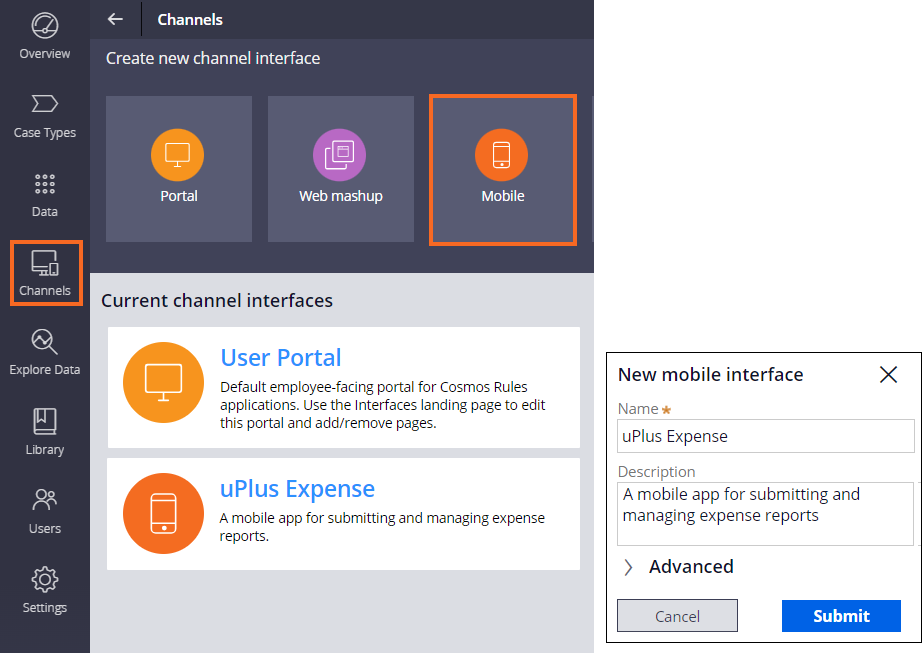
When configuring a new mobile Channel for your Pega Platform application, your new mobile Channel contains a set of out-of-the-box components that you can use as a starting point in the design of your app. A mobile Channel provides developers a way to configure various aspects of mobile app behavior intuitively. For example, you can set up a mobile Channel for an expense reporting application to build an app that supports users who work away from their desks.
The following figure shows a mobile Channel, uPlus Expense:
The mobile Channel groups settings logically on the Content, Configuration, Layout, and Manage tabs. The Channel provides a real-time Preview of the app design, tailored to the current tab.
In the following image, click the + icon to learn more about the mobile Channel interface:
Mobile app content
Enhance the content of your mobile app by managing the out-of-the-box user interface pages or adding custom ones. Implement native components, such as mobile search or a floating Action button, to further improve the user experience.
List pages
A list page is a native screen that displays list content. A list page has fluent transitions and a search bar in the header by default, which improves the responsiveness and load time of the user interface in your mobile app. For example, you can create a native list page that displays all expenses in the Lodging category. A manager who uses your app can search for a specific employee name to get results that include all the lodging expenses of that employee.
In prescriptive low-code authoring for list pages, you can use Case Types from your Pega application. You can then fine-tune how your app displays the Case Type data on mobile devices. The following figure shows how you would design a new mobile list page called Expense Claim List:

Note: For more information about configuring list pages, see Authoring mobile list pages.
Case pages
With a Case page, users can efficiently view and edit Cases on their mobile devices. Customize Case pages in the low-code authoring environment to highlight the most relevant information in one user-friendly mobile View.
You can customize the Case page by adding Views and organizing Views into tabs, to best address user needs specific to your business. Pega Platform provides several predefined Views and widgets that you can add to your Case page, for example, a To do View that displays a list of tasks associated with the Case, or the Pulse widget that provides users with a space for exchanging Case-related information. You can also add your own custom Views to the Case page.
Note: For more information about configuring Case pages, see Authoring Case Pages for Constellation.
Mobile app security
Each mobile app Channel is associated with a single user Persona to determine who has access to the Channel. In the following image, the ManagePro Channel is associated with the Manager Persona:

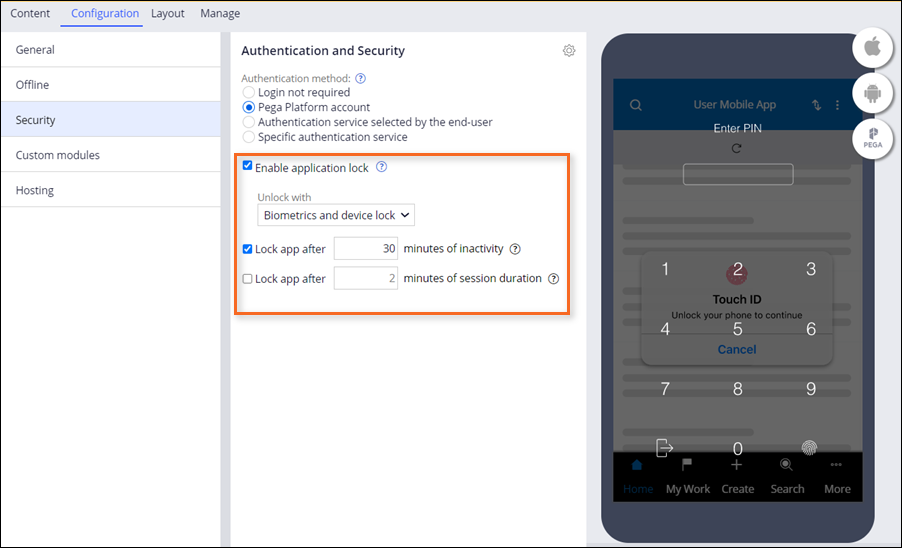
To make your mobile app more secure, you can use the Security tab to select an authentication model and configure the locking settings for your app. You can also disable authentication requirements for users who want to access the app by selecting a role that determines which users have access to the mobile Channel, as shown in the following figure:
Mobile app branding
Use Pega Platform to build consistent mobile apps in a low-code, prescriptive environment. For a professional look and feel and to ensure a consistent user experience across the Channels, select a preexisting theme to match the branding requirements.
Icon and launch screen design
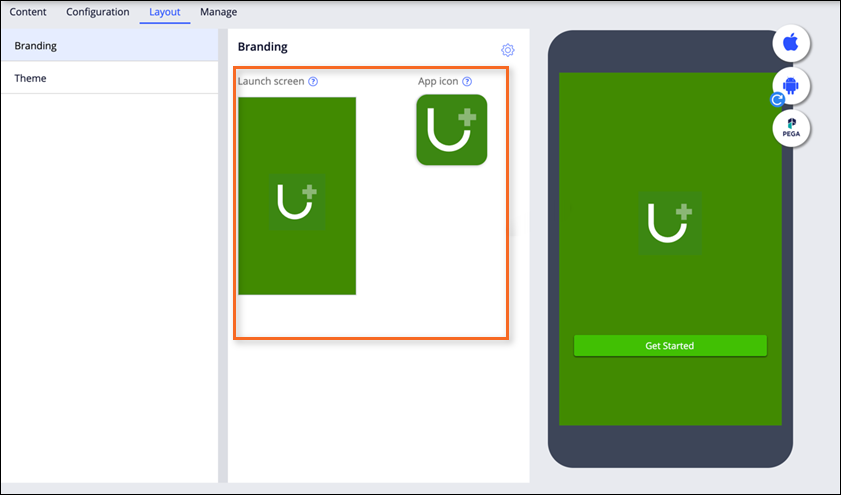
To ensure that users can easily recognize and find your mobile app, use the Mobile app Preview to create a personalized app launch screen and icon and specify corresponding icons and background colors, as show in the following figure. You can customize the app branding by uploading an image, selecting from a list of font icons, or using the default text-based icons.
For advanced settings, you can turn on advanced branding to upload a ZIP file with custom branding that adds assets to the existing design model.
Note: For more information about configuring the mobile launch screen and app icon, see Customizing the icon and launch screen of mobile apps. For more information about configuring advanced branding, see Customizing the image assets of mobile apps.
Mobile app previewing
In the mobile app preview area, you can click to model the Channel configuration on a mobile device with the Pega Mobile Preview app. With Pega Mobile Preview, you do not have to obtain certificates or generate your mobile app package before you access the contents of your mobile app.
Downloading a native mobile app and previewing an app with Pega Mobile Preview requires logging in to Pega Platform over a secure HTTP (HTTPS) connection. You can use Pega Mobile Preview to access your Pega Platform application on your device as a mobile app for up to 30 days by scanning the provided QR code.
Tip: Do not use Pega Mobile Preview for production purposes. Pega Mobile Preview shows an approximation of user experience that can help you develop and test your mobile app until you generate a mobile app package. However, Pega Mobile Preview does not support certain features. For example, push notifications are inactive, and custom branding assets are not displayed.
When you finish developing the content for your mobile app, prepare your app for testing and distribution by generating an installation package. Building a native iOS or Android mobile app from the Channel configuration requires configuring access to the mobile app build server and creating a certificate set from uploaded signing certificates provided by a recognized certificate authority.
Note: Mobile app distribution includes advanced configuration tasks. For more information about preparing and generating a mobile app package, see Generating native mobile apps.
Check your knowledge with the following interaction:
This Topic is available in the following Module:
If you are having problems with your training, please review the Pega Academy Support FAQs.
Want to help us improve this content?