
Skipping a Stage or Process
Another situation for Conditional Execution can be leveraging a When Condition Rule to control whether a Stage or a Process runs, or is skipped in the Case Lifecycle at run time.
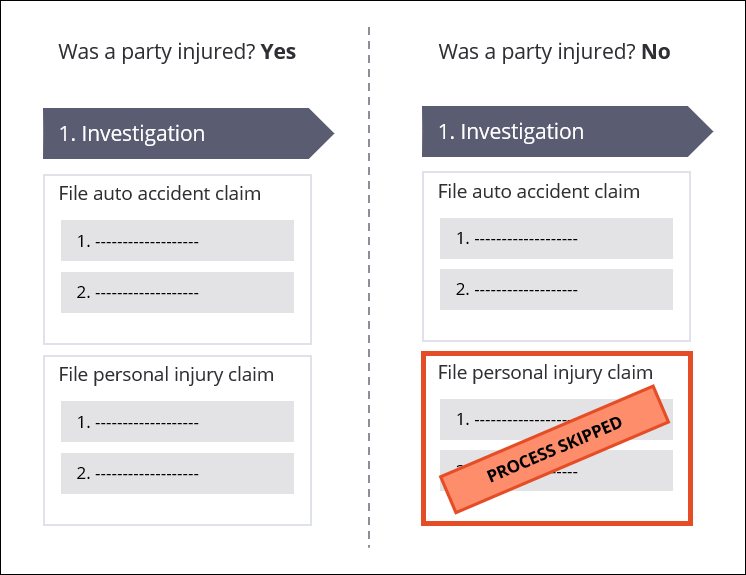
For example, an automobile accident Case contains a Process to open a personal injury claim if there is an injured party in the accident. However, if the car received damage while parked and unattended, the personal injury Process can be skipped. The File auto accident claim Process always runs, which is the default setting for Processes. The File personal injury claim Process is configured with a condition: Was a party injured is equal to Yes. As a result, the File personal injury claim runs only when there is a personal injury associated with the accident claim. Otherwise, the Process is skipped, as shown in the following image:
In this topic, learn how When Rules are used to control when Stage or Process is skipped, provided the business logic for the Case indicates any one of these are not needed for a particular situation.
Skipping a Stage or Process
The typical path of events in a Case Lifecycle never skips a Stage and always begins a Process. With conditional execution, it is possible to deviate from this normal path. The system runs or skips Stages and Processes if the run-time values of the Case match the conditional logic defined on the entry.
Skipping a Stage
By default, a Case never skips a Stage. However, it is possible to configure a condition so that the Case skips the Stage.
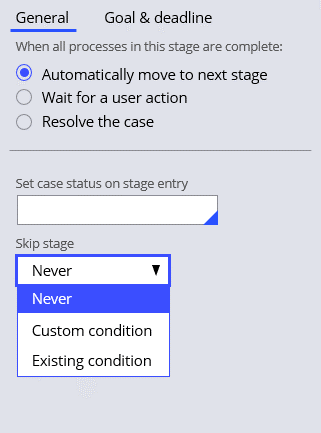
In the Case Lifecycle, select the Stage of interest to configure the Condition. As shown in the following figure, you can select either Custom or Existing condition to skip the Stage, and then create or select the When Condition Rule that controls the behavior.
By default, a Stage never skips unless a condition is present. The following image displays the Skip stage options:
Tip: The Create Stage is the only Stage that the system cannot skip.
Skipping a Process
The default configuration of a Case always begins a Process. However, you can configure a condition to skip a Process.
In the Case Lifecycle, select the Process of interest. As shown in the following figure, you can select either Custom or Existing condition to skip the Process, and then create or select the When Condition Rule that controls the behavior:

Building Conditions
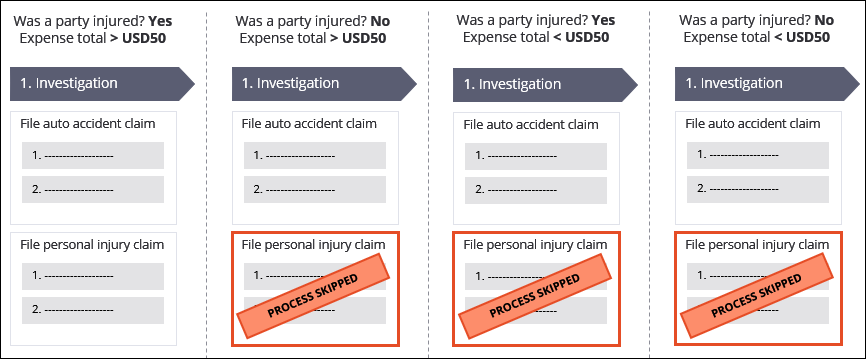
You can add more than one condition to a Stage or Process. For example, in the automobile accident case, the personal injury Process initially runs based on a single condition: Was a party injured is equal to Yes. You decide that the personal injury Process should run based on two conditions: Was a party injured is equal to Yes and Expense total is greater than USD50. The File personal injury claim Process is configured only to run when Was a party injured is Yes, meaning there is a personal injury associated with the accident claim, and the Expense total is greater than USD50. Otherwise, the Process is skipped. The following image displays whether the File personal injury claim process is skipped based on example values for the Was a party injured and Expense total fields:
Check your knowledge with the following interaction:

This Topic is available in the following Modules:
If you are having problems with your training, please review the Pega Academy Support FAQs.
Want to help us improve this content?