

Using Agile Studio and Agile Workbench
As a Pega Business Architect (BA), you are a member of the Agile project management team- whether it be scrum or another framework, and integral to the following application development responsibilities:
- Plan current and future application needs via Microjourneys and MLP releases
- Manage the project team's backlog to make sure you can delivery your MLPs effectively
- Execute the assigned work on schedule
There are many project management tools available to facilitate these responsibilities, including Jira, Trello, CA Agile Central, and Pega Platform's own tools- Agile Studio and Agile Workbench.
In this topic, explore Agile Studio, its relationship to Agile Workbench, and how they are used to make your application development and delivery responsibilities more efficient and easier to manage.
Agile Studio
Scrum project management tools include the features commonly used to support the creation and management of Scrum projects. These features include the ability to create and manage products, releases, epics, user stories, tasks, reporting requirements, and individual and team Worklists.
As a Pega BA, the Scrum management tools you could encounter include, but are not limited to, Jira, Trello, Asana, or Pega's very own Agile Studio.
Agile Studio is built on Pega Platform, and is Pega's environment for the Product Owner, Scrum Master, and Business Architects to collaborate on the project plan, manage project scope, and create the user stories that direct application development, all in the context of Scrum.
Built on Constellation, Agile Studio's Portal is very much like that of a Pega application's Web Portal.
In the following image, click the + icons to learn more about a user's Agile Studio Home page:
- Global navigation: The Global navigation area on the left of the Agile Studio window navigation elements that allow users to quickly access their Home page, Followed items, Planning board, direct messages sent through Pulse, and Notifications, just to name a few.
- Worklist: The Worklist sections displays a user's work items including status and Urgency.
- Announcements: Efficiently disseminate important information to project stakeholders using the Announcements section.
- Pulse: The Pulse Section displays a user's recently received messages from project stakeholders.
As a Pega BA, you will create and edit user stories in an activity page in Agile Studio. The activity page is set up identically to the Full Case View that end-users see when working on a Case in the Web Portal.
Match the numbers to the following image to review the setup of an activity page in Agile Studio:
- Summary panel: The Summary panel contains the most relevant information about a product, epic, user story or other scrum artifact created to support the project. The Summary panel includes tabs for quick access to additional information like Details, Pulse, and Bugs.
- Work area: The middle part of the main window is the work area, which contains the interactions and activities that you will use to create, review, and edit the scrum artifacts used on the project. At the top of the work area is the Case Life Cycle, followed by a list of Tasks relevant to the project and the user.
- Utility panel: The utilities panel on the right provide contextual information to help stakeholders through a project. This information includes information such as Attachments, Followers, and Tags.

Note: For additional information on working in Agile Studio, see Getting started with Pega Agile Studio.
Check your knowledge with the following interaction:
Through Dev Studio, Agile Studio can be configured to integrate with scrum tools found in App Studio and used by Business Architects and the IT team throughout the application development process. Once integrated, scrum artifacts like user stories, created in Agile Studio, can be made available in App Studio.
Now, let's look at the scrum tools available in App Studio in more detail. These scrum tools consist of the Application Profile, the Developer Assistant, and Agile Workbench.
The Application Profile
App Studio includes several features that improve the process of managing the application development process with scrum.
The Application Profile, accessed from the Overview tab of the App Studio navigation pane, provides an up-to-date view of all the project's work items, features, and their status during application development, as displayed in the following image:
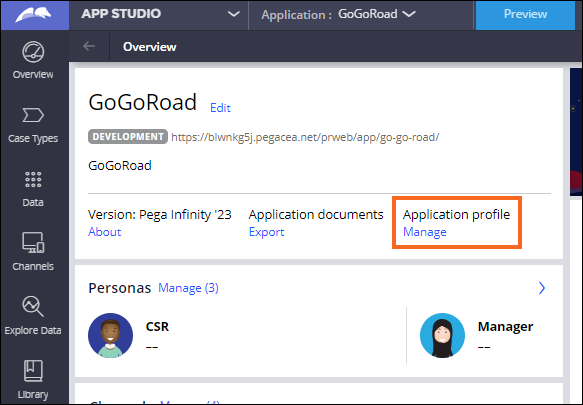
The Application Profile is a collection of information related to the application development process including Processes, Case Types, reports, specifications, participants, collaborators, and actors associated with the project implementation. The Application Profile supports an Analysis and Design approach, a continuous process of end-to-end collaboration between project stakeholders from the Business and IT teams.
Match the numbers to the following image to learn more about the Application Profile:
- Inventory: The Inventory tab details Persona, Data, and application feature information detailed by Case Type. For each of these elements, Pega BAs and IT team members can review the development status of the element, the expected release, and development complexity.
- Feature map: The Feature map tab highlights the application's features. The Feature map tab is broken down by Case Type. Items listed in the Feature map are taken from User Stories created by the BA in Agile Studio and then transferred into App Studio with the Agile Workbench integration.

When you import an application from a Pega GenAI Blueprint™ file, Pega Platform automatically populates Features and Work items in the Feature map. The following image shows contents of the Feature map from the Retail Loan Origination application created using Blueprint:

The Developer Assistant
The Developer Assistant pane helps to organize work by using AI-powered developer aids. Using the Developer Assistant, members of the IT team as well as Pega BAs can quickly and conveniently access all the tasks to be completed from the start of application development until the application goes into production. The developer aids are on four tabs: The Guidance tab, the Knowledge tab, the Work tab, and the Checklists tab.
Match the numbers to the following image to learn about the different tabs in the Developer Assistant pane:
- Guidance tab: Click the Guidance tab to review the guidelines and best practices for the successful design and implementation of your application. The Guidance tab contains suggestions to improve the app, organized by importance.
- Knowledge tab: Click the Knowledge tab to review the content that is relevant to the most recent action, such as an article about an automated Process in the Case Lifecycle.
- Work tab: Click the Work tab to access Agile Workbench, with feedback and development status of the application's features.
- Checklists tab: Click the Checklists tab to access to checklists, also called application guides, such as the application Security checklist.

Note: For more information, see Creating user stories from checklists.
Agile Workbench
Agile Workbench is a software tool that is accessible in both App Studio and Dev Studio and used by members of the IT team, Pega BAs, and other project stakeholders to track feature development and capture real-time project feedback. By managing application development items directly in Agile Workbench, the feedback loop between the project's IT team, Pega BAs, and the Business team is reduced, making the entire application development process more efficient.
The following image shows the Assistant Request and Service features displayed in the Feature map tab, as well as Work items and Bugs. Match the numbers to the following image to learn about Agile Workbench navigation:
- Developer Assistant icon: Click the Toggle Developer Assistant icon to access the Developer Assistant pane. Agile workbench is in the Work tab of the Developer Assistant pane.
- Agile Workbench icon: Click the Toggle Agile Workbench icon to directly access Agile Workbench.
- Create a story, bug, or feedback item: Click the Add icon to create a new story, bug, or feedback item. Additionally, you have the option to create user stories by downloading the Excel template and importing the Excel file with the user story information.
- View the menu: Click the More icon to view the Application Profile and refresh Agile Workbench.
- List existing items by feature: Use the List by feature list to select a feature, such as a story, bug, or feedback item, defined in your application. Selection of a feature refreshes the list of work items to show only items associated with the selected feature.
- View stories, bugs, and feedback: Click Stories, Bugs, or Feedback to view the user stories, bugs, and feedback items in your application. From this view, you can see the name of the bug, its identification number (for example, BUG-1001), the creation date of the bug, and its priority.
- Change work item status: Click the icon to the left of the work item to either reject the item, change its status to Doing, or change its status to Done.
- Use record and screen capture to create a work item: Use the Record video and Capture screen options to capture a video or image of the application, which is attached to a new work item.
- Work items: Work items become the backlog of development work.

Note: For more information, see Using development aids.
Application features and subfeatures
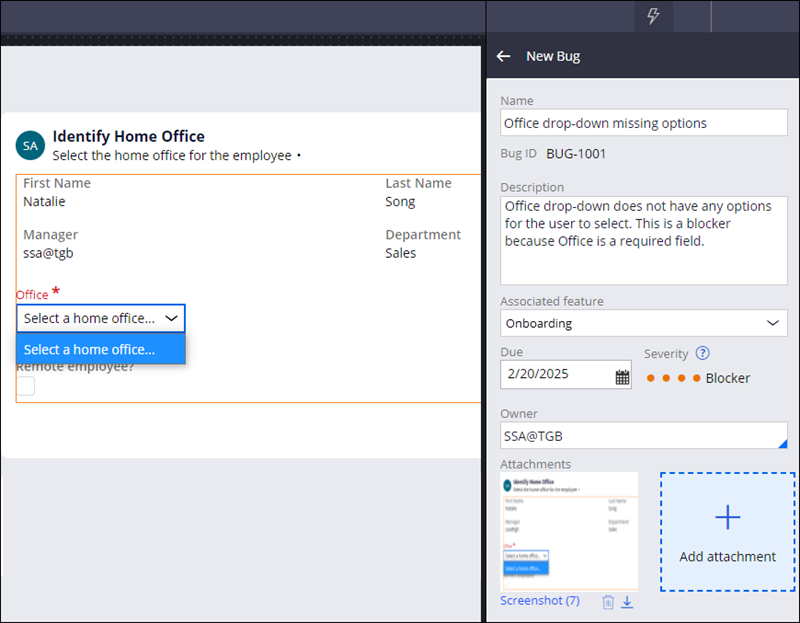
It is to possible associate user stories with features or subfeatures. Features are capabilities that you want your application to support. Subfeatures are features within a feature. When a new Case Type is created in an application, Pega Platform automatically creates a feature with the same name. For example, you associate the Drop-down missing options bug with the Assistant Request feature because you encountered the bug in the Assistance Request Case Type.
As a Pega BA, you can associate the user stories created in Agile Studio with the specific features and subfeatures created in App Studio and visible in the Application Profile and Agile Workbench. As these tasks are worked on and updated in Agile Workbench by the IT team, the information flows back into Agile Studio. This enables both the IT team, Pega BAs, the Scrum Master, the Project Delivery Lead (PDL) and other relevant stakeholders to track development process in accordance to the various scrum rituals like sprints.
Note: To learn more about managing and documenting the features that you implement, see Feature driven development tracking.
Work items
Work items become the backlog of development work. In Agile Workbench, you create three kinds of work items:
- Stories, or User stories to describe business requirements. The majority of development work consists of user stories. To save time, upload user stories from Excel.
- Bugs to document feature defects. Developers typically address major bugs before minor ones.
- Feedback items to record enhancement requests identified during playback sessions. Developers use feedback to guide development on current or future releases.
When you import an application from a Blueprint file, Pega Platform automatically populates stories in Agile Workbench for each Case Type and Live Data Object. The following image shows the Stories created for the Data Objects associated with the Retail Loan Origination application created using Blueprint:

Note: To learn more about uploading user stories, see Creating stories in bulk. To learn more about documenting a bug in Agile Workbench, see Creating bugs to report feature defects.
Status
Every work item has a status of To do, Doing, or Done. You change the status of a work item by dragging the card to the appropriate column or using the Status list on the work item itself.
Agile Workbench integrations
The integration abilities of Agile Workbench allow customers to leverage the benefits of the Analysis and Design approach while using their existing infrastructure. Agile Workbench integrates with Agile Studio, a separate Pega Platform tool that expands the Agile Workbench functionality with more robust features for release management, progress tracking, team capacity, and analytics.
Agile Studio is a project management application built on Pega Platform. Pega Agile Studio presents Pega's methodology for application development in the context of an Agile or Scrum project. Similar to Agile Workbench, teams and other stakeholders use Agile Studio to collaborate on features, plan releases, and execute development tasks.
Note: For more information on the integration with Agile Studio, see Integrating Agile Workbench with Pega Agile Studio.
Agile Workbench use case
In a typical scenario using Agile Workbench, you demonstrate or play back each feature of a Case Type with the business stakeholders and product owners. For example, you walk through a Customer refund Case Type to ensure that you have not missed any steps in your business' customer refund process. If anyone identifies changes to make during the playback session, you record those as bugs, feedback, or enhancements in Agile Workbench.
For example, the following figure shows an Onboarding Case Type on the left. You notice that the Office list does not have any options to select. In Agile Workbench, you document a bug to be fixed, as shown on the right:
Check your knowledge with the following interaction:
This Topic is available in the following Modules:
If you are having problems with your training, please review the Pega Academy Support FAQs.
Want to help us improve this content?