
Securing an application using role-based access control
Archived
2 Tarefas
20 min
Intermediate
Security
Inglês
Scenario
In the Employee Evaluation case, TGB provides an optional, case-wide action to update an employee’s goals. The Human Resources (HR) department requires that HR business partners can run the UpdateGoals action at any time.
Create a privilege and add it to the UpdateGoals flow action. Then, use the Access Manager to add the privilege to HR staff.
Dica: Before testing your changes, remember to check in all rules from your personal ruleset.
The following table provides the credentials you need to complete the challenge.
| Role | User name | Password |
|---|---|---|
| Senior System Architect | SSA@TGB | rules |
| HR Business Partner | HRPartner@TGB | rules |
| User | User@TGB | rules |
Nota: Your practice environment may support the completion of multiple challenges. As a result, the configuration shown in the challenge walkthrough may not match your environment exactly.
Challenge Walkthrough
Detailed Tasks
1 Create and add a privilege to the UpdateGoals flow action
-
Log in to the challenge environment with Operator ID SSA@TGB using password rules.
-
Open the UpdateGoals flow action in the TGB-HRApps-Work-EmployeeEvaluation class.
-
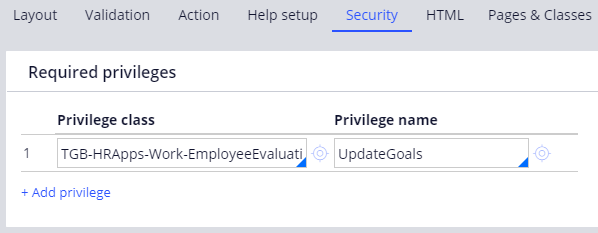
On the Security tab in the Privilege name field, enter UpdateGoals.
- Click the crosshairs icon to create the privilege.
-
On the Create Privilege form, click Create and open to create the UpdateGoals privilege.
-
Click Save to save your changes to the privilege rule form.
-
Save the UpdateGoals flow action.
2 Add and configure the privilege for the roles
-
From the Dev Studio Configure menu, select Org & Security > Access Manager > Privileges to open the Privilege tab for the Access Manager.
-
In the Role field, enter or select HRApps:HR.
- In the Case type field, enter or select TGB-HRApps-Work-EmployeeEvaluation.

-
Click the plus icon to add a privilege.
-
Enter or select the UpdateGoals privilege.
- Keep the default value of Full Access.
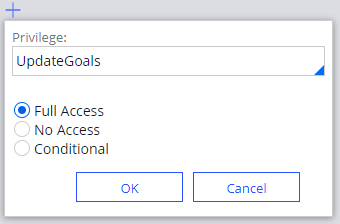
- Click OK.