

Automation shapes in the Process Flow
Certain Steps, such as collecting identifying information from a customer, require user action, while other Steps can be performed automatically by the system, such as sending a confirmation email to a customer.
Pega Platform™ provides Automations to perform specific actions automatically. For example, you can use Automations to send an email to a job candidate to extend them a job offer. Leveraging Automations saves development time and enables you to design business processes more efficiently. Automations provide flexibility because each Automation has unique parameters that you can configure based on your business requirements. Additionally, utilizing Automations reduces possible human error by reducing the amount of human interaction.
Consider a scenario of an online bookseller. Once a customer places an order, the company needs to send an email with an invoice summary.
The following image shows how to configure a process with Automations to achieve the desired behavior in the online bookseller example. The Review details Collect Information Step displays the purchased books with the cost break-down and the Send email Automation sends an email to the customer that references the properties on the Review details View:
Automation shapes
Pega Platform provides a wide variety of Automations that a developer can use to achieve business requirements. Automation shapes in a Flow represent a Task that a user or application completes as part of a business process.
The following table describes all Automation shapes available in App Studio:
| Shape name | Image | Description |
|---|---|---|
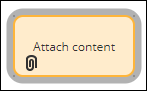
| Attach content |
|
Attaches a file, URL, or note to a Case. |
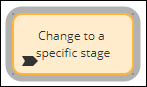
| Change to a Stage |
|
Change to a specific Stage of a Case. |
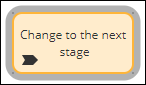
| Change to next Stage |
|
Change to the next Stage of a Case automatically. |
| Change to the previous Stage |

|
Change to the previously visited Stage of a Case automatically. |
| GenAI Connect |

|
Calls a Generative AI Rule to collect data specified in the Rule form. Use this automation to define the prompt the system sends to Pega GenAI and define the structure of the response received from Pega GenAI. Note: Enable and configure generative AI in your application settings to use AI features. For more information, see Integrating with Pega GenAI.
|
| Agent |

|
Runs a Pega GenAI-powered Agent Rule in the background that returns a response based on a prompt provided in a specified field. |
| Create Case |

|
Creates one or more Cases from the current Case. |
| Create PDF |

|
Creates a PDF file from a specified View and attaches it to the Case.
Note: Applications that you build on Constellation do not support PDF generation out-of-the-box and require a workaround. For more information, see Generating PDF in Constellation.
|
| Generate document |

|
Generates Case documents as part of the Case Life Cycle. |
| MCP Connect |

|
Send work for processing to a third-party system by using an automated MCP Connect Step. Note: For more information about MCP Connect Steps, see Connecting your workflow to an MCP server.
|
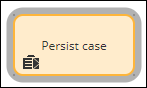
| Persist Case |
|
Converts a temporary Case to a permanent object in the database. |
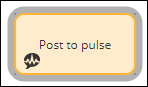
| Post to pulse |
|
Creates a message and sends it to the Pulse social stream. |
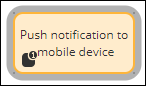
| Push notification |
|
Sends a notification to an iOS or Android mobile device to indicate that a Case requires user action. |
| Run Data Transform |

|
Runs a Data Transform. |
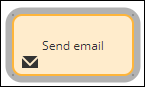
| Send email |
|
Send formatted emails to custom recipients. |
| Send notification |

|
Sends a notification to recipients over multiple Channels. |
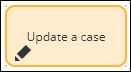
| Update a Case |
|
Updates the current Case or all child Cases and descendants. |
| Approval |

|
Routes a Case to one or more reviewers for an approval, based on a user name, reporting structure, or authority matrix. |
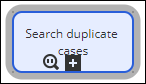
| Search duplicate Cases |
|
Automatically searches for duplicate Cases using set conditions. |
| Wait |

|
Pauses a Case until a specified condition is fulfilled, such as timer or Case status. |
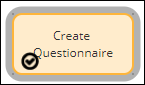
| Questionnaire |
|
Asks the user to complete a questionnaire. |
Note: To learn more about automated steps, see Adding an automated Step to a Process.
Send email Automation use case
The Send email Automation helps to send automated email correspondence to all relevant parties.
For example, consider an online shopping website. You can use the Send email Automation to send an email to the customer informing them about new offers without any user interaction. You can configure how your application determines the recipient and composes the email content.
Run Data Transform Automation use case
The Run Data Transform Automation helps to run the selected Data Transform Rule at run time.
For example, consider a checkout Process of a purchasing application. The customer provides a shipping address and is prompted for the billing address. If the shipping address is the same as the billing address, it is efficient to use a Data Transform to copy the shipping address to the billing address rather than have the customer reenter the same address.
Check your knowledge with the following interaction:
This Topic is available in the following Modules:
If you are having problems with your training, please review the Pega Academy Support FAQs.
Want to help us improve this content?