
Customization of the Rule check-in approval process
The Rule check-in feature provides a structured process for managing changes to application rules. This process requires qualified team members to review checked-in Rules, helping maintain quality standards and support compliance with organizational policies. It helps control changes in sensitive applications, strengthen governance, and reduce risk throughout the development lifecycle.
Pega Platform™ provides a default Case Type, Work-RuleCheckIn, to support the Rule check-in approval process. This Case Type includes standard properties and activities and an ApproveRuleChanges flow that controls the Rule check-in process.
The Rule check-in approval process offers several benefits:
- Enable structured oversight of Rule changes, supporting quality and consistency in large teams and sensitive applications.
- Provide a clear, auditable workflow for reviewing and approving Rule check-ins before changes are implemented.
- Group multiple Rules under a single work item, streamlining approvals and reducing administrative overhead.
- Automatically notify relevant stakeholders of evaluation results, ensuring clear communication and accountability.
- Offer flexibility for diverse teams and policies by tailoring the process to meet specific organizational or local requirements.
- Minimize errors and conflicts by coordinating changes when multiple developers work on the same rule, promoting collaborative development.
Pega Platform comes with the Work-RuleCheckIn default Case Type for the approval process. The Case Type contains standard properties and activities and an ApproveRuleChanges flow that controls the Rule check-in process.
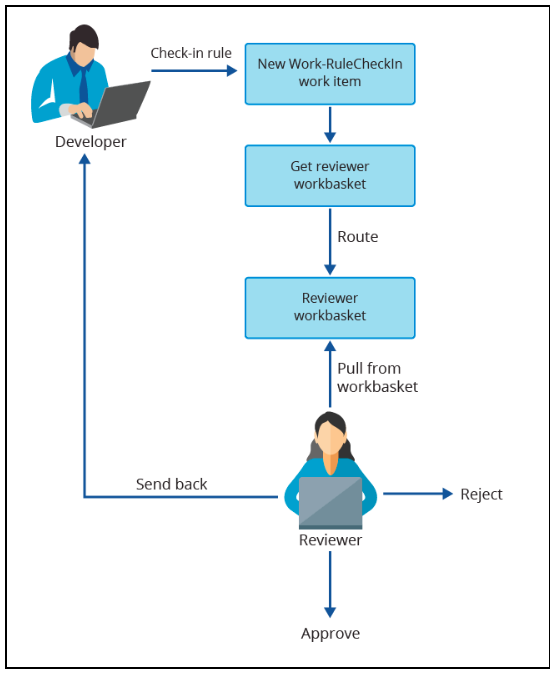
The following diagram shows the process for Rule check-in approval:
When the default check-in approval process is applied to a Ruleset version, the workflow begins as soon as a developer kicks off Rule check-in. This action triggers the creation of a Case, which the system routes to the appropriate workbasket for review. The Work-RuleCheckIn.FindReviewers decision tree determines the relevant Work Queues. The CheckInCandidates Ruleset manages Rules that are awaiting approval.
For more information, see Configuring the Rule check-in approval process.
By default, review Cases are assigned to a Work Queue that matches the candidate Ruleset name, as specified in the Work-RuleCheckIn.pyDefault Data Transform. You can customize the routing logic by overriding the Work-RuleCheckIn.FindReviewers decision tree to direct Cases based on specific criteria.
Reviewer actions
During the review, the approver can provide comments and select one of the following actions:
- Approve the check-in to complete the process and resolve the Case.
- Reject the check-in, which deletes the changed Rule and resolves the item.
- Send the Case back to the developer, moving the Rule to the developer's private Ruleset for further revision.
Notifications are sent to affected parties to communicate the outcome of the evaluation. You can further enhance the default Rule check-in approval process to meet specific organizational requirements.
Rule check-in approval process for Branch Rulesets
In Branch-based development, individual Rule check-ins are less common because reviews are typically conducted on the entire change set in a Branch. Best practices include:
- Associating Branches with specific work items, such as User Stories, bugs, or sprint Tasks, and merging Branches promptly after the work is complete and reviewed.
- Maintaining the quality of changes by using the Branch Quality tab to review all modifications introduced in the Branch.
- Using the Branch review feature to evaluate the complete set of changes before merging.
The Rule check-in approval process in the Branch Ruleset is less significant than for standard Rulesets, as the focus shifts to comprehensive review and quality assurance at the Branch level.
Check your knowledge with the following interaction:
This Topic is available in the following Module:
If you are having problems with your training, please review the Pega Academy Support FAQs.
Want to help us improve this content?