

Forms in Pega Platform
The View is a reusable Configuration of UI elements that you can use to interact with a Case. The Form is an interface for collecting data from users and processing the work. A Form can have one or more Views. But the View is not always a Form. For example, in an online shopping website, the customer needs to enter personal information and shipping information. Views can have UI elements such as the first name, last name, state, country. The Form will have the submit and cancel buttons.
In the Constellation UI architecture, Forms are preconfigured with buttons like , , , and .
In the following image, click the + icons to learn more about how Forms, Views, and fields work together to create an interactive web page for a Case:
Form View configuration
You can configure form Views in two ways: on the Workflow tab of a Case Type or the UX tab of a Case Type or data object.
Workflow tab
On the Workflow tab, when you configure a View for a Step in the Case Life Cycle, the system creates a form View. An example of a form View created on the Workflow tab is shown in the following figure:
UX tab
On the UX tab, in the Other Views pane, you can create one of the following View types:
- List
- Partial
- Form
The template and configuration options depend on the type of View that you create. An example of a form View created on the UX tab is shown in the following figure:

Note: For more information about list Views, see Configuring list Views. For more information about partial Views, see Configuring partial Views.
Form View configuration options
When you create or configure a form View, the system displays layout and instruction options.
Note: For more information about form authoring best practices, see Text guidelines for form authoring.
Template
By default, form Views use the Default form template option, as shown in the following figure:
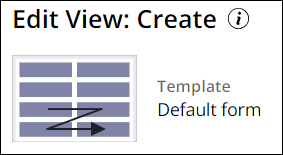
To use a different template, create a different View type on the UX tab. The following table describes the different View types and template options:
| View type | Template |
|---|---|
| Form | Default form |
| List | Table |
| Partial | Details (One column) |
| Details (Two column) | |
| Details (Three column) | |
| Details (Sub tabs) | |
| Details (Narrow-wide) | |
| Details (Wide-narrow) | |
| Dynamic tabs (list) |
Note: All fields in partial Views are read-only.
Layout
When you configure a form layout, you set the number of columns that the form must contain. Forms in Constellation can use one to three columns, but as a best practice, use a two-column layout for most use cases.
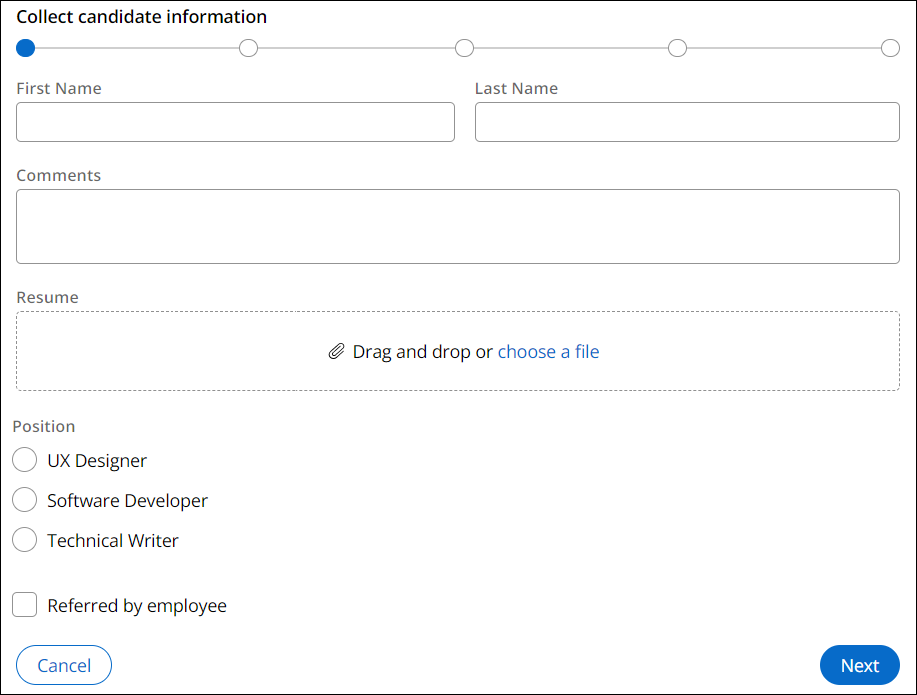
The fields that you include in the form auto-adjust their size and width depending on prescribed design standards. For example, in a two-column form template, inputs such as Text (single line) and Currency take up only one column. Wider inputs, or inputs that can be any height, such as a Rich Text Editor, Text area, Radio group, Checkbox, Booleans, and Attachments, span two columns. This adjustment increases usability and ensures that tabbing takes users from left to right, instead of top to bottom.
The following figure shows a default form template that adjusts layout based on input type:
Instructions
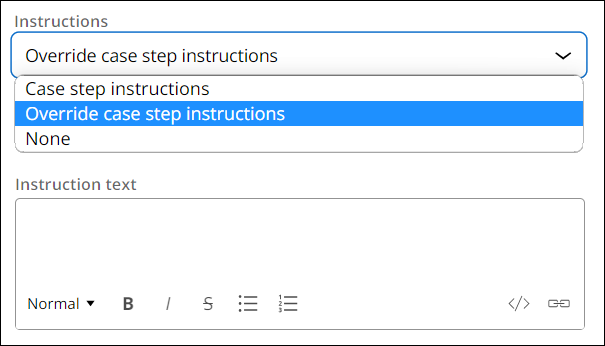
By default, a form View displays the Step instructions that you configure from the Case Life Cycle. In a form View, you have the option to override Case Step instructions with custom text or to hide Step instructions, as shown in the following figure:
Note: For more information about configuring Step instructions in the Case Life Cycle, see Adding instructions to Assignments.
Field groups
A field group is a cluster of individual fields that, together, present related data inside a View. The individual fields can come from the Case Type Data model or from various data objects.
Field groups help you organize your fields under a single header, and provide you with tools to add instructions or temporarily hide the fields in collapsible sections, making it easier for users to navigate the information presented in the View.
Field groups inside a View are specific to that View only. They are not available for reuse in other Views.
Note: For more information about field groups, see Configuring field groups.
Multi-step Forms
A Form is an interface for collecting data from users and processing the work. Long, complex online forms can make navigation difficult for users.
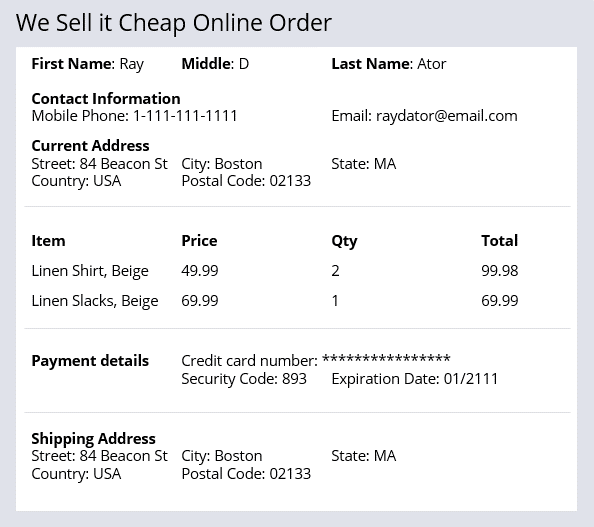
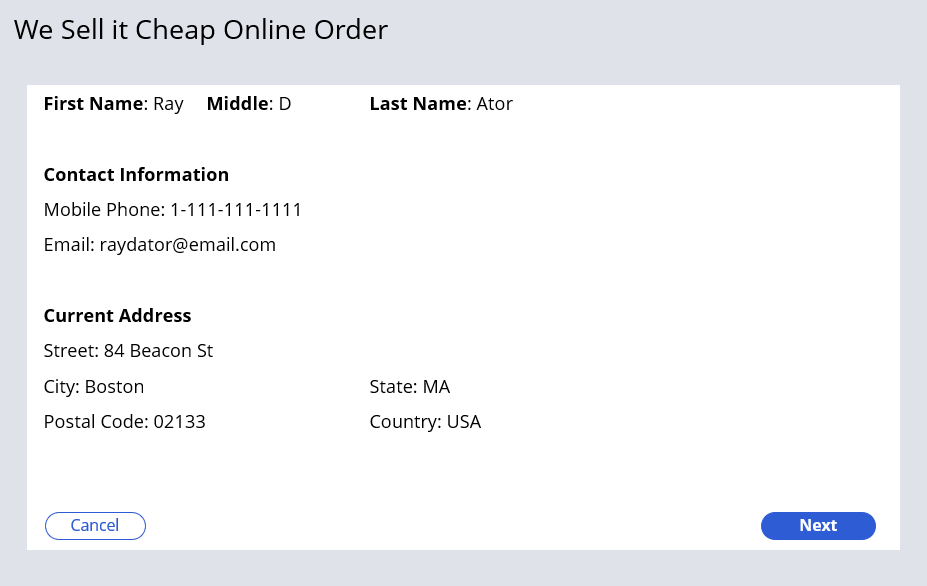
For example, online order forms like the one in the following image require a lot of data. Users must enter contact information, the items to buy, and the payment method.
Multi-step Form benefits
A Multi-step Form represents a single Assignment completed by a single user that is composed of multiple focused and concise Views. It is a guided, linear workflow using related UI screens.
Note: The default Create Process in the Create Stage is a Multi-step Form.
You can configure a Multi-step Form to help users complete complicated tasks. For example, instead of having a single, confusing online order form, configure a Multi-step Form. The Multi-step Form presents information from the online order form in a series of simple, easy-to-navigate screens.
Multi-step Form navigation
Multi-step Form provide three navigation styles: horizontal, vertical, and standard navigation. With all three styles, users navigate through the screens using Next and Previous buttons. The following figure displays an online order Multi-step Form that uses standard navigation:
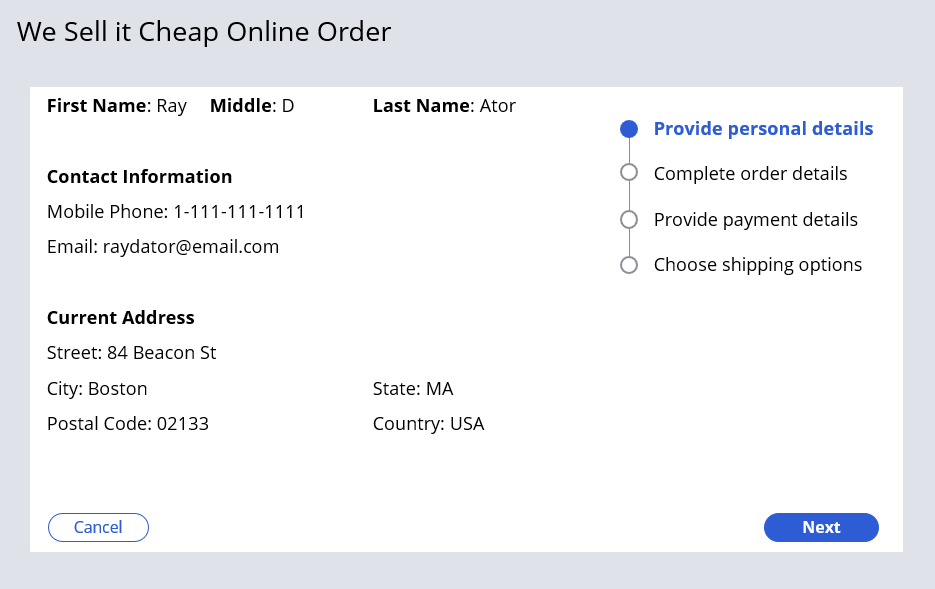
With horizontal and vertical navigation, a navigation menu (oriented horizontally or vertically) displays which Step within the Multi-step Form that the user is on. The following figure displays an online order Multi-step Form that uses vertical navigation:
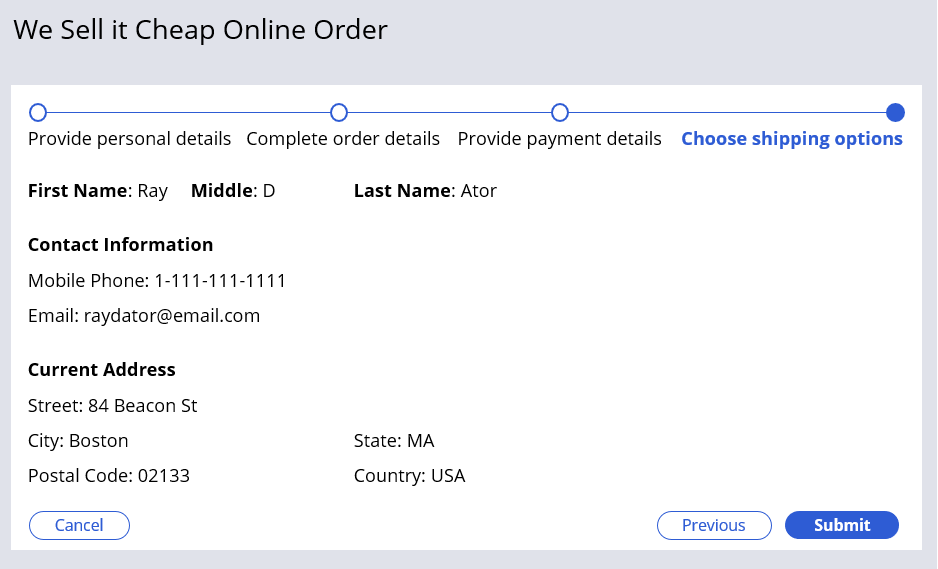
Although Multi-step Forms are recommended when the information must be filled out in sequential order, users can navigate back and forth between the Views as long as there are no required fields and the Multi-step Form is not submitted. The Submit option is available on the last screen of the Multi-step Form. The following figure displays the last Step of an online order Multi-step Form that uses horizontal navigation:
Note: For more information about Multi-step Forms, see Adding a Multi-step Form to a Stage.
Hierarchical Forms
Like Multi-step Forms, Hierarchical Forms divide a complex Assignment that captures data across many fields into smaller, related groups of fields. Hierarchical Forms reduce scrolling and optimize the window area for users during Case processing.
Where Multi-step Forms divide the information across multiple Form Views, Hierarchical Forms split the information across multiple tabs in a single Form View. Each tab is referred to as a Form group. Form groups in a Hierarchical Form are not independent Views and are not reusable or accessible through a Views list.
As a best practice, Multi-step Forms are recommended when users must fill out the form sequentially, and Hierarchical Forms are recommended when users can fill out the form in any order.
The following image displays a Hierarchical Form at design time in Pega Platform:

Note: For more information about Hierarchical Forms, see Configuring forms.
Check your knowledge with the following interaction:
This Topic is available in the following Module:
If you are having problems with your training, please review the Pega Academy Support FAQs.
Want to help us improve this content?