
Log files
Pega Platform™ writes errors, warnings, and other information to a collection of log files to help you debug and maintain the health of your application. System architects review log files to investigate application issues during development, improving application quality. System administrators monitor log files to identify potential application or system issues in production.
Log files for application issues
Log files capture event notifications ranging from routine system status information to severe errors that can cause an application to quit unexpectedly. Each log is managed by an appender, which determines the type of events written to the log file. The available log files vary, depending on the log file appenders that are configured in the system settings.
The following log files are commonly used on Pega Platform systems:
- The PEGA log contains warnings, errors, and information messages about internal operations. This log is also called the console log or system log and is used for debugging the application.
- The ALERT log contains performance-related alerts triggered when an operation exceeds the specified performance threshold.
- The ALERTSECURITY log contains alerts (identified by the prefix SECU) that suggest improper configuration of Internet Application Composer facilities, or overt attempts to bypass system security features on the Pega Platform node through URL tampering.
- The BIX log contains entries generated by the Business Intelligence Exchange (BIX) during extract operations. BIX is an optional add-on product that extracts transactional data from the Pega database into formats suitable for exporting to a reporting data warehouse, operational data store (ODS), or other downstream processes.
- The SERVICES-PAL log contains performance data saved from services.
- The CLUSTER log contains information about the setup and run-time behavior of the cluster.
Note: Pega Platform manages logs based on which appenders are configured. For example, to log performance data for services, you add SERVICES-PAL in the prlog4j2.xml configuration file for the node. To learn more about performance statistics for services, see Viewing statistics for services in the SERVICES-PAL log.
Log utilities
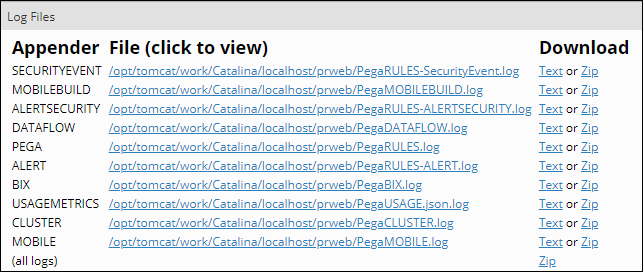
You access log files from the Log utilities section of the Logs tab in Dev Studio (Configure > System > Operations > Logs) to open the Log utilities. The Log utilities section includes a list of log file appenders and an external log viewer. Clicking Log files displays a list of the log file appenders that are active on the system.
In the following image, you see an example of each appender with a link to view or download the log file as an unformatted text file or as a compressed .zip file.
Note: Downloading a log file requires administrator credentials for the application server that hosts Pega Platform. You can also view log files using an external log viewer, such as Kibana. To learn more about viewing log files in an external viewer, see Viewing log files in an external log viewer.
In the following image, click the + icons to learn more about viewing the log file contents.
PegaRULES Log Analyzer
The PegaRULES Log Analyzer (PLA) is a standalone web application that developers and system administrators can use to view consolidated summaries of system log data.
Use the PLA to test new or reconfigured Pega Platform applications during user acceptance testing (UAT), performance and stress testing, and immediately after deployment into a production environment. Testing reconfigured applications during UAT, during performance testing, and right after deployment is important because performance, stability, and scaling issues are most likely to occur during these times.
The PLA consolidates and summarizes the ALERT, PEGA, and Garbage Collection (GC) logs. The log data provides key information about operational and system health that developers and system administrators can use to quickly identify, diagnose, and address performance issues.
Tip: The PLA is available from the Marketplace on Pega Community. To learn more about the PLA, see the Pega Marketplace overview PegaRULES Log Analyzer.
Override log level settings
A system administrator can override log level settings in Admin Studio to control which logging events are displayed in the PEGA log by creating a log category.
In earlier versions of Pega Platform without log categories, customization of logs occurred by updating the prlogging.xml or prlog4j2.xml files. For each system event, the prlog4j2.xml configuration file defines the threshold for determining which events to record in the logs. Events are recorded only for the selected logging level and higher. For example, if an event is configured with the ERROR logging level, only FATAL or ERROR events are noted in the log, while INFO events are ignored. In a multi-node Pega system, you can create separate prlog4j2.xml files for each node.
Note: If you update your application to Pega Platform version 8.7 or later, it is advisable to move log level customizations to Log Category I. To learn more about structuring log messages into categories, see Creating custom log categories. In addition, rulesets and the class hierarchy are irrelevant to logging. For example, if an appender includes logging events for an activity named Data-Party.Research and your system includes several activities of that name, executions on the current node of any of these activities can produce logged events.
Tip: When debugging an activity, you can use the Log-Message method with the logging level set to InfoForced to add an event to the PEGA log regardless of settings in the prlog4j2.xml file or the Log Category. To reduce log entries and improve performance in production systems, remove InfoForced steps or convert them to comments when you finish debugging the activity.
Check your knowledge with the following interaction:
If you are having problems with your training, please review the Pega Academy Support FAQs.
Want to help us improve this content?