
Save Data Page Automation
Savable Data Pages provide a way to push data from a Data Page to a system of record (SOR). After you add a save plan to a Data Page, add a Save Data Page Automation Step to the Case Lifecycle to identify the point during Case processing that Pega Platform™ updates the SOR. The Save Data Page Step automates the update transaction using the save plan configured on the savable Data Page.
Save Data Page Automation configuration
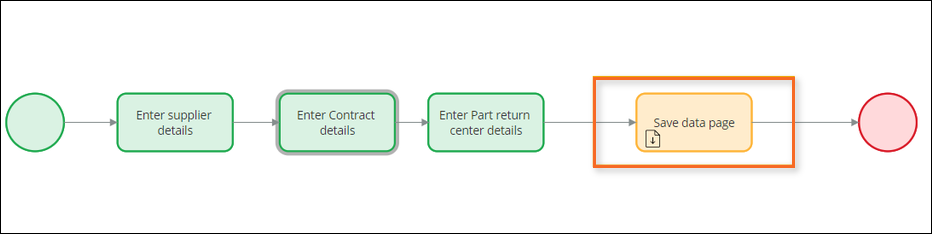
In a flow Rule, use a Save Data Page Automation after an Assignment to save data back to a system of record. For example, all parts suppliers for PartsRUs Auto must register to become authorized suppliers. A supplier must enter supplier details, part contract details, part return center details, and submit the registration. After entering all the details, a Save Data Page Automation is included in the flow where the developer must pass the Data Page with a key, to commit the data to the database.
The following image shows the flow Rule with a Save Data Page automation:
Tip: To commit to multiple data sources, add multiple Save Data Page Automation Steps to the flow.
A Save Data Page Automation provides two options for specifying a savable Data Page:
- Specify the Data Page explicitly by entering or selecting the Data Page in the Data Page Name field.
- Reference the Data Page implicitly by selecting the Use associated property option and entering or selecting a page or page list property that is auto-populated using a savable Data Page.
Match the numbers to the following image to learn more about the configuration pane for a savable Data Page:
1. Save Data Page Automation Step: Use the Savable Data Page Automation Step to save the updated data to a system of record. This configuration can improve performance and reduce memory requirements when multiple requestors in an application need to access the same information.
2. Reference the Data Page implicitly: When you select the Use associated property option, you must enter or select an autopopulated property. The autopopulated property references a Data Page. Any parameters for the Data Page are passed from the property Rule, rather than the Save Data Page Step.
3. Specify the Data Page explicitly: Enter or select the Data Page Name to save data in a Data Page to a system of record. Any parameters for the Data Page are listed in the configuration pane of the Save Data Page Step. In the Parameters section, enter values for the parameters that are displayed.
4. Audit Note: For both explicit and implicit references you can specify the Audit note details on the work object after you perform the save Action.

Check your knowledge with the following interaction:
This Topic is available in the following Module:
If you are having problems with your training, please review the Pega Academy Support FAQs.
Want to help us improve this content?