

Automating actions when a property value changes
3 Tasks
15 mins
Intermediate
Enterprise Application Development
Dev/Designer Studio
Low-Code App Development
User Experience
Constellation
English
Scenario
The Payroll Department at TGB reports that some employees enter an incorrect bank name when enrolling in direct deposit. The payroll department requests that the bank name populate based on the routing number entered to avoid errors in Payroll setup cases.
The following table provides the credentials you need to complete the challenge.
| Role | User name | Password |
|---|---|---|
| Senior System Architect | SSA@TGB | pega123! |
Note: This challenge does not have a demo video. Please refer to the Detailed Tasks for step-by-step instructions to complete the challenge.
Detailed Tasks
1 Configure the Bank information Flow Action.
- In the Pega instance for the challenge, enter the following credentials:
- In the User name field, enter SSA@TGB.
- In the Password field, enter pega123!.
- In Dev Studio, from the App Explorer, Expand TGB-HRApps-Work-PayrollSetup > Process > Flow Action.
- Click ProvideBankInformation.
- In Edit Flow Action: Prove bank information, in the Form fresh settings section, click Add condition.
- In the When Property change field, enter .RoutingNumber.
- In the then run Data Transform field, select UpdateBankName.
- Click Save.
2 Create the Declare OnChange and Activity Rules
- In Dev Studio, open the Records Explorer.
- In the Records Explorer, click Decision > Declare OnChange to open the list of current OnChange instances in the application.
- Click Create to create a new Declare OnChange Rule.
- On the new Declare OnChange Rule, in the Label field, enter UpdateBankName.
- In the Apply to field, enter TGB-HRApps-Work-PayrollSetup to apply the Declare OnChange Rule to the PayrollSetup Case Type.
- Click Create and open to create the Declare Onchange Rule.
Note: The system displays a warning that the use of Activity Rules should be limited. The need for activities can be reduced by using Data Transforms, as well as techniques such as Case Management, the Engine API, and Declaratives. To stay in line with best practices, limit the use of Activities.
- In the Properties To Watch field, enter or select.RoutingNumber as the property to watch for changes.
- In the When field, enter or select Always to run the specified Activity every time the routing number changes.
- In the When True Run section, enter the Activity name UpdateBankName.
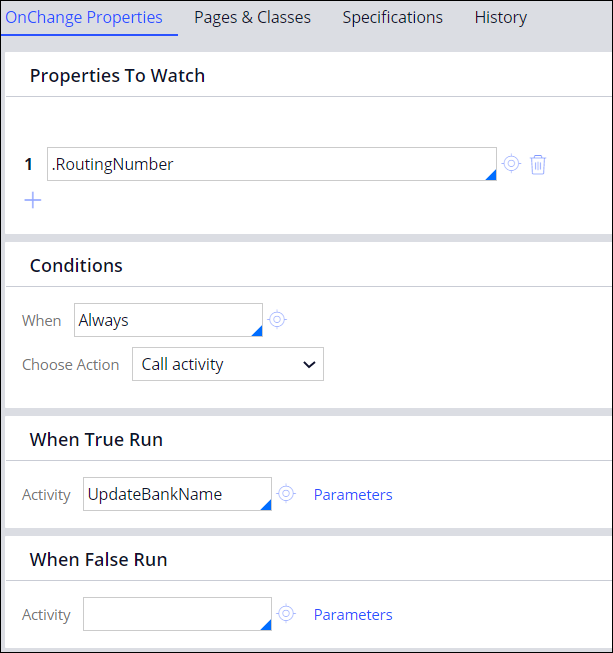
- Next to the Activity UpdateBankName field, click the open icon to open the Create Activity form.
- Click Create and open to save the new Activity Rule as UpdateBankName.
- On the Security tab of the Activity Rule, in the Activity type list, select Onchange.
- On the Steps tab, configure the Activity to apply the UpdateBankName Data Transform.
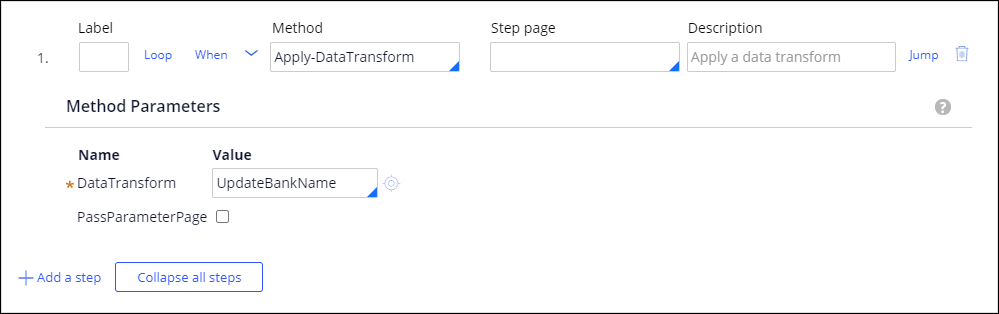 Note: In this scenario, the UpdateBankName Data Transform uses the routing numbers specific to the United States to identify the financial institution with which the account is associated. To learn more about routing numbers in the United States, see List of routing numbers.
 - Save the Activity Rule UpdateBankName and click the Declare OnChange Rule tab.
- Save the Declare OnChange Rule UpdateBankName.
3 Configure Provide Bank Information View
- In the navigation pane of App Studio, click Case Types > Payroll Setup to access the Payroll Setup Case Type.
- In the Configuration pane of the Provide bank information Step, click Configure user action.
- In the Bank name field row, click the Gear icon to configure the field.
- In the Edit mode field, select Read-only (Custom Condition) and click the Gear icon.
- In the Condition Builder window, set Field to Routing number, and then set Conditional operator to is not null.
- Save the configuration.
Available in the following mission:
If you are having problems with your training, please review the Pega Academy Support FAQs.
Want to help us improve this content?