

Configuring error handling for Data Pages
1 Task
15 mins
Intermediate
Data Integration
Data Management
English
Scenario
You are a Solution Builder working on TGB's HRApps application. As part of each Candidate Case, TGB performs a background check on the applicant. During the background check, a SOAP connector retrieves a credit report from a credit check provider. If the connector fails, TGB wants to log an error message in the PegaRULES log file and display the message Credit Check unavailable: contact your system administrator to the user.
You will configure the D_CreditReport Data Page to use the live connector, create a reusable error-handling Data Transform, wire it into the response pipeline, and surface the error message as a read-only field in the Background Check View.
Note: This challenge has been configured with Single sign-on (SSO) using your Pega Academy credentials. If you are not automatically signed-in to the challenge environment after initializing the instance, you may use the credentials provided.
The following table provides the credentials you need to complete the challenge:
| Role | User name | Password |
|---|---|---|
| Solution Builder | SSA@TGB | pega123! |
After completing this challenge, you should be able to:
- Configure a Data Page to use a live connector with simulation disabled.
- Create a custom error-handling Data Transform by copying a system template.
- Configure a response Data Transform to invoke error handling.
- Display a conditional error message field in a Case View.
Detailed Tasks
1 Configuring error handling for Data Pages
Use the technical documentation linked in the Journey map above to complete the assigned tasks. The technical documentation might have more information than you need to complete the tasks.
Acceptance criteria
Task 1: Source the D_CreditReport Data Page
- The
D_CreditReportData Page data source is set to use the CreditCheck connector with Use simulation disabled. - Pass current parameter page is enabled for the Request Data Transform to ensure the TIN is passed to the request.
- Pass current parameter page is enabled for the Response Data Transform to ensure the Case ID is passed to the response.
Task 2: Create the ErrorHandlingMaster Data Transform
- A copy of the pxErrorHandlingTemplate Data Transform is saved to the
TGBclass in the current application Ruleset, named ErrorHandlingMaster. pyCaseIDis added as a required parameter to the Data Transform for capturing value in error message.- The following steps are enabled on the Definition tab:
Step Function Purpose 2 pxGetPageMessagesGets messages from the Data Page 4 pxClearMessagesClears messages on the Data Page before adding a custom error message 6 pxAddMessageToPageAdds the ErrorMessage input parameter as a message 8 pxLogMessageWrites messages to the PegaRULES log file - Step 8 Source is set to:
@(Pega-RULES:Default).pxLogMessage(param.getMessage + " for Case number " + param.pyCaseID)
Task 3: Configure the CreditCheckResponse Data Transform
- A copy of the CreditCheckResponse Data Transform is saved to the current application Ruleset.
- Step 2 is enabled to invoke the pxDataPageHasErrors When Rule to check for errors.
- Within Step 2, pxErrorHandlingTemplate is replaced with ErrorHandlingMaster, with the parameter
pyCaseIDmapped toparam.CaseID. - Step 2.3 is configured as follows:
Field Value Target .CreditCheckErrorSource "Credit Check unavailable: contact your system administrator"
Task 4: Add the CreditCheckError field to the Background Check View
- In the Candidate Case Type, the
CreditCheckErrorfield is added to the Credit report View within the Background Check View as Read-only. - The
CreditCheckErrorfield visibility is set to If not blank.
Directions
- Open the
D_CreditReportData Page, disable data simulation, and enable Pass current parameter page for both the Request and Response Data Transforms as detailed in the Acceptance criteria. - Save your changes.
- Open the pxErrorHandlingTemplate Data Transform and save a copy named ErrorHandlingMaster to the
TGBclass in the current application Ruleset. - Add the required
pyCaseIDparameter, enable steps 2, 4, 6, and 8, and set the Step 8 Source as detailed in the Acceptance criteria.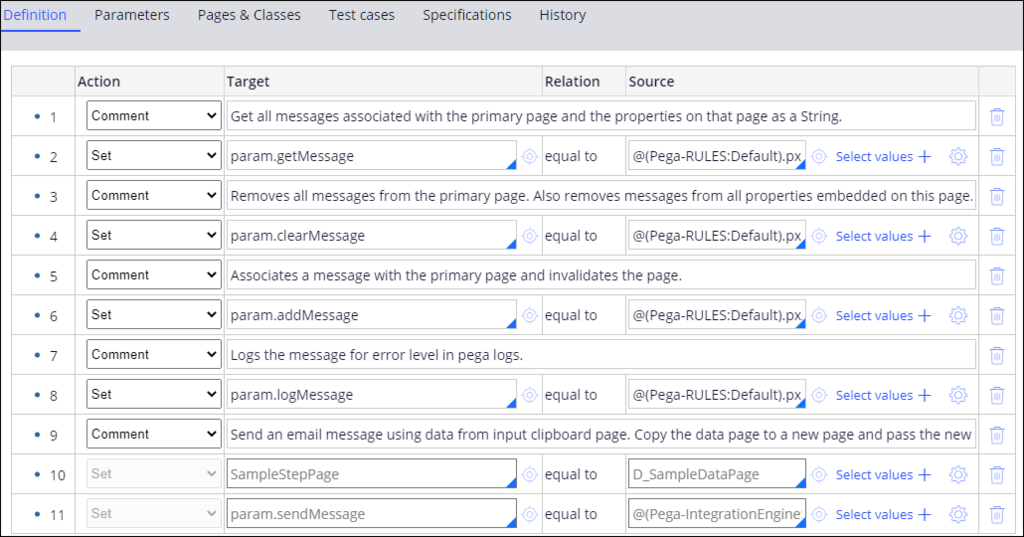
- From the
D_CreditReportData Page, open the CreditCheckResponse Data Transform and save a copy to the current application Ruleset. - Enable Step 2, replace pxErrorHandlingTemplate with ErrorHandlingMaster, map
pyCaseIDtoparam.CaseID, and configure Step 2.3 as detailed in the Acceptance criteria. - Open the Candidate Case Type, navigate to Other Views > Background Check, and open the Credit report View.
- Add the
CreditCheckErrorfield as Read-only with visibility set to If not blank as detailed in the Acceptance criteria. - Save your changes.
Available in the following mission:
If you are having problems with your training, please review the Pega Academy Support FAQs.
Want to help us improve this content?