

Configuring a full Case View
2 Tasks
10 mins
Beginner
User Experience
Constellation
English
Scenario
The Mayor and Services Coordinator requested a single View to track updates while running Service Cases. The Services Coordinator requested a History tab on the full Case View instead of History being under the Pulse tab. Configure the full Case View to display the requested information when processing a Service Case.
Note: The framework of this challenge uses the Constellation architecture of Pega Platform™.
The following table provides the credentials you need to complete the challenge:
| Role | User name | Password |
|---|---|---|
| Application Developer | author@mytown | pega123! |
Note: Your practice environment may support the completion of multiple challenges. As a result, the configuration shown in the challenge walkthrough may not match your environment exactly.
Challenge Walkthrough
Detailed Tasks
1 Configure the summary information in the full Case View
- In the Pega instance for the challenge, enter the following credentials:
- In the User name field, enter author@mytown.
- In the Password field, enter pega123!.
- Click Case Types > Service Request to display the Case Life Cycle.
- Click the UX tab to display the Full Page View configuration pane.
- In the Heading list, select Case ID to display the Case ID at the top of the Preview View.
- In the Subheading list, select Label to display the Case Type label below the Case ID.
- In the Highlighted fields area, confirm that the Urgency and Work Status fields are present.
- In the Summary area, click Add > Fields to add information to display in the Case summary data.
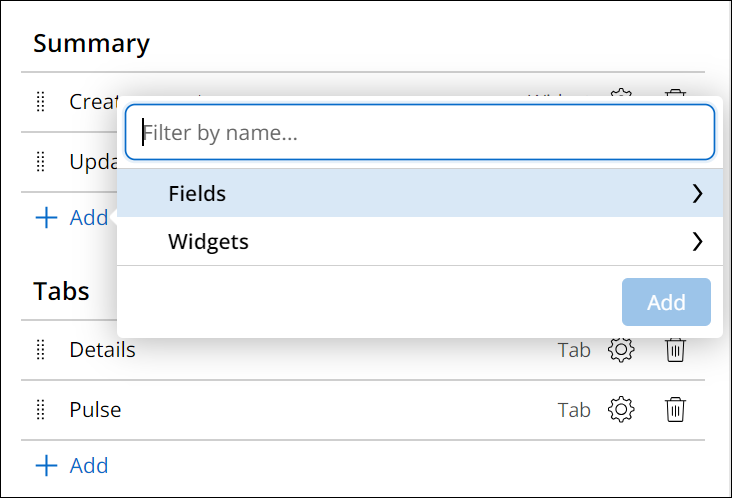
- Select the Create date/time, Create Operator, Update date/time, and Update operator name fields, then click Add.
- To the right of the Create operator widget, click the Remove icon.
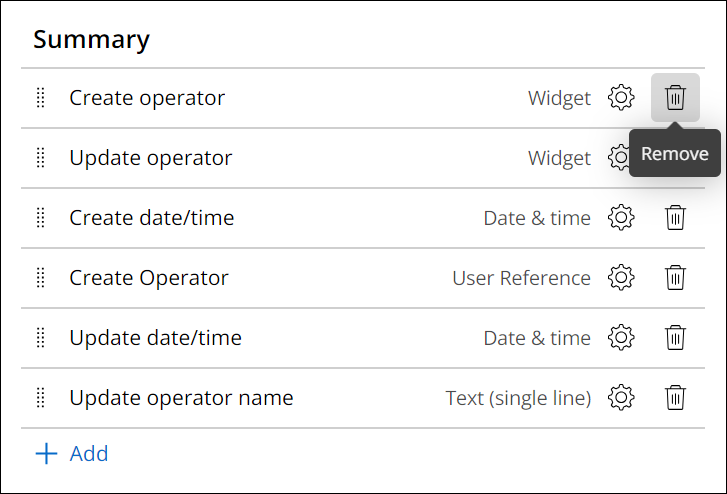
- Repeat step 9 to remove the Update operator widget.
2 Configure the tabs and utilities in the full Case View
- In the area, click Add to display the dialog box.
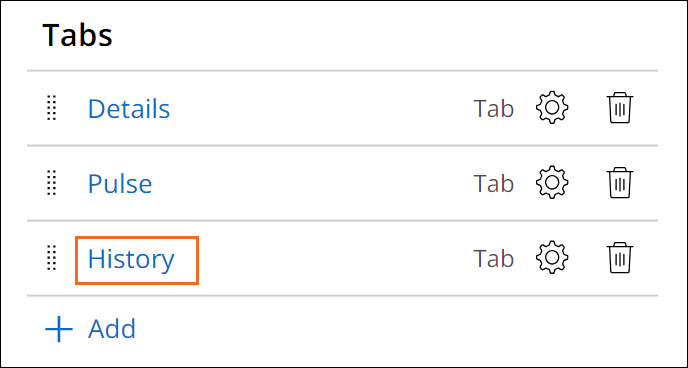
- In the Name field, enter History to name the new tab and then click Submit.
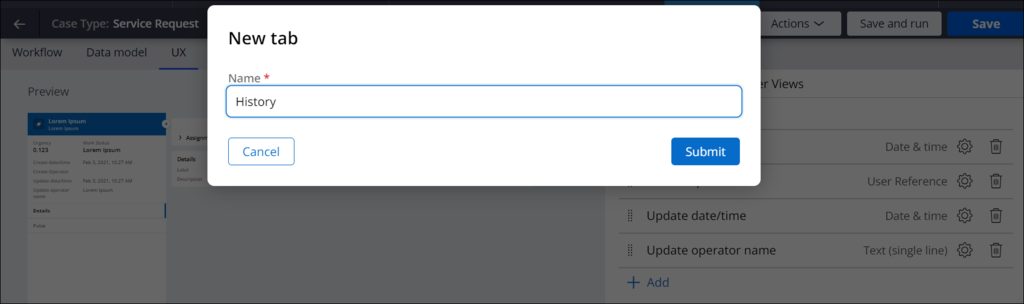
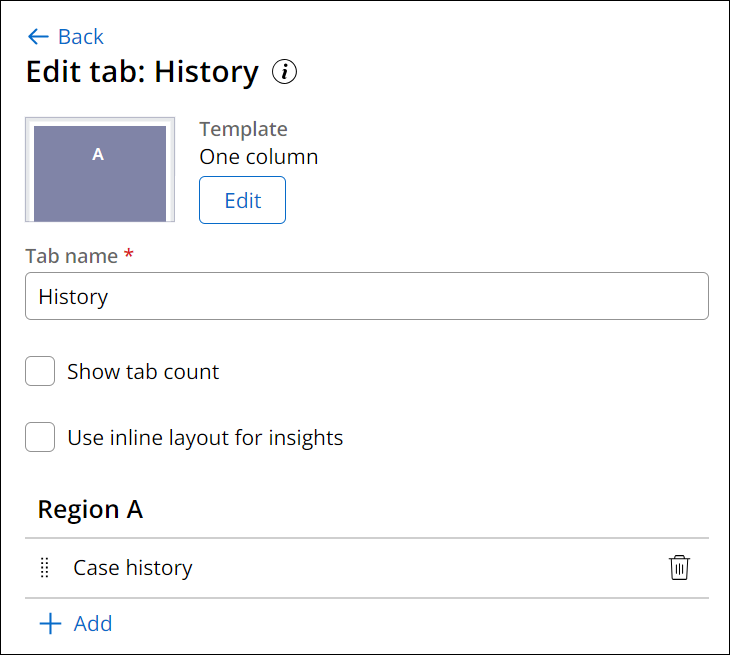
- Click History to display the Edit tab: History configuration pane.
- In the Region Asection, click Add > Widgets > Case history and then click Add.
- Click Back to return to the Full Page View configuration pane.
- Click Pulse to display the Edit tab: Pulse configuration pane.
- To the right of the History tab, click the Remove icon.
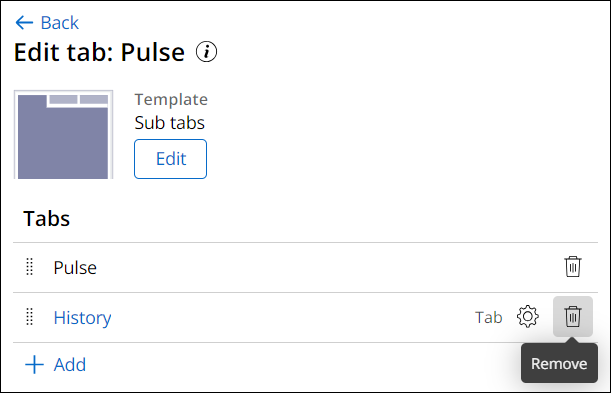
- Click Back to return to the Full Page View configuration pane.
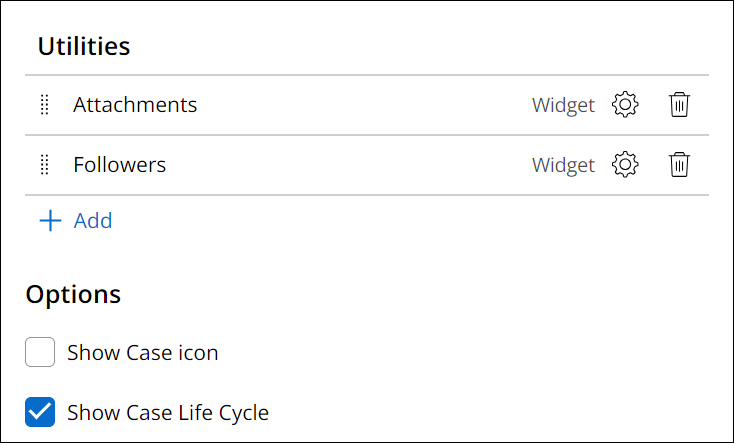
- In the section, confirm that the Attachments and Followers widgets are present.
- In the section, clear the Show Case icon checkbox.
- Click Save to save the changes to the Service full Case View.
If you are having problems with your training, please review the Pega Academy Support FAQs.
Want to help us improve this content?