
Creating an Insight for the Executive Manager
1 Task
45 mins
Advanced
Reporting
Insights
English
Scenario
The Executive Manager requires a monthly view of business partner registrations and renewals.
Create a table-based Insight that shows the number of registrations and renewals submitted in the past 30 days. Access to this Insight must be restricted to the Executive Manager.
The following table provides the credentials you need to complete the challenge:
| Role | User name | Password |
|---|---|---|
| Admin | admin@deliveryservice | rules |
| Executive Manager | executivemanager@mdc | rules |
Note: You might be practicing the challenges that use the Pega challenge instance provided with the LSA training on Pega Academy. Note that this instance is preconfigured and includes complete solutions for all challenges, along with the MDC Delivery Service application. If you want to practice and complete the challenges from scratch, use a Pega Lab instance or a VM, and refer to the provided solutions.
Detailed Tasks
1 Implement solution details
- In the Pega instance for the challenge, enter the following credentials:
- In the User name field, enter admin@deliveryservice.
- In the Password field, enter rules.
- In the navigation pane of App Studio, click Explore Data to display the Explore Data landing page.
- Click Explore Data, and then select Partner to display data related to the Business Partner registration and renewal Cases.
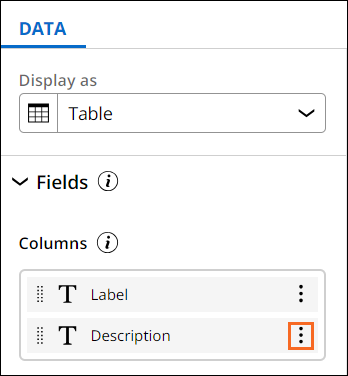
- On the Data tab, in the Columns section, in the Description row, click More > Remove to hide the column.
- In the Available fields pane, in the Partner section, click More fields to display additional available fields.

- Drag the Case ID field to the Data tab, and then drop it in the Columns section.
- Repeat step 6 for the following fields:
- Create datetime
- Create operator name
- Business Partner Id
- InvoiceId
- IsRenewal
- Work Status
- Drag the Work status field to the Data tab, and then drop it in the Groups section.
- Drag the Create date/time field to the Data tab, and then drop it in the Filters section.
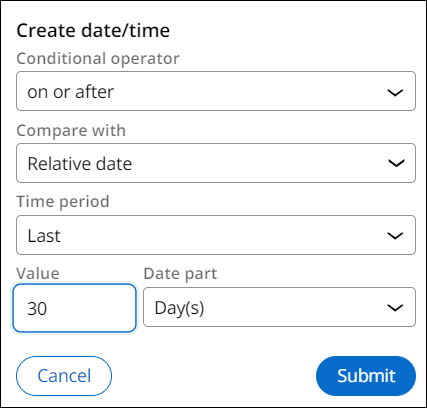
- In the Create date/time dialog box, configure the details:
- In the Conditional operator list, select on or after.
- In the Compare with list, select Relative date.
- In the Time period list, select Last.
- In the Value field, enter 30.
- In the Date part list, keep the default value of Day(s).
- Click Submit.
- Click Save as Insight to display the Save as Insight window.
- In the Name field, enter Number of Business partner registrations and renewals.
- In the Visibility list, select Shared - Users with access.
- In the Shared list, select Specific.
- Click Add, and then in the Share with dialog box, set up the details:
- In the Select what to add list, select User.
- In the User name(s) field, select ExecutiveManager@MDC.
- Click Add.
- In the Description field, enter Number of Business partner registrations and renewals in the past 30 days.
- Click Submit.
Available in the following mission:
If you are having problems with your training, please review the Pega Academy Support FAQs.
Want to help us improve this content?