
Creating an internal email treatment designed in Pega Customer Decision Hub
3 Tasks
15 mins
Beginner
English
Scenario
U+ Bank's marketing department wants to promote their Rewards credit card through email. They want to send the email to qualified customers in an always-on outbound environment.
In preparation, a consultant has already created the Rewards Card action. The bank would like to reuse the approved design from the Standard Card email treatment. You are now expected to create a treatment for the offer and test the email Treatment.
Use the following credentials to log in to the exercise system:
| Role | User name | Password |
|---|---|---|
| Decisioning Architect | DecisioningArchitect | rules |
Your assignment consists of the following tasks:
Task 1: Create an email treatment for Rewards card
Copy the Standard card email treatment to create the Rewards card email treatment.
Task 2: Configure the copied treatment
Make the necessary changes in the copied treatment to reflect the Rewards Card offer by using the information in the following table:
|
Field |
Value |
|
Keycode |
REWARDSEMAIL |
|
Image URL |
https://artifacts.pegaenablement.com/images/RewardsCardSM.png |
|
Image Alternate Text |
U+ Bank Rewards Card |
|
Email content |
You are pre-approved for a U+ Bank Rewards card.
|
Task 3: Add the email treatment to Rewards card
Configure the Rewards card action with the new Rewards card email treatment.
Task 4: Confirm your work
Confirm your work using [email protected] and Stephen Gold seed list as recipients.
Challenge Walkthrough
Detailed Tasks
1 Create an email treatment for Rewards card
- Log in as Decisioning Architect with user name DecisioningArchitect and password rules.
- In the navigation pane on the left, click Content > Actions.
- Locate and open the Rewards card action.
- Click Check out to make changes.
- Click the Treatments tab to add a new treatment.
- On the Treatments tab, click Add channel > Email to add a new email treatment.
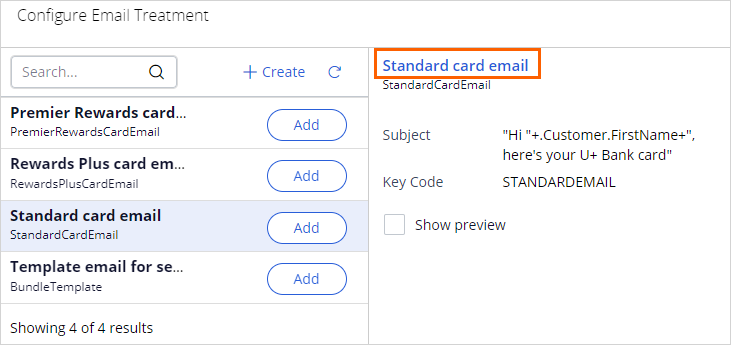
- In the Configure Email Treatment window, click Standard card email to open the treatment.
- Click Save as to save a copy of the Standard card email treatment.
- Modify the short description to read Rewards card email.
- Click Create and open.
- Click Check out to begin making changes.
Note: The dynamic placeholder in the email subject line is configured to generate the full customer name. This can be left as is for the Rewards Card template.
2 Configure the copied treatment
- In the Treatments tab, in the Keycode field, enter REWARDSEMAIL.
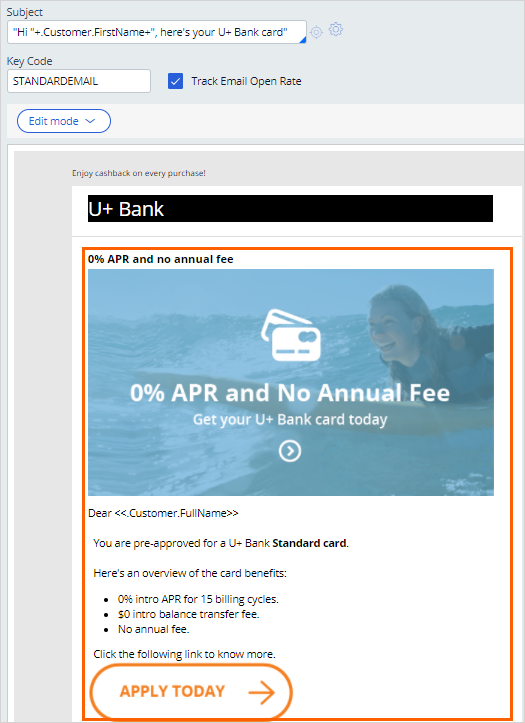
- In the template preview pane on the left, click the offer details content area to modify the offer content. On the right, the editor pane shows the content in editable format.
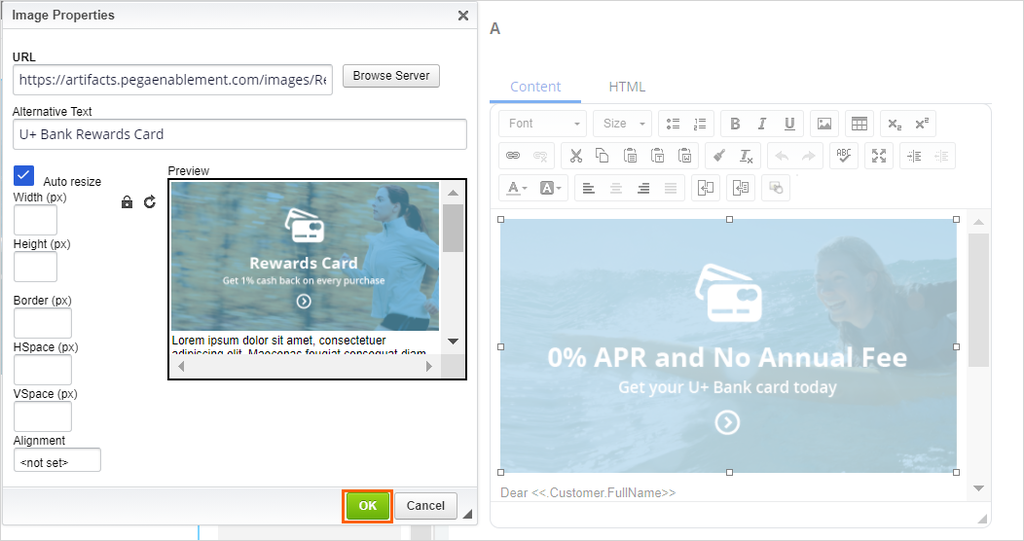
- In the Editor pane on the right, double-click the image to open the image properties.
- Modify the image properties as follows:
- In the URL field, enter https://artifacts.pegaenablement.com/images/RewardsCardSM.png.
- In the Alternative Text field, enter U+ Bank Rewards Card.
- Click OK.
- Modify the email content as follows:
You are pre-approved for a U+ Bank Rewards card.
Here's an overview of the card benefits:- $200 cash rewards after you spend $500 on purchases in the first 3 months from account opening.
- 1% cash back on every purchase.
- No annual fee.
Note: Leave the rest of the email content as is.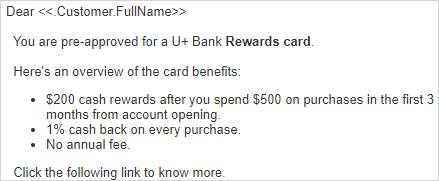
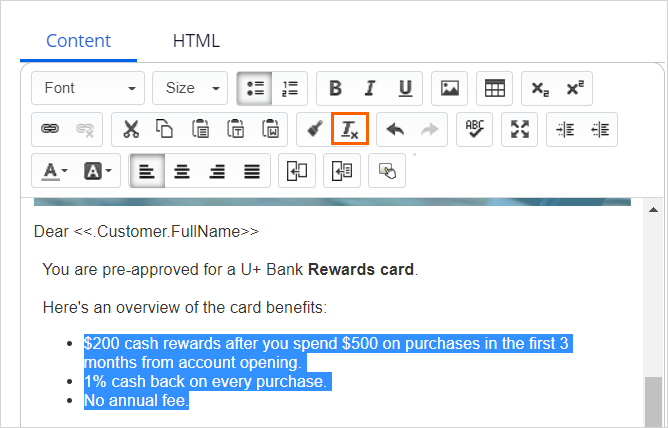
- In case you have copy-pasted the treatment details, select all the text and click on the Tx to remove the formatting.
 Note: In this challenge, we are showcasing how to use Pega's HTML editor to create an email treatment. In project implementations, you could also use a third-party HTML editor such as Dreamweaver to create the contents of your email treatment and import it as HTML content.
 - Click Check in to save the changes made to the treatment.
- Close the email treatment.
3 Add the email treatment to Rewards card
- Close the two opened treatments and return to the Rewards card action, Treatments tab.
- Refresh the Configure Email Treatment window.
- To the right of the Rewards card email treatment, click Add to add the treatment to the action.
- Click Apply to confirm the treatment selection and close the window. The treatment is now added to the action.
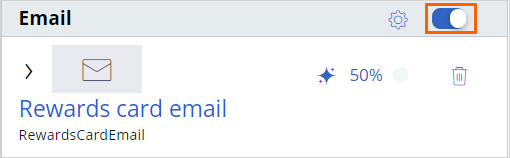
- In the Email section, ensure that the email treatment is enabled.
- Click Check in to save the changes to the action. Provide a suitable check-in comment when prompted. For example, Email treatment added.
This Challenge is to practice what you learned in the following Module:
If you are having problems with your training, please review the Pega Academy Support FAQs.
Want to help us improve this content?