
Debugging Constellation applications
6 Tasks
1 hr 15 mins
Intermediate
User Experience
Constellation
Low-Code App Development
English
Scenario
Due to the stateless nature of a Constellation application, it is not possible to run the Pega Clipboard from the user Portal, or from Dev Studio and then switch the thread to investigate live data. As a result, it is important to become comfortable debugging Constellation applications using the Tracer tool, UI Inspector, as well as your browser's DevTools. The Tracer tool helps track execution flow and performance of application Rules, while the UI Inspector provides an intuitive way to examine View metadata, component properties, and the interactive aspects of UI elements.
Note: DevTools are programs that are included with your browser that enable you to create, test, and debug software. With the Chrome, Edge, and Firefox browsers, you can access the DevTools by pressing F12 on your keyboard.
The following table provides the credentials you need to complete the challenge:
| Role | User name | Password |
|---|---|---|
| System Architect | Author@SL | pega123! |
Note: Your practice environment may support the completion of multiple challenges. As a result, the configuration shown in the challenge walkthrough may not match your environment exactly.
Note: This challenge does not have a demo video. Please refer to the Detailed Tasks for step-by-step instructions to complete the challenge.
Tip: This challenge will have you open multiple windows. If a link seems unresponsive, try expanding your browser window and check whether your pop-up blocker is preventing new windows from opening.
Detailed Tasks
1 Access View JSON data in Dev Studio
- In the Pega instance for the challenge, enter the following credentials:
- In the User name field, enter Author@SL.
- In the Password field, enter pega123!
- In the navigation pane of App Studio, click Case Types > Incident to open the Case Type.
- On the Case Types UX tab, select tab, and navigate to the Confirmation Partial View.
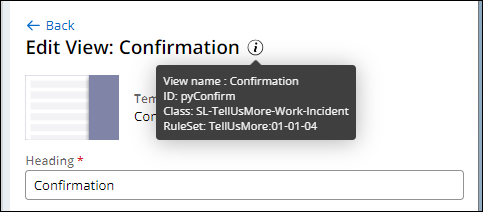
Note: Pega provides several out-of-the-box Views that can be used in developing Case Types. Some of these Views have unusual configurations. An example of this is the Confirmation View (ID: pyConfirm). This View is responsible for displaying information in the Assignment confirmation.
- Click the Additional info icon to see some of the View's metadata in App Studio. We will see more metadata as JSON in Dev Studio.
- Note the What's next section of the Confirmation View. We will highlight it in the JSON metadata from Dev Studio.

- Switch to Dev Studio to access the metadata in JSON format.
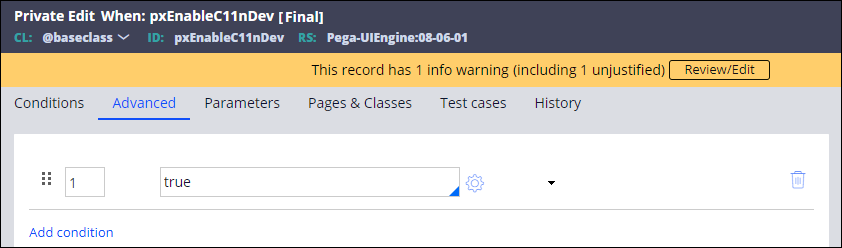
- Search for the Rule named pxEnableC11nDev.
Note: If the search does not return a result, click and filter the Name column by pxEnableC11nDev to locate the Rule.
- Open the pxEnableC11nDev Rule, continue with a , and then set the value equal to true.
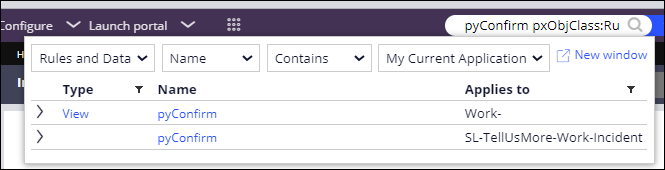
- In the Search bar of Dev Studio, enter pyConfirm pxObjClass:Rule-UI-View to search for the pyConfirm View.
- Select the pyConfirm View Rule associated with the SL-TellUsMore-Work-Incident class.
- To View metadata, you may need to click on the Mark as custom link in the General section header of the Default tab and then click Submit on the Mark View as custom modal dialog (see the note at the end of step 12 for details).
- In the JSON, find the reference to .pyWhatsNext and check which property is taken and displayed on the UI.
 Note: If the JSON metadata doesn't display, click the Mark as custom button and submit the Mark View as custom modal as shown in the following image.
2 Examine View Rules using the Tracer
- Switch to App Studio, and in the navigation pane, click .
- In the Research Case Type, open the Case Type Data Model.
- Add a new Address field named Address.
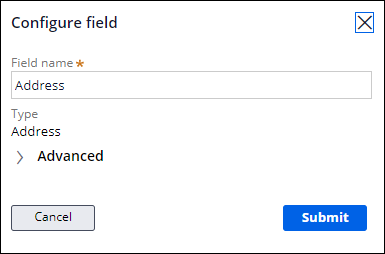 Note: By default, the Address Field Type has a default View named pyAddressForm.
 - From the Debug Step, open the Debug View, and add the Address field to it.

- Click , then .
- Click the button to open the Portal window.
- Create a Research Case.
- In the bottom-right corner of App Studio, click the Toggle runtime toolbar icon, and open the Tracer.

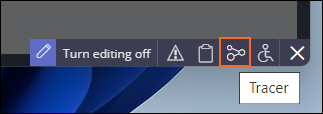
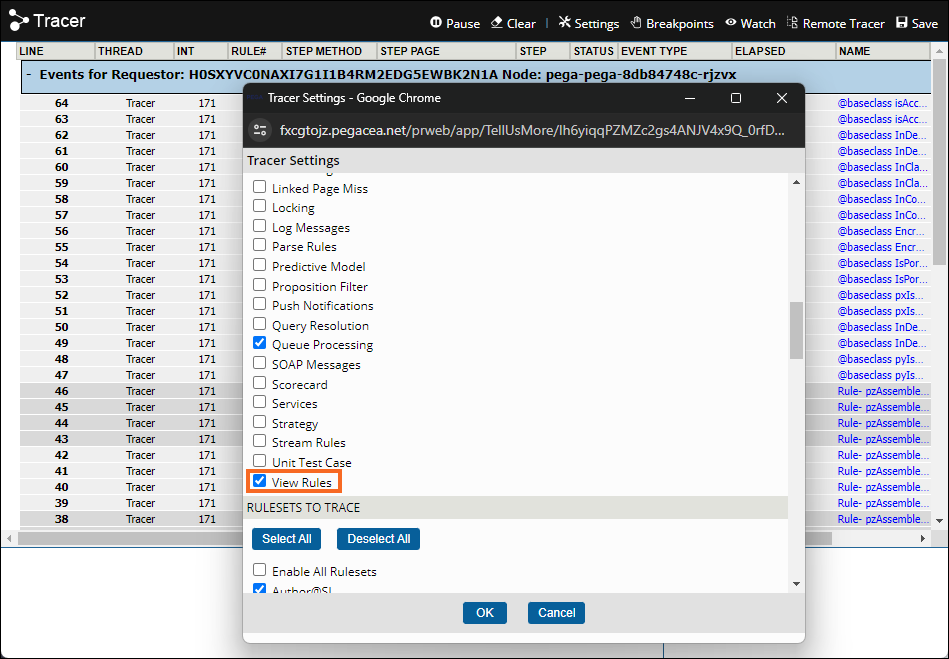
- Click Settings. In the EVENT TYPES TO TRACE section, scroll down and enable the View Rules. Then click .
- Navigate back to the Portal and the Debug Assignment.
- Navigate back to the Tracer, expand Resource: /application/v2/assignments and search for View Start to locate the name of all the Views requested for rendering.
- Find the Views associated with the pyAddressForm.

- Click the DATA-ADDRESS-POSTAL!PYADDRESSFORM link to open the JSON for the AddressForm View. Click the Mark as custom button if the JSON doesn't display.
 Note: Alternatively, open the pyAddressForm View using the Search bar of Dev Studio.
 - Close the Tracer tool.
3 Explore View metadata with UI Inspector
Note: The UI Inspector tool provides an intuitive way to debug screen issues, such as metadata, field properties, and View properties. The UI Inspector is primarily used for debugging Views and other UI controls, rather than Assignments.
- In App Studio, open the Research Case Type.
- Click the UX tab and open the Details Partial View.
- Delete the Primary fields View and add the Address field to the Details Partial View.
- Switch to Dev Studio and launch the Customer Portal.
- In the Customer Portal, navigate to the Portal Home page.
- Note the contents in the banner.

- Open the Dev Tools for your browser - likely using F12 for Chrome, Firefox, Edge. You may need to enable this feature on your browser. For example, on MS Edge, type edge://settings/system in the address bar and enable the Use F12 key to open Development tools toggle under System and performance in Settings.
- Navigate to the Console tab and clear the window.
- In the Dev Tools Console, enter:
PCore.getDebugger().toggleInspector();to start the UI Inspector tool. Note: If you see the following message: PCore is not defined in the Console, it is probable that you launched the Portal from App Studio. The PCore and PConnect methods are not available in the App Studio shell. For PCore and PConnect to work, you must launch the Portal from Dev Studio. To learn more about the structure of your application's UI by using the UI Inspector, see Checking your application with UI Inspector.
 - On the right side of the window, click the Open UI Inspector icon to open the the UI Inspector pane.

- Investigate the metadata for the Views associated with the Tell Us More announcements, including:
- View: pyHome

- AppAnnouncement
 Note: Note that the datasource for the Announcements Widget's information is driven by the D_pyAnnouncements Data Page.
- View: pyHome
- To stop the UI Inspector tool, enter
PCore.getDebugger().toggleInspector(); - Switch back to Dev Studio.
- Using the Dev Studio Search bar, open the D_pyAnnouncements Data Page.
- In the Data Sources section, open the pyInitAnnouncements Data Transform, add Steps 2 and 2.1 as shown in the following table, and save changes.
Action Target Relation Source 2 Append and Map to .pxResults a new page 2.1 Set .pyLabel equal to "New authoring experience with Constellation" 
- Launch a new instance of the Customer Portal. On the Home page, note the updated bullet point.

4 Debug DX API calls
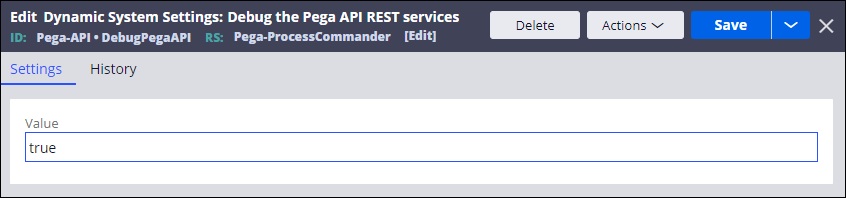
Note: You can collect more details about the request and response of your DX API with the DebugPegaAPI system setting. When you set the DebugPegaAPI to true, your system captures information about API errors in the PEGA log. The DebugPegaAPI system setting is particularly useful for debugging page instructions and field security errors.
- Switch back to App Studio. In the Research Case Type, add the User Reference Test field to the Debug Step View.
- Switch back to Dev Studio, search for the DebugPegaAPI Dynamic System setting and set it equal to true.
- In the navigation pane, click Records > Integration-Services > Service Rest > data_views/{data_view_ID}). to open the Service Rest that handles data Views.
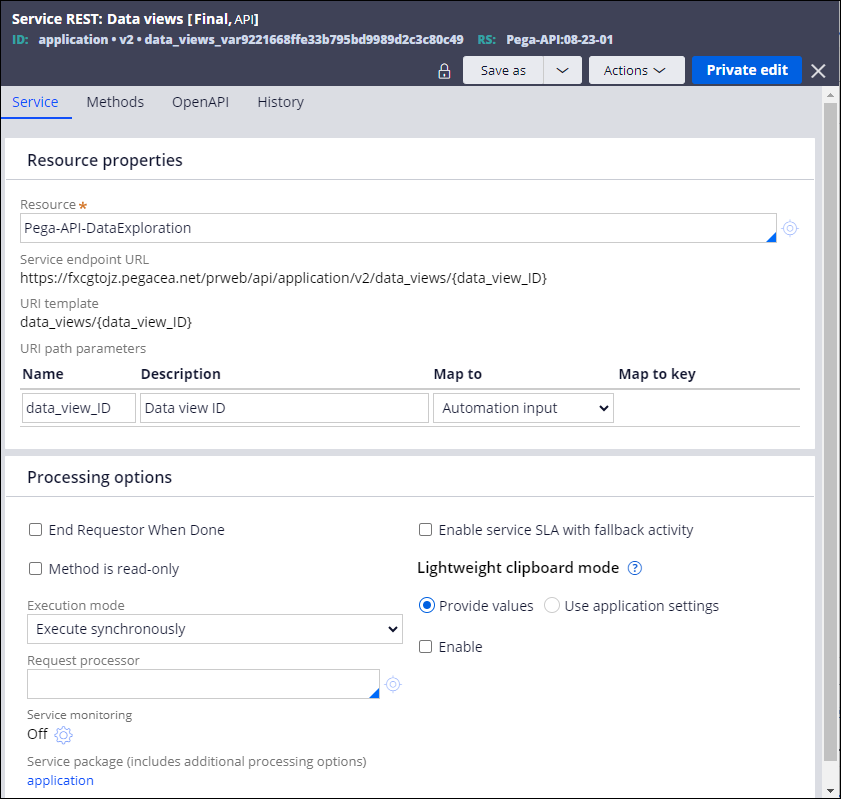
- Select Actions > Trace to start tracing the service.
- Launch the Customer Portal and create a new Research Case.
- Navigate to the Debug Assignment, and in User Reference Test field, select Author@SL.
- Return to the Tracer.
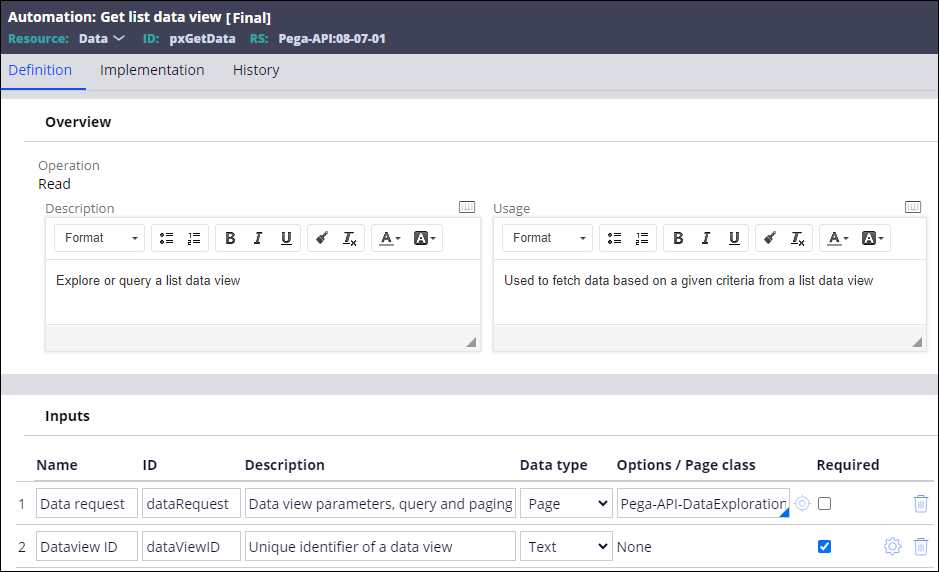
- Expand Resource: /application/v2/data_views/D_pyC11nOperatorsList and search for the Automation pxGetData.

- Click pxGetData to open the Automation.
- Access the Tracer window and select the Data Transform End event named Pega-API-DataExploration pzTranslateViewPageToJSON and review the list returned as JSON.
-
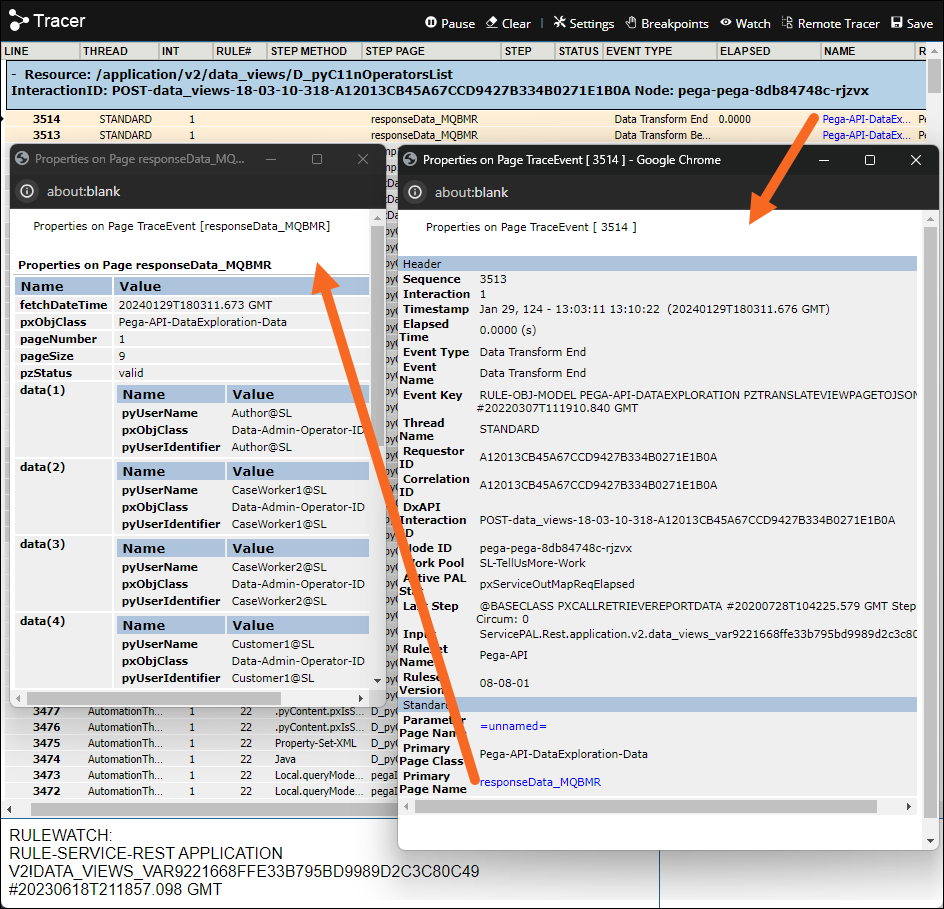
- Close the Tracer windows related to the Data Transform End Event type.
5 Review the Data Page cache
- Return to the Customer Portal and create a new Incident Case.
- Navigate to the Contact Info Step.
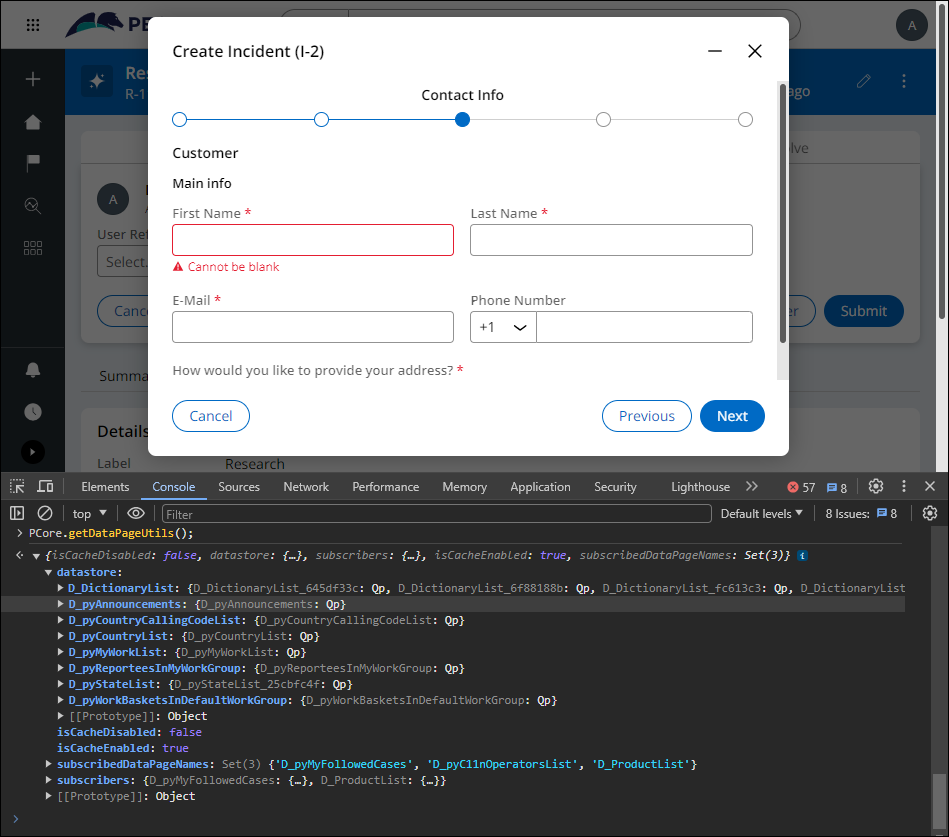
- Open the Developer Tools, navigate to the Console tab, and enter: PCore.getDataPageUtils();
- Explore the Data Pages that are cached at the Contact Info Step.
- Close the Developer Tools window.
6 Examine React Changes with Redux DevTools
- Install the Redux-DevTools in your browser by searching for Redux DevTools, or:
- For Chrome, you can add the Redux DevTools from here: Google Chrome Store Redux DevTools
- For Firefox, you can add the Redux DevTools from here: Firefox Redux DevTools
- For Edge, you can add the Redux DevTools from here: Edge Redux DevTools
- Open the Dev Tools and navigate to the Redux Tab.
- Create a new Incident Case, and navigate to the Determine Incident Type Step.
- Note the changes to the Action information as you fill out the form.
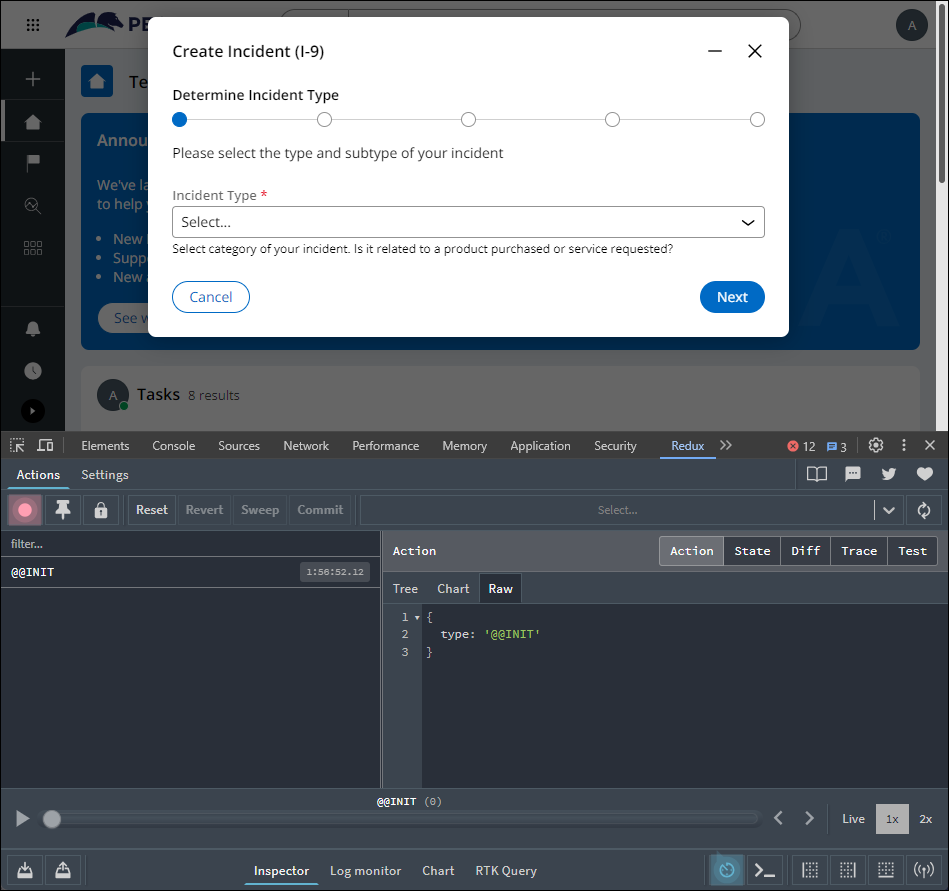
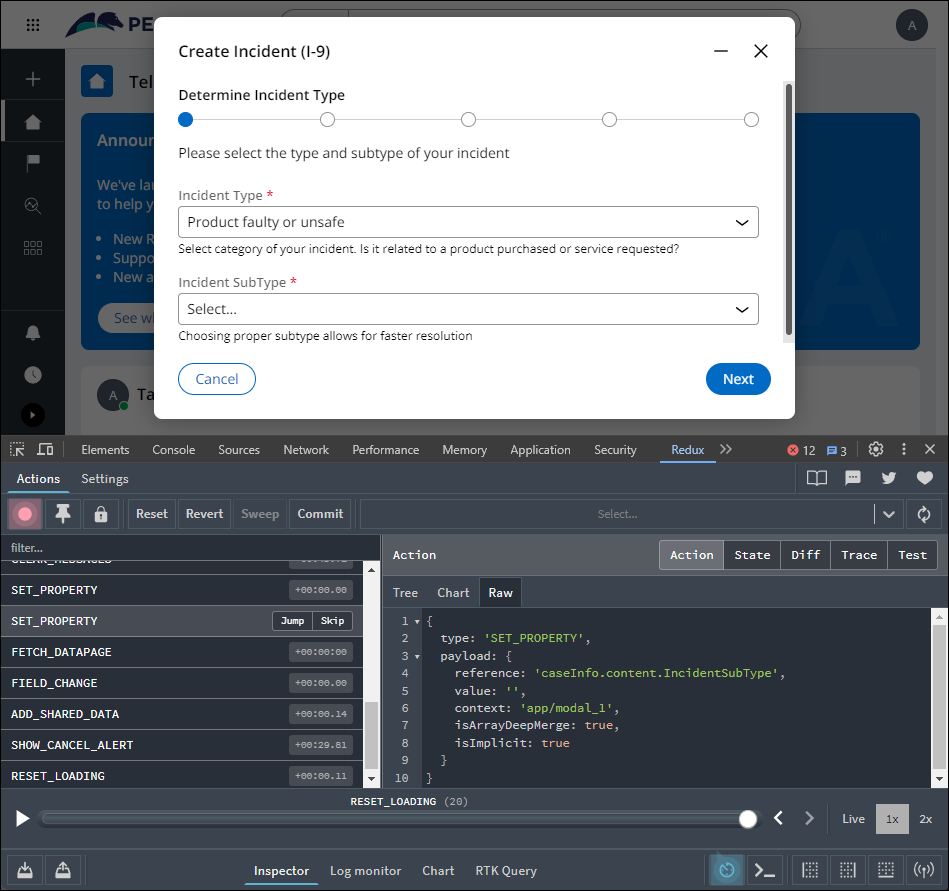
- Continue through the Case and note how changes are recorded in the Redux Dev Tools.
This Challenge is to practice what you learned in the following Module:
Available in the following missions:
If you are having problems with your training, please review the Pega Academy Support FAQs.
Want to help us improve this content?