Enabling an action
Archived
3 Tasks
5 mins
Beginner
English
Scenario
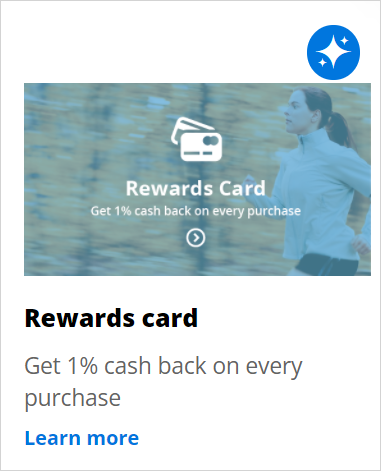
U+ Bank recently completed a project in which customers who log in to their account page on the website see credit card offers.
Upon logging in to the U+ Bank website, customers see the offers that they qualify for based on the engagement polices defined by the business.
But the bank has decided to retire one of the offers. The Standard card is not performing well, so U+ Bank wants to remove it.
Use the following credentials to log in to the exercise system:
| Role | User name | Password |
|---|---|---|
| Decisioning Architect | DecisioningArchitect | rules |
Your assignment consists of the following tasks:
Task 1: Verify that the Standard card action is available
Log in as Troy to the U+ Bank website and verify that he receives the Standard card offer.
Task 2: Disable the Standard card action
Open and disable the Standard card action so that Pega Customer Decision Hub cannot pick up the action. The action is located in the Grow Issue and the Credit Cards Group.
Task 3: Verify the offer on the U+ Bank website
Log in back as Troy to the U+ Bank website and verify that he does not see the Standard card offer anymore.
Challenge Walkthrough
Detailed Tasks
1 Verify that the Standard card action is available
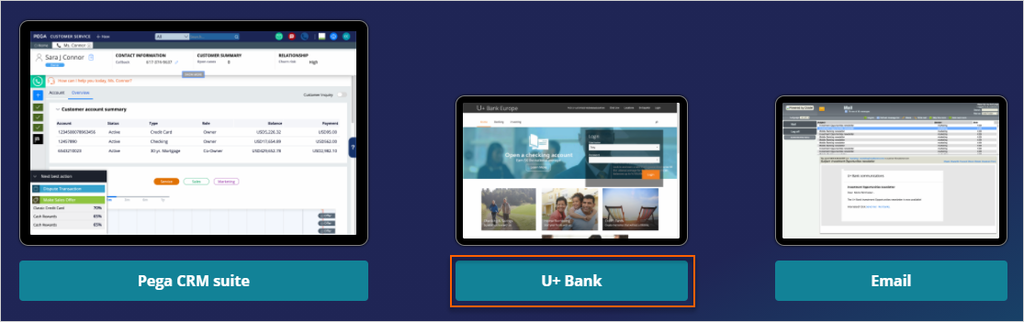
- From the exercise system landing page, click U+ Bank to open the website.
- Log in as Troy to the U+ bank website.
- Check that the Standard card is displayed every time you log in.
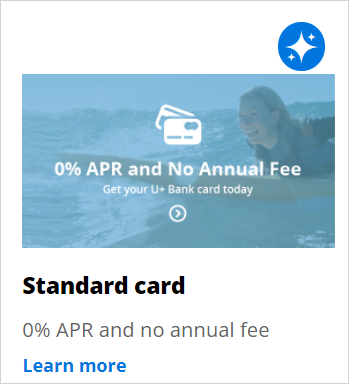
- Log out and log back in as Troy multiple times. Check that Troy sees the Standard card offer multiple times.
2 Disable the Standard card action
- Log in to Customer Decision Hub as the Decisioning Architect with User name DecisioningArchitect using password rules.
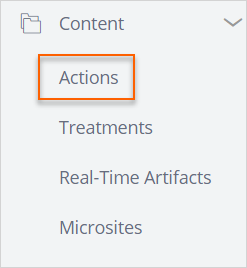
- In the navigation pane on the left, click Content > Actions.
- Click the Standard card action to open the details.

- On the Actions landing page, in the upper-right corner, click Check out to begin editing the action.

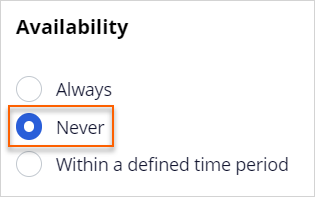
- Under Availability, select Never to disable the action.
- In the upper-right corner, click Check in to save the changes.

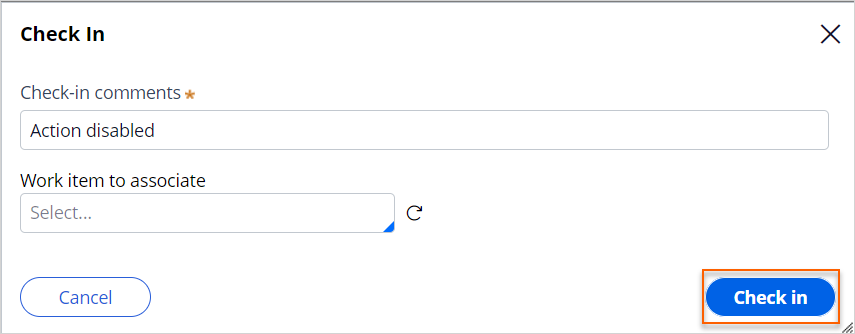
- When prompted, enter appropriate check-in comments, for example: action disabled
- Click Check in.
3 Verify the offer on the U+ Bank website
- Open the U+ Bank web site and log in as Troy.
- Verify that Troy is getting only the Rewards card offer, even after multiple logins, and that he is not getting the Standard card offer.