

Customizing the user interface for agents
2 Aufgaben
15 Min.
Anfänger
Agent Desktop
Englisch
Szenario
You have been asked to make the following changes to the Pega Customer Service user interface, which is displayed when customer service representative logs in.
Use the following credentials to log in to the exercise system:
| Role | User name | Password |
|---|---|---|
| Application administrator | CSAppAdmin | password123! |
Your assignment consists of the following tasks:
Task 1: Edit the Avg monthly balance field label
Change the Avg monthly balance field label to Average monthly balance.
Task 2: Modify the Address Change service request layout template
Modify the Address Change service request to use a three-column layout and add a Business phone field to the new column.
Challenge-Schritte
Genaue Übungsschritte
1 Edit the Avg monthly balance field label
- Log in to the Interaction Portal with username CSAppAdmin and password password123!.
- Click Preview to access the Interaction Portal.
- Click New > Demo Screen Pops > Demo Pop - CONNOR to start an interaction with Sara Connor.
- Click Accept to accept the incoming call. The composite view for Sara Connor is displayed.
- Click Design to enable design mode.
- Hover over the Avg monthly balance label, and then click the Edit this section icon to enable edit mode.
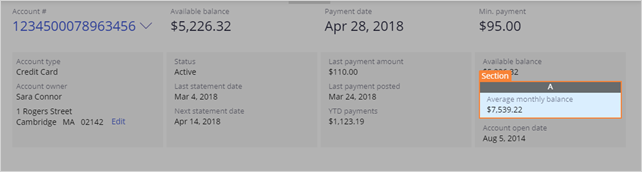
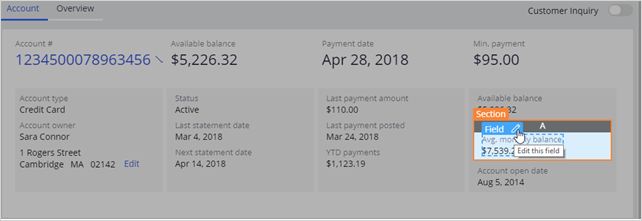
- Inside the section, hover over the label to display the Field selection, and then click the Edit this field icon. The label properties are displayed in the pane on the right.
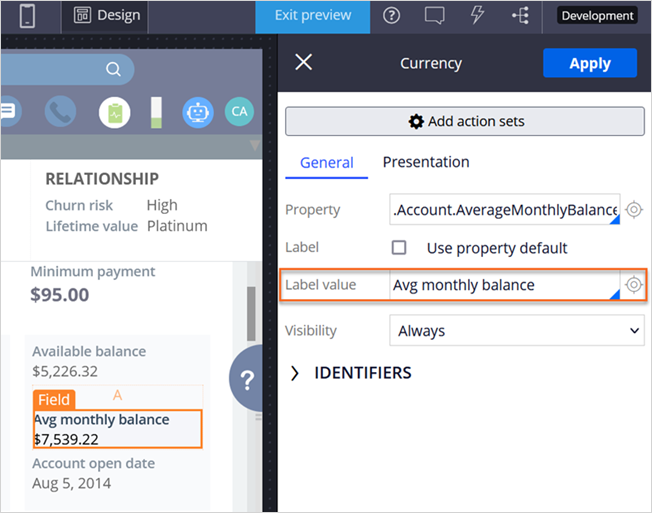
- In the Label value field of the properties panel, enter Average monthly balance.
- Click Apply to save your update.
- In the upper-left corner of the pane, click X to close the field edit pane.
- In the upper-left corner of the pane, click X to close the section edit pane.
- Click Design to disable design mode.
2 Modify the Address Change service request layout template
- Click Add task, and then double-click Address change to start the case.
- Click Design to enable design mode.
- Hover over the Country area and click the Edit this section icon to edit the section.
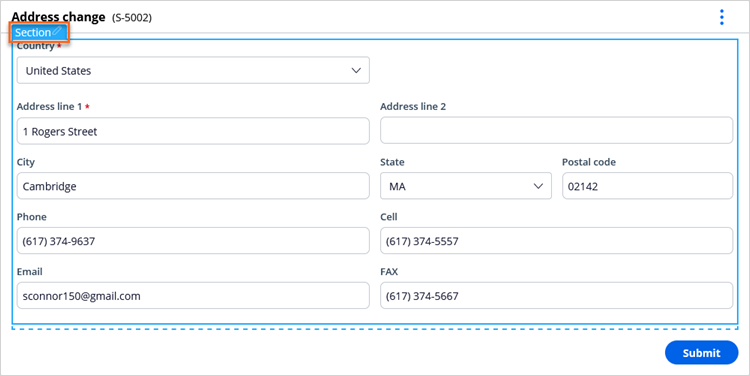
- From the pane on the right, click Change to display the available design templates.
- Click on the 3 Column design template icon to change this layout from the current Address template layout to the new three-column layout.
- In the pane on the right, on the C tab, click the Add icon to view the available reusable fields.
- Hover over the Business phone field, and then click the Add to view icon to add the field to column C. After the screen refreshes, the Business phone field is applied to column C.
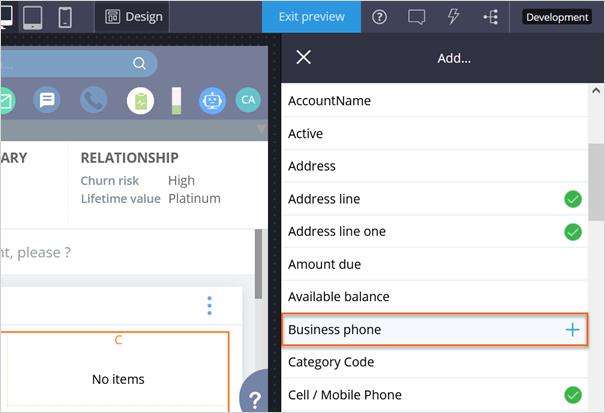
- In the upper-left corner of the pane, click X to close the Add… view, and then click X again to close the pane.
- Click Design to disable design mode.
- Click Wrap up to conclude the interaction with Sara.
- Click Submit to close the interaction.
Wenn Probleme mit den Lerninhalten auftreten, lesen Sie bitte die Pega Academy Support FAQs.
Möchten Sie uns dabei helfen, diesen Inhalt zu verbessern?