
Queries based on generated or reformatted data
Discover the benefits of reformatting the required data for a report to meet reporting requirements, instead of using the same report generated from out-of-the-box (OOTB) tables.
Scenario
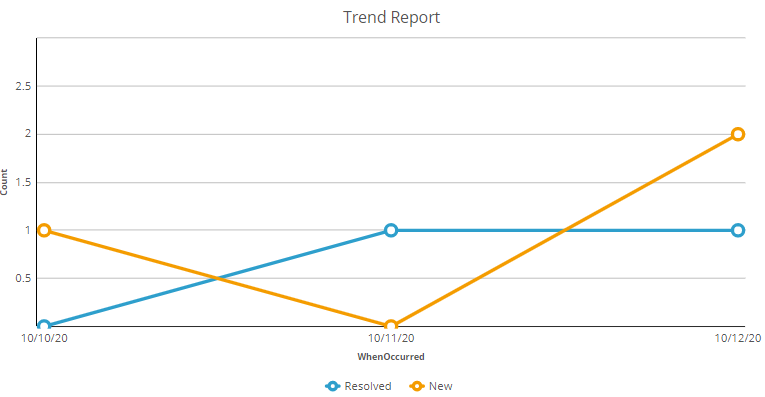
One requirement of a query is to generate a trend report that displays the number of cases created by the system and resolved by users each day. It is assumed that cases can take longer than a day to complete.
The Trend Report chart below displays the number of cases created and resolved on a given day. To generate this report, two records are required, each with a WhenOccurred property and an EventType property. The EventType property should have two values: New and Resolved.
Solution designs
There are several possible design approaches:
- Work pool: You should not define a trend report against the work pool class of the analyzed cases. A trend report requires a specific date to plot the two results, such as the number of cases created and the number of cases resolved. Using pxCreateDateTime or pyResolvedTimeStamp as the plotting date will result in inaccurate data. Cases that are resolved days later based on the day of the case creation or cases that are created days before they are resolved will be counted when the case is resolved.
- History table: You can identify case creation and case resolution events by querying the case history. Using descendant classes of History-Work to identify these events is complex. This is because the history table contains numerous rows with other types of information. Applying filters against such a large number of records can cause performance degradation. Therefore, this approach is not recommended.
- Custom data table: Instead of searching for case creation and resolution events within case history, use a separate data type called Data-SimpleCaseHistory. In this case, EventType only accepts two values: Create and Resolve. You can create a trend report against this table or join the work pool class to this table using pyID = CaseID. Each EventType is plotted against the WhenOccurred DateTime value. You can also generate data instances within this table retroactively
- String CaseID
- String CaseType
- String EventType
- DateTime WhenOccurred
- Timeline data table: You can use another approach to define and populate a timeline table that contains the dates against which to plot. Populate this table with data as far into the past and future as needed. Other trend reports can use the same table. However, because you cannot define a JOIN based on the result of an SQL function such as day(), CreateDate, and ResolveDate Date, you add and expose properties within the work pool table. You also index those database columns. The query that uses the timeline table requires two subreports, one that selects and counts rows where the CreateDate value matches a given timeline date value, and one that selects and counts the number of rows where the ResolveDate value matches the same timeline date value. Few of the columns include
- Data-Timeline
- Date Date
- TrueFalse IsWeekStart
- TrueFalse IsMonthStart
- TrueFalse IsYearStart
Conclusion
The timeline approach is equally effective as the SimpleCaseHistory method because it involves joining the work pool table twice. However, it has only limited use as a list report, because each subreport conducts a COUNT operation rather than the main report running a GROUP BY aggregation, which would allow for charting. Although you could technically use SQL to perform a UNION operation on the results of the two subreports, this is not supported by the Report Definition rule in Pega Platform™.
A perfect solution is to base the trend report on the SimpleCaseHistory class alone without joining to the work pool table, which demonstrates the benefit of extracting data and saving that data to a different form to facilitate business intelligence.
Check your knowledge with the following interaction:
Dieses Thema ist im folgenden Modul verfügbar:
Wenn Probleme mit den Lerninhalten auftreten, lesen Sie bitte die Pega Academy Support FAQs.
Möchten Sie uns dabei helfen, diesen Inhalt zu verbessern?