
Accessing a Pega application using the Pega API
1 Tarea
5 minutos
Intermedio
Data Integration
Inglés
Escenario
The IT department is adding the ability for users to work on an internal Portal. They submitted a requirement to display open positions within TGB to Portal users. You have been assigned to test the API calls to the HRApps application.
Use the Pega API landing page to query the Data Page D_PositionList to return a list of all open positions.
Nota: This exercise does not describe how you build the external application. The goal is to demonstrate the HTTP query needed to access your Pega application and the resulting JSON response.
The following table provides the credentials you need to complete the challenge.
| Role | User name | Password |
|---|---|---|
| Senior System Architect | SSA@TGB | pega123! |
Nota: Your practice environment may support the completion of multiple challenges. As a result, the configuration shown in the challenge walkthrough may not match your environment exactly.
Recorrido del Reto
Tareas detalladas
1 Access a Pega application using the Pega API
- In the Pega instance for the challenge, enter the following credentials:
- In the User name field, enter SSA@TGB.
- In the Password field, enter pega123!.
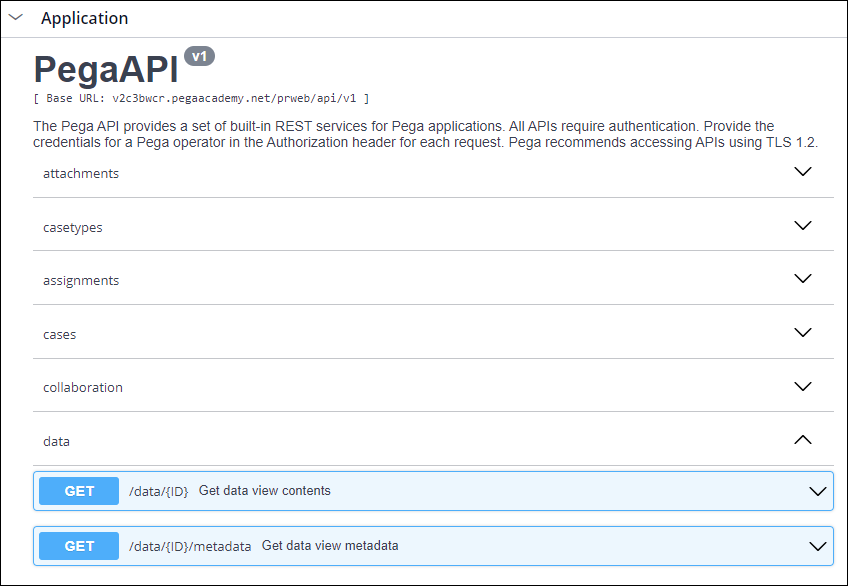
- In App Studio, click Channels > API to open the Pega API landing page.
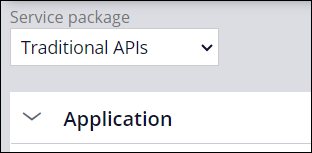
- In the Service package list, select Traditional APIs.
- In the Application category, in the data section, to the right of /data/{ID}, click Get data view contents to query a Data Page.
- Click Try it out.
- In the String field, enter D_PositionList to display a list of all open positions.
- Click Execute to retrieve the data from the Data Page.
- If you are prompted to enter your credentials, enter the challenge credentials.
- Observe the resulting JSON response in the Response Body section of the landing page. Below "pxResults", the positions are displayed as available.
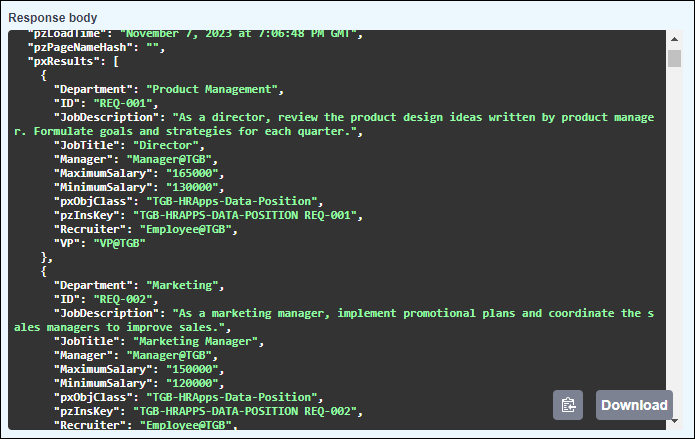
Nota: The JSON response can be difficult to read. To help make it more readable, try downloading a JSON viewer plugin for your browser.
Este Reto es para practicar lo aprendido en el siguiente Módulo:
- Web services v7
Disponible en la siguiente misión:
If you are having problems with your training, please review the Pega Academy Support FAQs.
¿Quiere ayudarnos a mejorar este contenido?