
Get Next Work feature
Using the Get Next Work feature, you can configure your application to automatically select the next Assignment for the user. By choosing the most appropriate Assignment to work on next, the application promotes user productivity, timeliness of processing, and customer satisfaction.
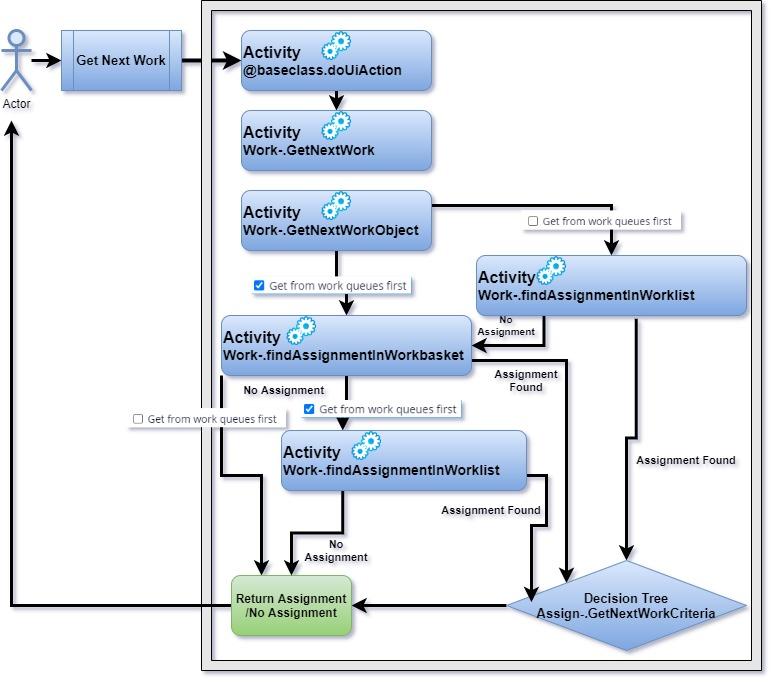
The following diagram illustrates the main activities that run when the system invokes the doUIAction activity from a browser with the action parameter set to getnextwork. The Work-.GetNextWork activity serves as the entry point to the GetNextWork algorithm. Depending on the record configuration of the user, the system searches either their Worklist or the Work Queues listed on the operator record first. If the system finds an Assignment, the GetNextWorkCriteria decision tree further examines the Assignment. Ultimately, the system finds an acceptable Assignment or not.
To retrieve assignments, users typically click Next assignment in the User portal. This action triggers an activity, which performs several steps to retrieve the Assignments. The application calls the @baseclass.doUIAction activity, which in turn calls Work-.GetNextWork. This activity immediately calls Work-.getNextWorkObject.
The subsequent steps depend on the configuration of the operator record of the user. If the user does not select Get from work queues first, the system invokes Work-.findAssignmentInWorklist activity. If the system cannot find any Assignment, it invokes the Work-.findAssignmentInWorkbasket activity. If the user selects Get from work queues first, the system invokes Work-.findAssignmentInWorkbasket activity. If the system cannot find any Work Queue Assignment, it invokes the Work-.findAssignmentInWorklist activity.
The Work-.findAssignmentInWorklist and Work-.findAssignmentInWorkbasket activities retrieve Assignments by using the Assign-Worklist.GetNextWork and Assign-WorkBasket.GetNextWork list Views, respectively. The following figure shows the area within an Operator record where Work Queues are displayed in a certain order. The activities use the Urgency Threshold value during the first pass through the list. The urgency of the Assignment must be above the listed threshold to qualify for consideration. If a second pass is required, the activities ignore the threshold value.
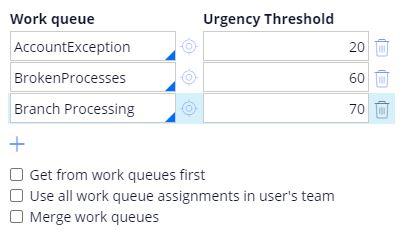
When multiple Work Queues are on the operator record of a user, the system processes the Work Queues from top to bottom. If you configure an Urgency Threshold for the Work Queue, the system prioritizes Assignments with an urgency above the defined threshold. The system considers lower-urgency Assignments only after all applicable Work Queues are emptied of assignments with an urgency above the threshold. If users select Merge work queues, the system treats the listed Work Queues as a single Work Queue.
Instead of specifying the Work Queues from which to retrieve work, you can select the Use all work queues assignments in the team option of the user to include all Work Queues that belong to the same Work Group as the user. When using this option, exclude Work Queue Assignments that are used to wait for the completion of Subcases.
The following figure shows the area within the Rule form of the Assignment with the Assignment routing settings. Here, Custom is the active selection, which permits the user to specify whether to route to a Worklist or Work Queue, followed by naming a routing activity. The specified routing activity is ToSkilledWorkbasket.
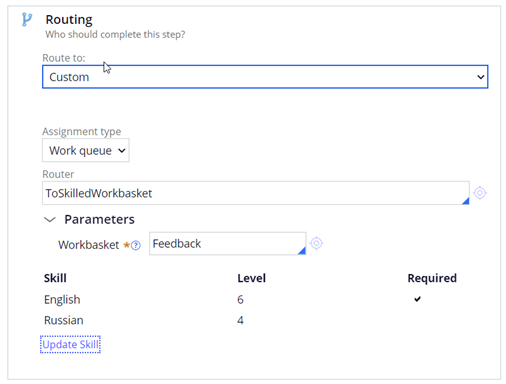
If you configure the Case to route by using the ToSkilledWorkbasket router, then the skills defined on the operator record of the user are considered when retrieving the next Assignment. An assignment can have both required and desired skills. The Get Next Work functionality considers only required skills.
The following figure shows an example of possible operator Skill and Rating level for that skill on a scale of 1 to 10. Here, each skill represents a language with which the Case worker is familiar.
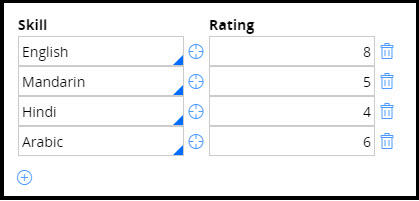
You define the user's skills by completing the Skill and Rating fields on the operator record. Skills are stored in the pySkills property on the OperatorID page. Skills checking is not performed when users fetch work from their own worklist because they would not own an Assignment without the proper skills. The Get Next Work functionality ensures that users can only retrieve Assignments from the workbasket if they have all the required skills with at least the defined ratings.
The Assign-Worklist.GetNextWork list uses the default getContent activity to retrieve Assignments. The Assign-WorkBasket.GetNextWork uses a custom getContent activity called getContentForGetNextWork to construct a query that conditionally joins with Index-AssignmentSkills and Index-OperatorSkills. The query varies based on Application setting Rules that begin with GetNextWork_. This query compares the user's skills to the Assignment's required skills, if any. Conditional joins are not possible in Listview. So, to achieve the same outcome, you can maintain multiple list Views conditionally with and without a join condition and call if you do not need to customize a GetContent activity.
Before the list view returns the Assignment, the Assign-.GetNextWorkCriteria decision tree checks whether the Assignment is ready to be worked on and if the Assignment was previously worked on by the user today. The system skips the Assignment if the user previously worked on it today.
As shown in the following figure, you can add the Get Next Work link to the user dashboard through the Case Manager shortcuts widget that is included in Pega Platform™.
You can also make the Get Next Work functionality active at the Case level in the user portal. When enabled, the Get Next Work link is displayed on a banner when a Case worker has no more immediate Assignments to complete in the current Case.

For more information, see Automated and intelligent work assignment with Get Next Work.
Check your knowledge with the following interaction:
This Topic is available in the following Module:
If you are having problems with your training, please review the Pega Academy Support FAQs.
Want to help us improve this content?