Configuring new case creation
Archived
2 タスク
10 分
Pega Platform 8.5
中級
User Experience
英語
シナリオ
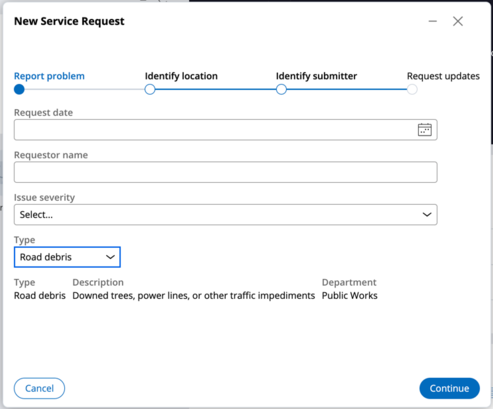
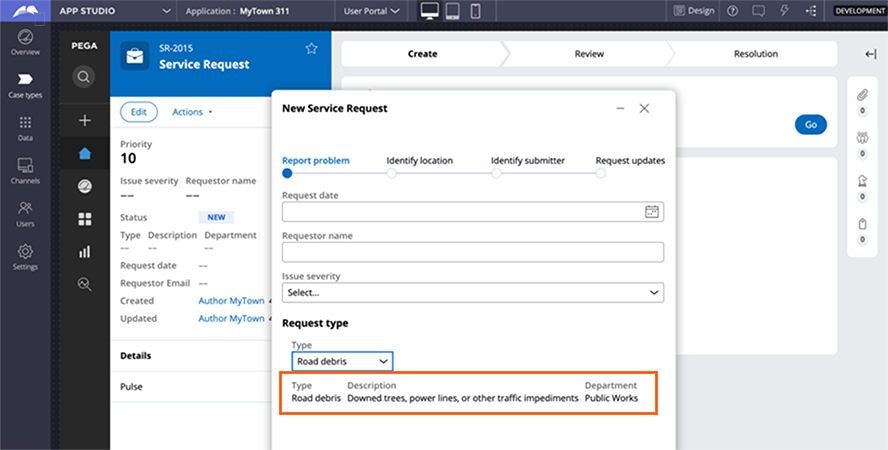
The designer of the MyTown311 application wants you to change the Report problem form so that the Type, Description, and Department fields are aligned inline instead of being displayed in a single column. The designer also wants the Request type header removed from the form. Use App Studio to convert the layout to inline and remove the Request type header.
The following table provides the credentials you need to complete the challenge.
| Role | User name | Password |
|---|---|---|
| Application Developer | author@mytown | cosmos123! |
チャレンジ ウォークスルー
詳細なタスク
1 Change the layout to inline
- In App Studio, create a new Service Request case to view the Report problem form.
- In the header of App Studio, click to enter Design mode.
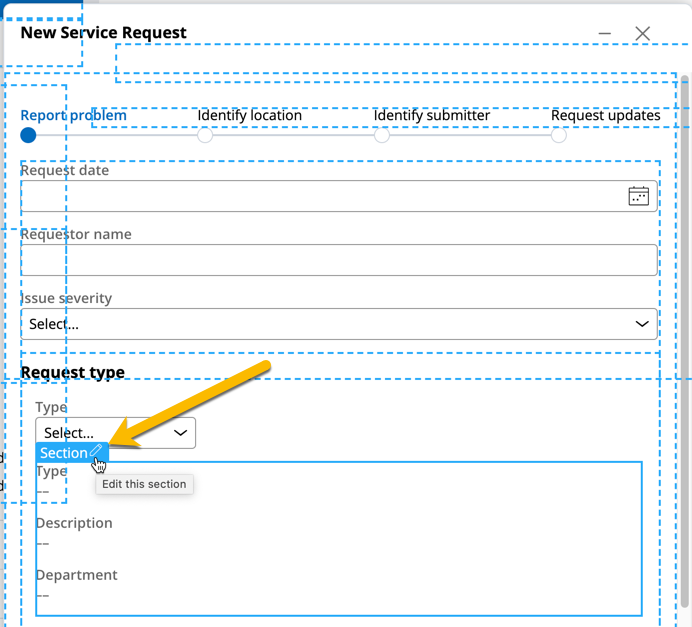
- Hover over the section of the form that contains the Type, Description, and Department fields, and then click Edit this section in the blue square that surrounds only those three fields to open the configuration pane on the right.
補足: Make sure to edit the section surrounding only these three fields, not the higher-level section that includes the Type field.
- In the Select a template dialog box, change the template from 1 column to Inline wrapping.

- In the header of App Studio, click again to exit Design mode.
- Ensure that the three fields are now aligned inline instead of in a single column.
2 Remove the header
- In App Studio, create a new Service Request case to view the Report problem form.
- In the header of App Studio, click to enter Design mode.
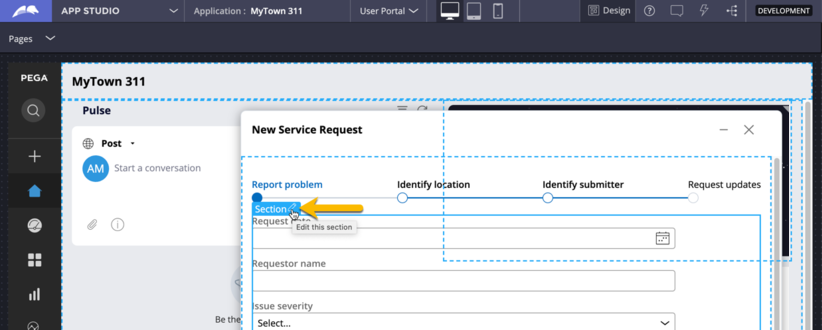
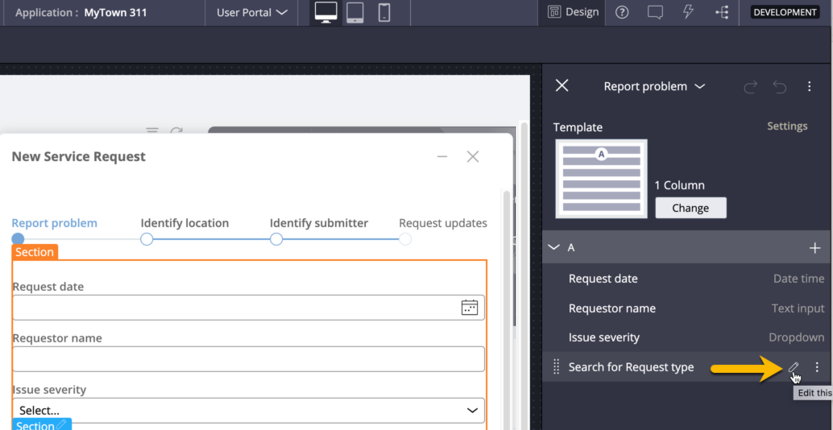
- Under the case steps indicator, hover over the section that contains the form fields, and then click Edit this section to open the configuration pane on the right.
- In the configuration pane, locate the Search for request type embedded section, and then click Edit this section.
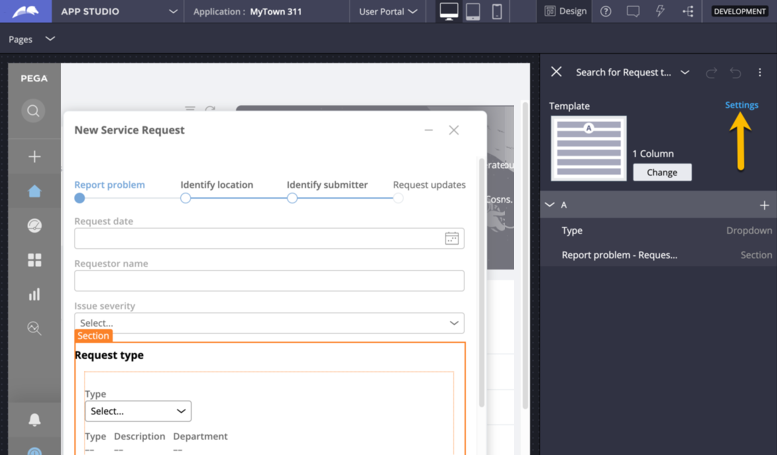
- In the configuration pane, click to adjust the settings for the embedded section.
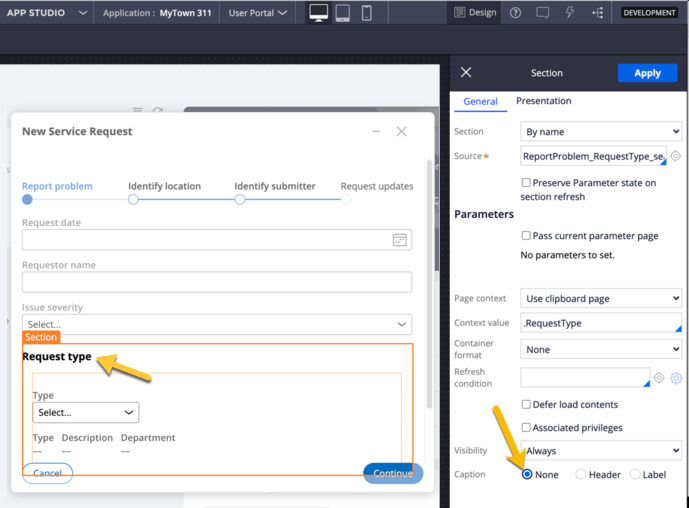
- At the bottom of the pane, in the Caption field select None,
- Click to update the configuration.
- Close the panes and exit Design mode.
- Verify that the Request type header is no longer displayed.