
Creating a churn prediction
2 タスク
15 分
初級
英語
シナリオ
U+ Bank uses Pega Customer Decision Hub™ to personalize the credit card offer a customer is presented on their website. If a customer is eligible for multiple offers, artificial intelligence (AI) decides which offer to show.
To customers that are likely to leave the bank soon, the bank wants to make a proactive retention offer instead of a credit card offer. The bank has recorded historical churn data for its customer base, which a data scientist used to create a churn model. You create a prediction that is driven by the churn model.
Use the following credentials to log in to the exercise system:
| Role | User name | Password |
|---|---|---|
| Data scientist | DataScientist | rules |
Your assignment consists of the following tasks:
Task 1: Create a new prediction
As a data scientist, create a new prediction to calculate churn risk.
Task 2: Replace the scorecard with the churn model in the new prediction
Replace the placeholder scorecard with the Churn model from the Model list in the new prediction.
チャレンジ ウォークスルー
詳細なタスク
1 Create a new prediction
- On the exercise system landing page, click Pega CRM suite to log in to Prediction Studio.
- Log in as a data scientist with user name DataScientist and password rules.
- In the upper right, click New to create a prediction.
- Ensure that Customer Decision Hub is selected, and then click Next.
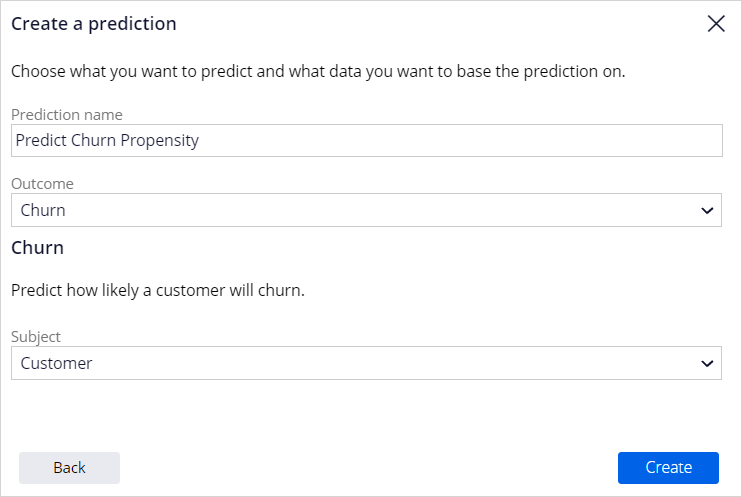
- In the Prediction name field, enter Predict Churn Propensity.
- In the Outcome field, select Churn.
- In the Subject field, select Customer.
- Click Create.
- In the upper right, click Save.
2 Replace the scorecard with the churn model in the new prediction
- In the main prediction window, go to the Models tab, and click the More icon for the Predict Churn Propensity prediction.
- Click Replace model.

- Ensure that Model is selected, and then click Next.
- Clear the Compare the models check box.
- In the Model list tab, select the ChurnPML model.
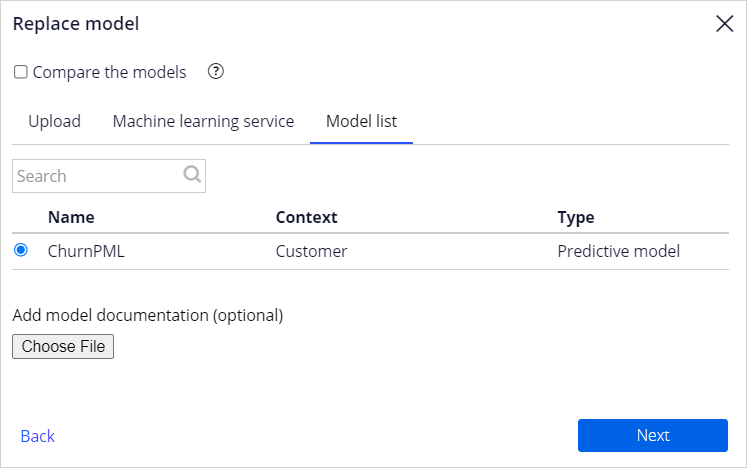
- Click Next.
- Click Replace.
- When the status of the Churn model changes to Ready for review, click ChurnPML (M-1).

- In the upper right, click Evaluate.
- Ensure that Approve candidate model and replace current active model is selected.
- In the Reason field, enter the appropriate information.
- Click Save.
- Confirm that the Churn model has replaced the placeholder scorecard as Active in the prediction.

このチャレンジは、下記のモジュールで学習したことを実践するための内容です。
トレーニングを実施中に問題が発生した場合は、Pega Academy Support FAQsをご確認ください。