
Creating the REST integration interface
5 タスク
1時間 30 分
上級
英語
シナリオ
The executive manager approves or rejects a truck after the vendor registers it. Upon approval, the city manager is assigned to rank the companies providing truck services for that city.
To retrieve a truck's rating, its VIN (Vehicle Identification Number) is provided to an external system. The average rating of all trucks belonging to a company determines the company's initial rating, which is subsequently overridden after each delivery is completed. The city manager ranks every truck following each delivery, directly impacting the truck company's overall rating. An updated truck rating is then sent back to the Global Truck Rating System (GTRS).
Pega Platform™ introduces enhanced tooling for REST integration, including Pega GenAI Blueprint™ for accelerated integration artifact generation, an improved Create REST Integration Wizard, and richer support for OpenAPI Specifications (OAS). This challenge guides you through selecting and implementing the optimal REST integration design that makes use of these features.
The following table provides the credentials you need to verify the solution:
| Role | User name | Password |
|---|---|---|
| Admin | admin@deliveryservice | rules |
| Admin | admin@gtrs | rules |
詳細なタスク
1 Identify design options
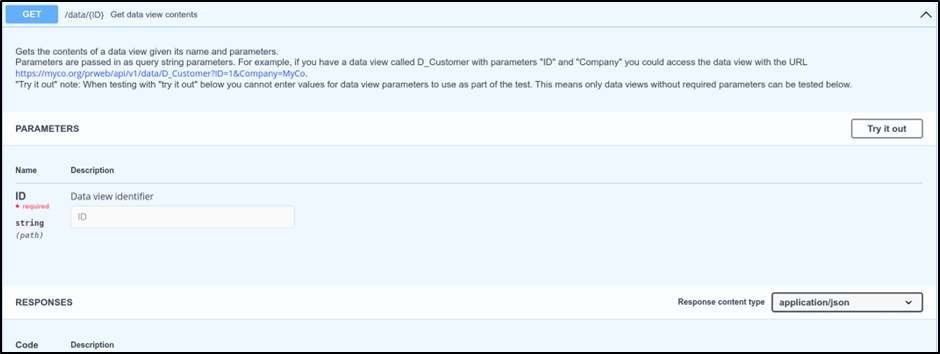
There are two design options to obtain the truck rating from GTRS:
- Use the Pega Platform out-of-the-box REST API (GET method) with a Data Page, as illustrated in the figure below. Data Pages offer improved integration with the Integration Designer and can be auto-generated via Pega GenAI Blueprint™ when an OpenAPI Specification (Swagger/OAS) file is uploaded during the Data & Integration step.
- Create a new Service-REST rule in the GTRS application and invoke it through a custom REST connector in the Delivery Service application. Pega Platform supports JSON Data Transforms as a dedicated mechanism for efficiently converting JSON payloads in this kind of custom connector configuration.
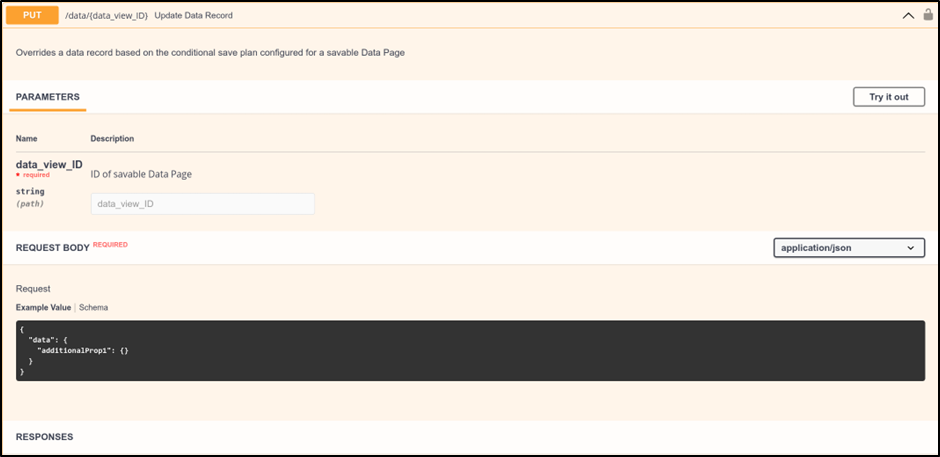
Similarly, there are two options to update the truck rating after delivery:
- Use the out-of-the-box REST API (PUT method) to update an existing record. The out-of-the-box API uses savable data pages to update or create a new record, as shown in the following figure:
- Create a new service in the GTRS application to update the truck rating. This provides full control over request and response structures, including complex embedded pages.
2 Evaluate design options
Review the pros and cons of each design option:
Get the truck rating
The following table describes the design options for retrieving the truck rating:
| Design | Pros | Cons |
|---|---|---|
| Use out-of-the-box Pega Platform REST API {data GET methods} |
|
|
| Create a custom REST service in the GTRS application |
|
|
Update the truck rating
The following table describes the design options for updating the truck rating:
| Design | Pros | Cons |
|---|---|---|
| Use out-of-the-box Pega Platform REST API {data PUT methods} with Savable Data Pages |
|
|
| Create a custom REST service in the GTRS application |
|
|
3 Recommend the best design option
Review the following best practices for each design option:
Get the truck rating
Use the out-of-the-box Pega Platform REST API (GET) with a Data Page. This approach minimizes development effort and takes advantage of the Pega native data integration framework.
Update the truck rating
Use a custom REST service in the GTRS application. The out-of-the-box Pega APIs do not fully support updates to embedded pages (Page and Page List properties). A custom REST service provides the flexibility needed to handle these scenarios. JSON Data Transforms can be used within the custom connector configuration to streamline request and response payload mapping.
4 Identify required configuration tasks
To implement a solution according to the recommended design, you accomplish the following tasks:
- Create a REST connector in the Delivery Service application to fetch the truck rating from GTRS. Configure the Connect-REST rule with the appropriate request parameters (VIN, state) and response mapping using a Data Transform or JSON Data Transform.
- Create a custom Service-REST rule in the GTRS application to expose a service endpoint for updating the truck rating.
- Create a savable Data Page and corresponding REST connector in the Delivery Service application to invoke the GTRS update service after each delivery is completed.
5 Review solution details
Review the solution details for the best design options:
Apply the connector to get the initial truck rating
- Log in with admin@deliveryservice and switch to the MDC application to access the GTRS data type.
- In Dev Studio, create a new Data Page with a MDC-Data-GTRS class.
You update the source for the Data Page in App Studio. - After creating the Data Page, switch to App Studio, and then click Data to view the data objects and integrations.
- Open the GTRS data object and click on the Data pages tab.
The newly created Data Page and its source are displayed. - Click More > Configure source.
For savable Data Pages, an additional Configure save options option is displayed. - Select the system and configure the source as REST.
- Enter the endpoint URL for the out-of-the-box data API and mention the Data Page that gives the truck rating (D_GTRSTruckRating) –
hosturl/data/data_page. - Refer to the Pega API documentation for the syntax to pass the parameters.
- Configure the authentication information and click Initialize call.
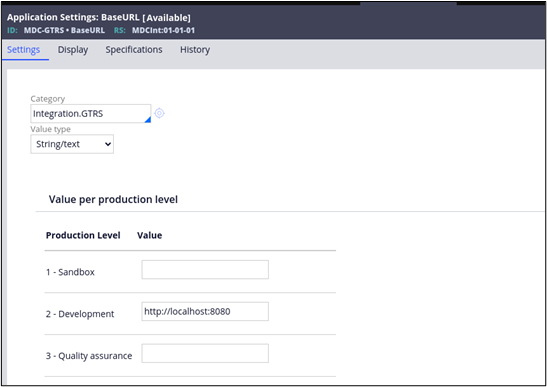
The application settings for the URL and the authentication are generated for the connector.
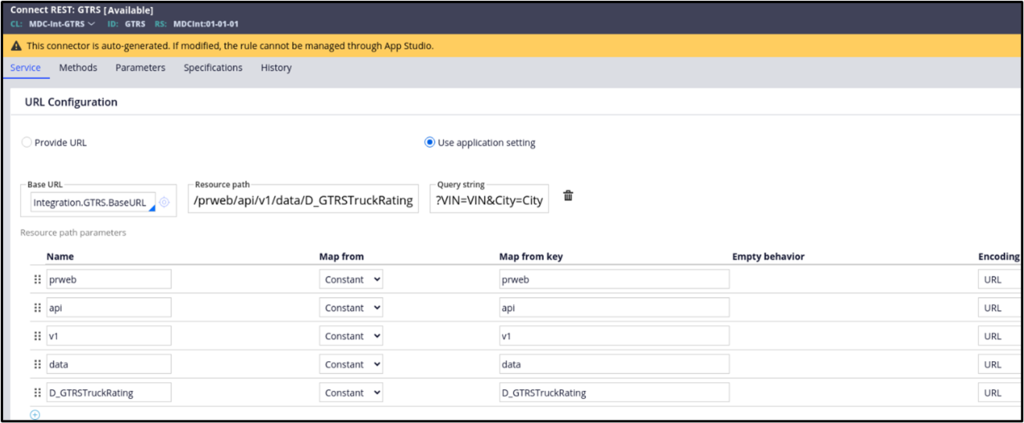
The following figure is a snapshot of the GTRS Connect-REST Rule:
The following figure is a snapshot of the Application Settings for BaseURL:
The following figure is a snapshot of the authentication profile:
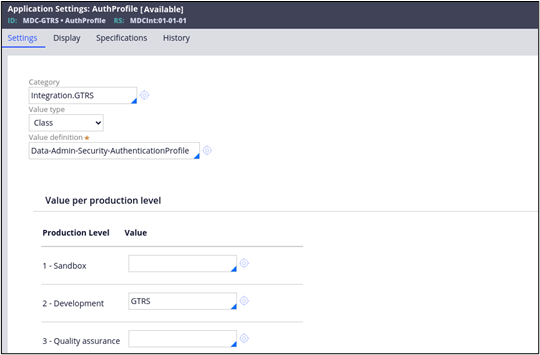
You can map the response by using the response Data Transform on the Data Page, as shown in the following figure:

For more Pega API use cases, see City services example mobile app.
Update the truck rating
- Log in with admin@gtrs to create a service to update the truck rating.
You can use savable Data Pages to update the rating for a truck in the service activity. - Log in with admin@deliveryservice and switch to the MDC application.
- Create a savable Data Page in Dev Studio to update the truck rating in the GTRS application.
Savable Data Pages can be used to invoke the truck rating service. - In App Studio, open the GTRS data object and click Configure save options.
- Configure a new source with REST and provide the service URL from the GTRS application.
- Set the required parameters and authentication.
- In the next step, provide the request and response, and then save the Data Page.
You can verify the configurations in Dev Studio.
The following figure shows the The Update rating savable Data Page:
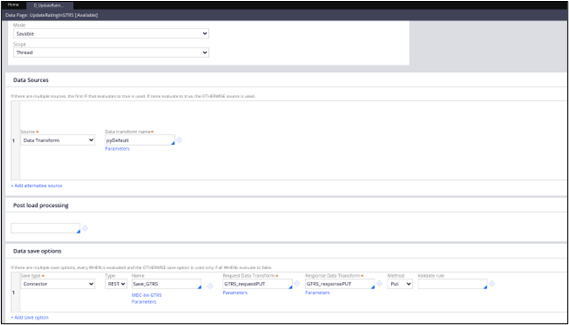
The system generates the application settings for the service URL and authentication, as shown in the following figure of the first API:
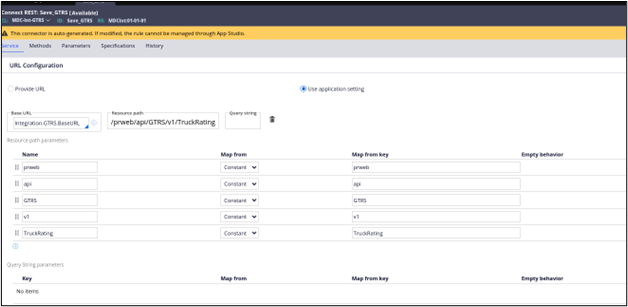
For more information, see Configuring a save plan for a Data Page in App Studio.
このモジュールは、下記のミッションにも含まれています。
トレーニングを実施中に問題が発生した場合は、Pega Academy Support FAQsをご確認ください。