
Configuration of work area tabs
While the case details section of the summary panel displays the case data that is most important to user understanding of the case, it is common for users to explore other aspects of the case. The Pega Cosmos design system allows designers and developers to define additional sections that are located in tabs under the case details section. When you select a tab, the corresponding view displays below the main work area.
By default, Cosmos automatically includes two tabs: Details and Pulse. The Details tab displays a view with additional data from the case. Typically, designers and developers customize this form.
Note: To learn more about customizing a form in App Studio, see the Pega Community article Configuring a form at run time.
Selecting each tab displays the associated view without interrupting the assignment process above. For example, in the following video, a user performs an assignment but has not clicked Finish or Save. Selecting the Pulse tab displays the Pulse view beneath the assignment process, and the user can return to complete the assignment at any time.
In the center of the following video, click the play button to view the example.
Case tab and form configuration
Designers and product managers can define other relevant tabs and sections for each case type so that developers can implement the desired configuration. Like most aspects of Cosmos, developers use App Studio to create tabs and sections. Similar to mapping case data into the case details section of the summary panel, developers create tabs and sections by adding embedded sections to a region defined in the design template pyCaseMainInner section rule.
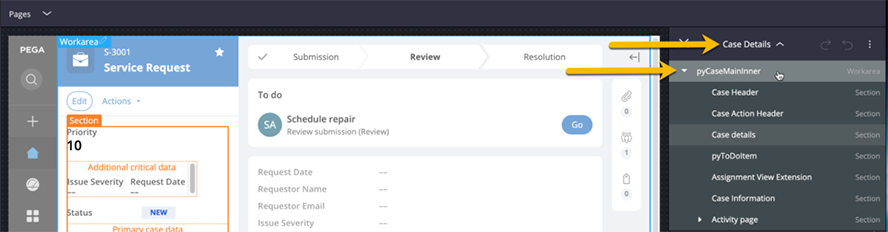
While viewing a case in App Studio, you can hover over any editable region to edit that region. In the properties pane, use the drop-down menu at the top of the pane to navigate the section structure and locate the pyCaseMainInner work area.
Note: Developers familiar with applications built with UI-Kit may remember that pyCaseMainInner is a section rule marked as a Workarea layout on the Settings tab of the section rule. The same is true in Cosmos. Similar to UI-Kit, you specialize pyCaseMainInner for each case type. Then, in the section, you define the tabs and views that you want to be displayed.
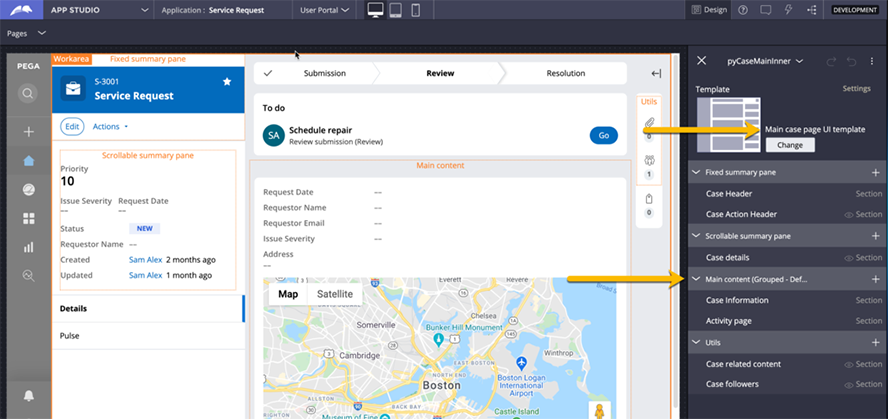
The pyCaseMainInner menu displays a Main case page UI template design template. The template includes the Main content region, which is used to create the tabs and views. As you add embedded sections, a new tab and view are also added.
For example, as shown in the following image, the default configuration defines embedded sections for the Case information and Activity page, which become the Details and Pulse tabs, respectively.
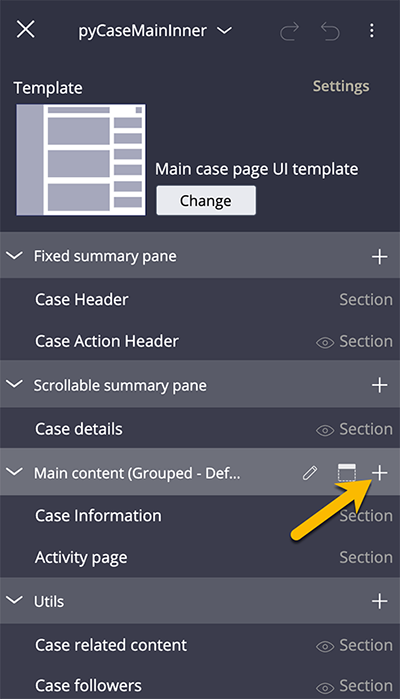
Developers can create a new tab and view by using the Add icon on the Main content menu.
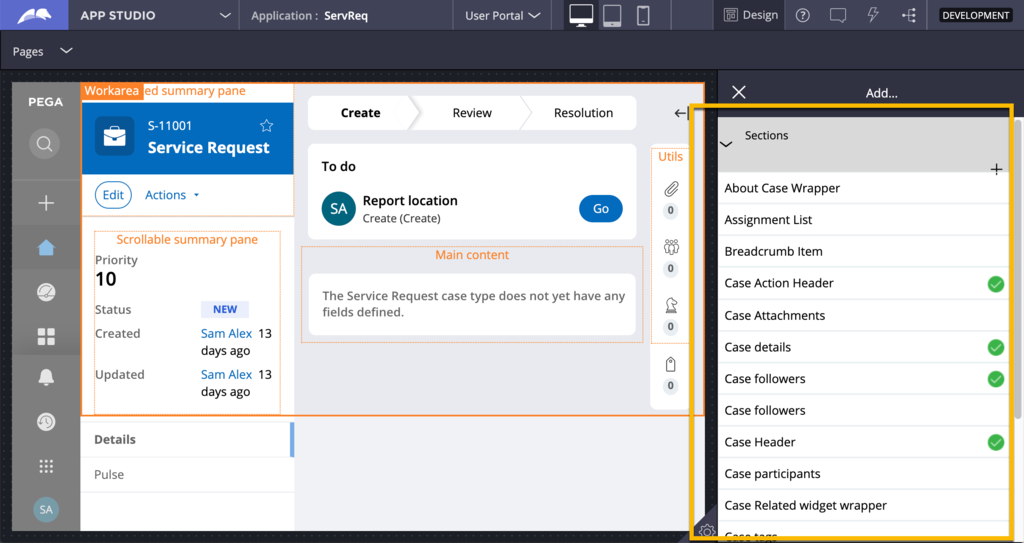
The available tabs and views are a list of existing sections marked as relevant records.
Tip: Open the section rule in Dev Studio and click Actions > Mark as relevant record to mark an existing section rule as a relevant record to access the section in the menu.
Developers can also embed a new section by using the icon at the top of the pane.
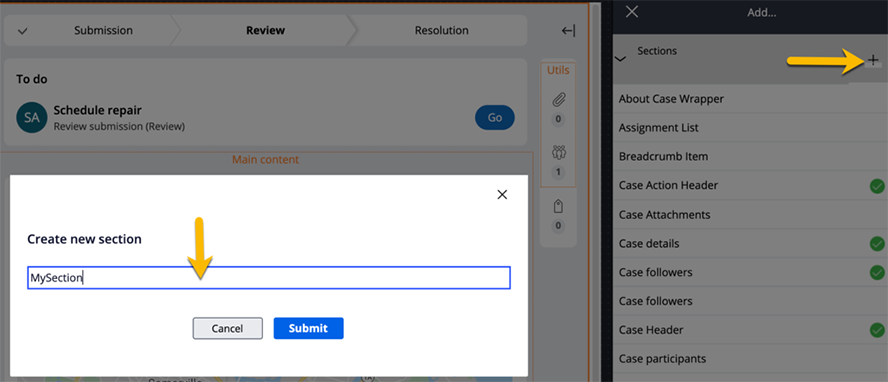
The newly created section appears in the list, and a green checkmark confirms that it is added to the region. In App Studio, on the far left, the new tab is displayed with the default name New item.
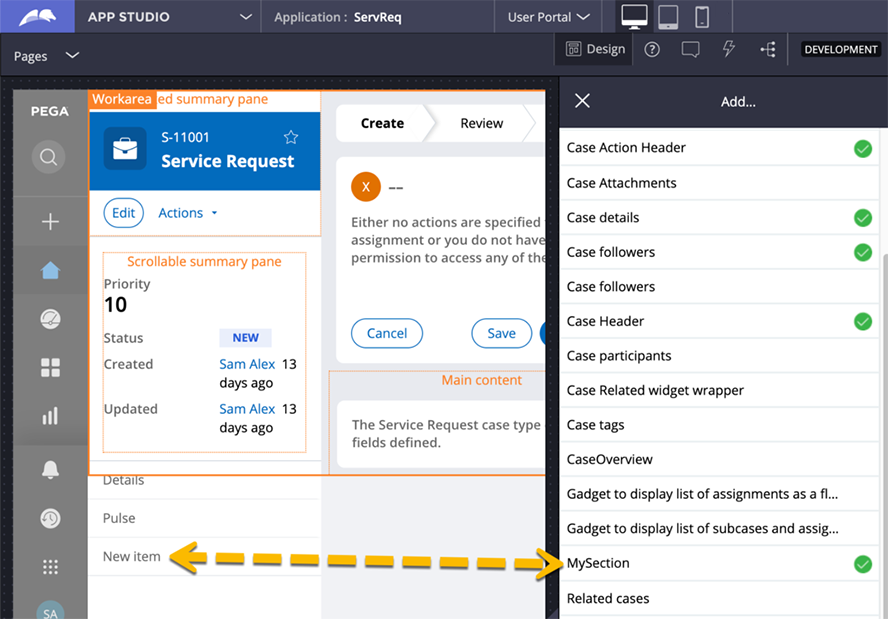
Tab renaming
To rename the new tab, developers edit the embedded section container settings title.
You can use the Edit this section icon in the embedded section to access the Settings for the section and change the New item default title to the tab title of your choice.
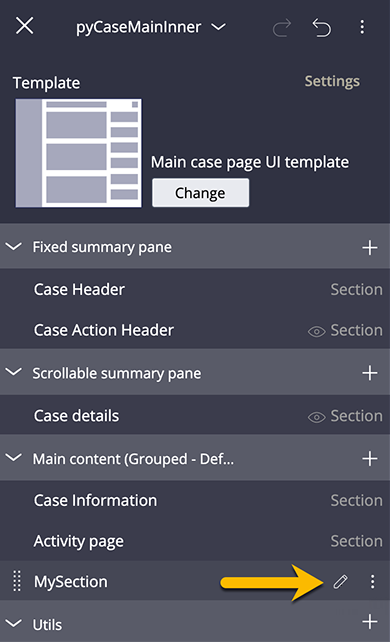
In the center of the following image, slide the vertical line to learn more about how developers use the Settings link in the panel to edit the Container settings title field.
After you apply the change to the tab name, you can select the tab to display the associated section at the bottom of the work area.
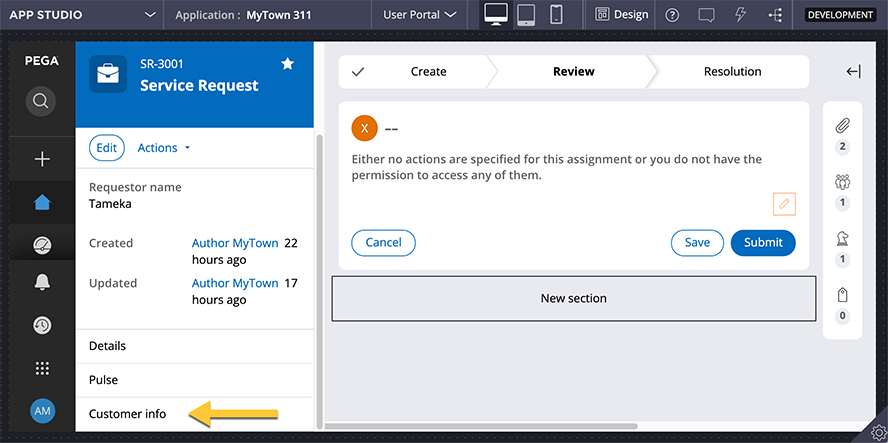
Caution: When each tab is selected, the section displayed is based on the tab name. Therefore, tab names must be unique; if tab names are not unique, the section for a tab cannot be displayed.
Customization of the section for the new tab
Developers may need to customize the section that displays when a tab is selected.
By default, the section rule created when adding a new section uses the 1 column with 100% width content design template and contains a text input field that renders a default string literal. In App Studio, developers can change the template or map case data to regions in the template.
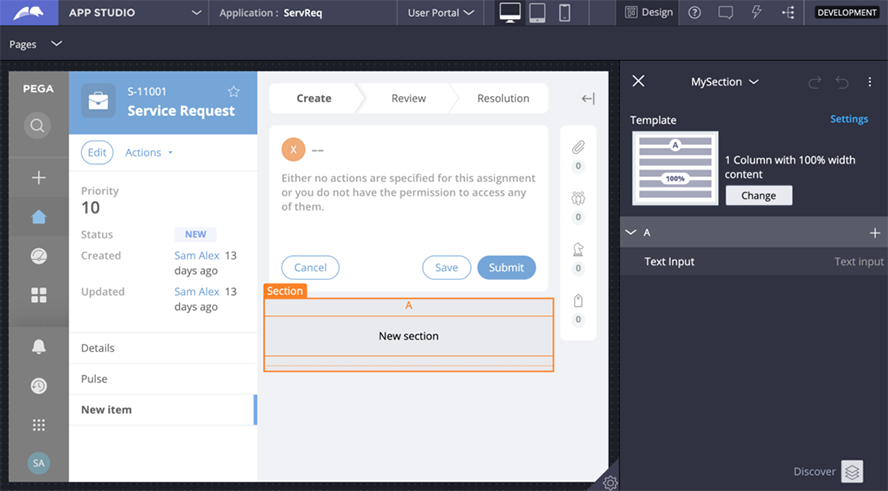
To render a table control or a repeating dynamic layout control when the tab is selected, developers must edit the section using Dev Studio to add the respective control.

Note: To render a table control or repeating dynamic layout anywhere in a Theme Cosmos application, you must use Dev Studio and a traditional section rule that is not based on a design template.
Check your knowledge with the following interaction.
Visibility conditions for tabs
Adding an embedded section rule to the Main content region of pyCaseMainInner creates a tab and automatically displays the section in the work area when selected. However, some use cases may require tabs to be hidden or shown based only on business rules. You can hide tabs by setting a visibility condition with a when rule on the embedded section.
Edit the region for the section tab in the pyCaseMainInner work area to open the section rule in the pane on the right. The Settings display the property pane and allow you to set the visibility condition to a When rule.
Note: Currently, only When rules are supported to control tab visibility; expressions are not supported.
In the center of the following video, click the play button to view an example of how to hide tabs by setting a visibility condition with a when rule on a section.
As forms are submitted through assignment processing, Cosmos automatically refreshes the summary panel. This refresh reevaluates the When rule, and therefore the tab visibility.
Check your knowledge with the following interaction.
If you are having problems with your training, please review the Pega Academy Support FAQs.
Want to help us improve this content?