

Data Transforms
The purpose of a Data Transform is to manipulate application data during Case processing. Data Transforms copy data into the fields that you require. You can use Data Transforms to convert data from one type to another, move data between objects, calculate values, change formats, and set default values. Rather than validating the data values, Data Transforms allow you to extend field values that have already been validated to populate the values of other fields throughout your application.
Match the numbers to the following image to learn more about using Data Transforms to improve the checkout process of a purchasing application:
1. Account information: In the Account information View, the customer provides their full name, contact information, and credit card information.
2. Shipping address: In the Shipping information View, the customer provides a shipping address.
3. Payment information: In the Payment information View, the customer provides a billing address. The billing address and shipping address are likely the same. To reduce potential errors and make the process more efficient, use a Data Transform to copy the shipping address to the billing address fields, instead of requiring the customer to reenter the shipping address.
4. Full name: In the Payment information View, the customer provides their full name and credit card information for payment processing. Use a Data Transform to copy the first name and last name properties from the customer account into a single full-name property.
Check your knowledge with the following interaction:
Calling a Data Transform
Data Transforms can be called in several ways, including through a Run Data Transform Automation, by using Pre-processing or Post-processing Actions, or in a flow. These represent common examples of how Data Transforms are applied within a solution.
Run Data Transform Automation
Run Data Transform Automation is an Automation Step used to execute a Data Transform at run time. It runs either a selected Data Transform, or allows you to define a new Data Transform.
For example, consider a checkout Process of a purchasing application. The customer provides a shipping address and is prompted for the billing address. If the shipping address is the same as the billing address, it is efficient to use a Data Transform to copy the shipping address to the billing address rather than have the customer reenter the same address.
Pre/post-processing
Pre‑processing and post‑processing Data Transforms are automations attached to a Step that performs data handling and run before or after the Step executes to manipulate data.
A pre‑processing Data Transform runs before the Step, typically to initialize or prepare data, such as setting default values or copying data into fields that will be used or displayed in the Step. A post‑processing Data Transform runs after the Step completes, usually to evaluate or act on the data collected in the Step.
In addition to using Data Transforms to copy data, you can use Data Transforms to convert data from one type to another type. For example, you receive an order delivery date input from another system as a string value, such as "December 4, 2021." Use a Data Transform to copy and convert the stored string format of the delivery date into the date value property, 12/04/2021.
Calling Data Transforms in flows
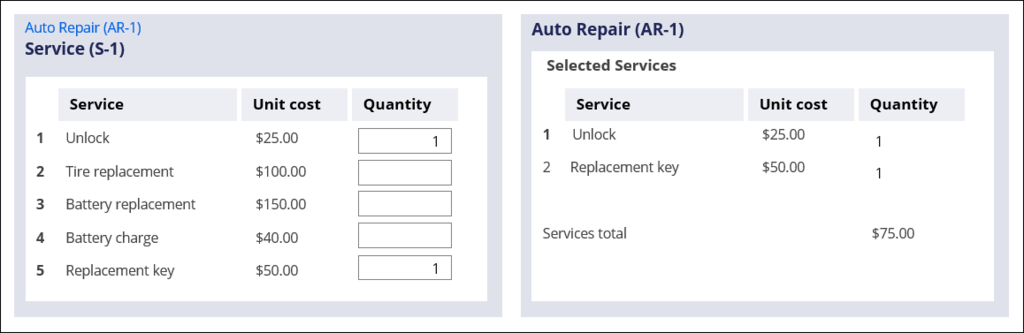
In the Case workflow, you can call a Data Transform from a Process flow. Consider an example. An auto repair parent Case has a child Case that manages providing the necessary repairs. The child Case contains a menu of possible items and available services, including unit costs. The items and services that are provided are copied to the parent Case for invoicing. Use a Data Transform to iterate over the list of possible items and services and copy only those entries with a quantity greater than zero. The auto repair Case example is displayed in the following figures:
Tip: When you access information in a parent-child Case relationship, consider referencing data rather than copying it. Referencing data helps avoid synchronization issues if the data changes in the parent Case, which the child Case reflects.
Check your knowledge with the following interaction:
This Topic is available in the following Module:
If you are having problems with your training, please review the Pega Academy Support FAQs.
Want to help us improve this content?