
Designate Primary Fields
Primary Fields represent the critical pieces of data that you want to see whenever you interact with a Case of a specific type. Primary Fields are automatically displayed on Constellation's Create, Edit, and Details Views.
As a Pega Business Architect, identifying the information that is most important to Case resolution and designating those fields as Primary saves both time and effort as it relates to UI configuration.
In this topic, you explore how to designate Primary Fields in the Data Model and understand how this configuration creates inheritance patterns that automatically populate Views with relevant information from referenced data objects.
Designating Primary Fields in the Data Model
Primary Fields are configured within the Data Model and work consistently across both Case Types and data objects. When you designate fields as Primary, these fields become the most relevant information for that specific Data Model and automatically appear in Create, Edit, and Details Views.
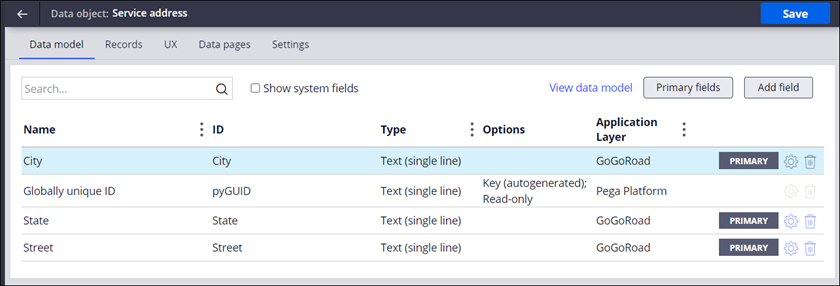
In the following image, the GoGoRoad Application's Service Address data object has the City, State, and Street fields designated as Primary:
As shown in the following image, the Primary designation results in the City, State, and Street fields to automatically appear in the Details View for the Service Address data object:
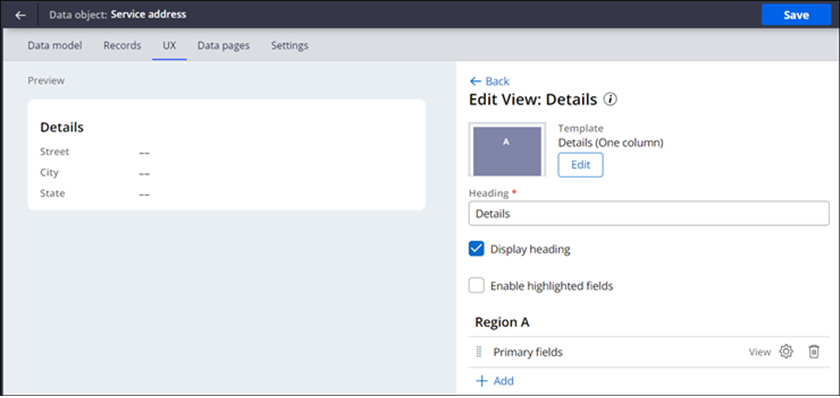
The Primary Fields are also automatically included in the Create and Edit Views that are associated with the data object.
The same Primary Field designation process applies to Case Types. You can designate fields directly on the Case Type's Data Model, and these fields will automatically appear in the Case Type's Views.
Note: The Case Type Data Model automatically designates the Label and Description fields as Primary Fields by default. Removing the Primary designation from these fields will remove them from the Case Type's Details, Create, and Edit Views.
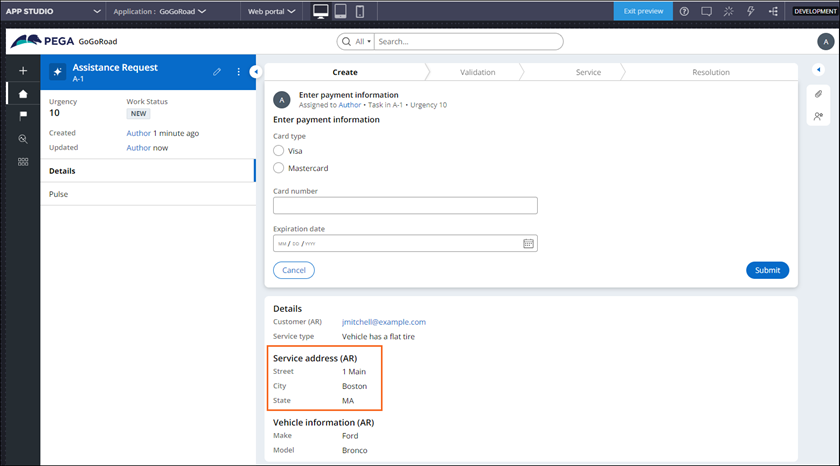
In the following image, the Service address Primary Fields are displayed in the Details View at runtime:
Note: For more information on Primary Fields, see Configuring Primary Fields.
Primary Fields and Reference Fields
When a Case Type includes a reference field that points to a data object, the Primary Fields from that referenced data object automatically become available in the Case Type's Data Model. This inheritance pattern ensures that the most relevant information from referenced data objects appears in the Case Type's Views without additional configuration.
In the following image, the Assistance Request Case Type Data Model designates Service address (AR), Service type, and Vehicle information (AR) as Primary Fields, with Service address (AR) and Vehicle information (AR) serving as reference fields to the Service address and Vehicle information data objects, respectively, in the GoGoRoad Application Data Model:

The Primary Fields from the referenced data object are passed directly into the Case Type's Views.
As shown in the following image, the Assistance Request Case Type has one direct Primary Field called Service Type, while the Primary Fields from the Service Address data object (City, State, and Street) and Vehicle information data object (Make and Model) automatically appear in the Assistance Request Details View:

This inheritance pattern creates a streamlined experience, where:
- Primary Fields are configured once at the data object level.
- Referenced data objects automatically add their Primary Fields to the Data Model.
- No additional configuration is needed at the Case Type level for inherited Primary Fields to appear in the Primary Fields View.
Check your knowledge with the following interaction:
If you are having problems with your training, please review the Pega Academy Support FAQs.
Want to help us improve this content?