
Management of related parties
The Pega Client Lifecycle Management and KYC application presents all related parties associated with a customer on a grid. The related parties grid is accessible from multiple areas of the application:
- Local action: The Manage Related Parties local action is available in most CLM journey cases in the Actions menu. You can use the local action to update related party information.
- Data categories: The data categories are available in the main CLM journey cases. If you open the Related Party data category in an assignment in the Enrich stage, you can make changes to the data. However, if the related party data category is accessed in the context of the case summary view, you cannot alter the related party data because the data is in read-only mode.
- Customer 360: In the Customer 360 view, the grid is opened in read-only mode. Start a CLM journey (for example, maintenance) to change the data.
The grid contains all the related parties that are associated with a contracting party, including all the IS and HAS relationships.
In the following image, click the + icons to learn more about the different elements of the related parties grid:
Adding related parties
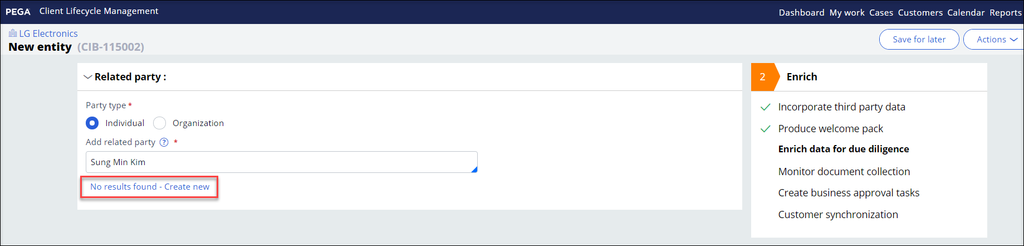
You can add related parties by clicking Add related party on the grid. As a result, a section in which users can search for existing related parties in the application is displayed. If the related party that you are adding does not exist in the system, you can create a new related party record by clicking No results found - Create new, as shown in the following figure:
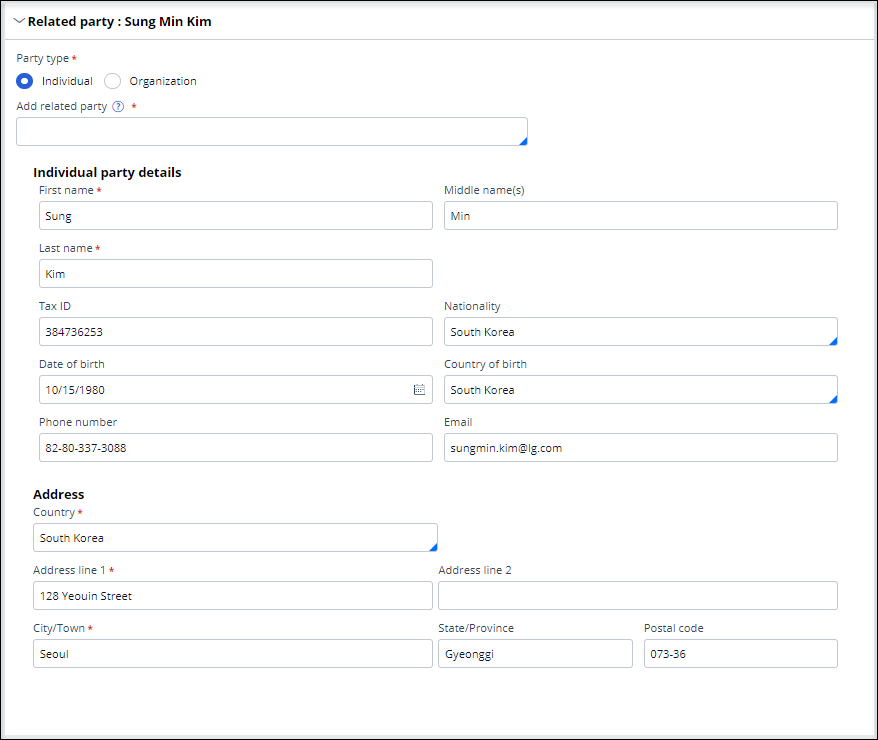
After you click No results found - Create new, you enter basic data for the newly created party, including the party type (individual or organization), name, contact details, and address, as shown in the following figure:
Note: While some data fields are optional, you enter the information later in the process if the party requires full due diligence.
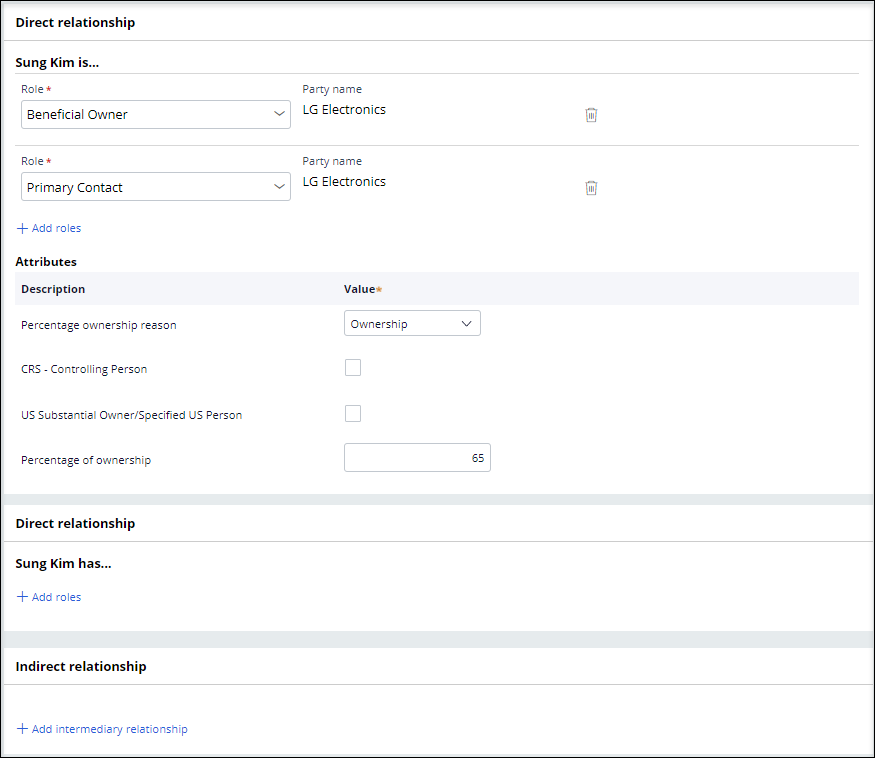
When you select an existing related party or create a new one, you can add roles and, as appropriate, role-specific attributes. You establish one of the following types of relationships:
- Direct IS: The selected party is directly related to the contracting party and acting in the capacity of the roles which are added to it. These relationships usually move towards the direction of deciphering who has the ownership and control of the contracting party.
- Direct HAS: The selected party is directly related to the contracting party, and the contracting party is acting in the capacity of the roles which are added to it. The relationship usually moves towards the direction of uncovering any subsidiaries or affiliates of the contracting party.
- Indirect IS: The selected party is indirectly related to the contracting party via an intermediary party. The intermediary party must previously exist on the contracting party’s hierarchy to add the indirect relationship.
Enter at least one role from the list of available roles. When roles automatically have certain associated attributes, you might have to enter values for those attributes. For example, if you select a beneficiary role, you provide a percentage of ownership. If two roles attract the same attribute, the attribute is captured only once.
Related parties grid and actions
In the context of a Case, you can also perform additional actions on each row in the Related Parties grid. The following table describes the available actions:
| Action | Description |
|---|---|
| Edit related party details |
With this action, you can make updates to the data of the related party such as contact information.This option is only available if the related party has a status of New related party. |
| View related party details | With this action, you can view read-only data for the related party. |
| Update roles and attributes | With this action, you can make updates to the roles and role attributes of the related party. |
| Override deemed controlling | Override the system-calculated value of the Deemed controlling flag. |
| Override aggregate ownership | With this action, you can override the system-calculated value of the Aggregate Ownership Percentage of the related party in the context of the contracting party. |
| Delete relationship | With this action, you can remove the related party from the contracting party, including any indirectly related parties that are connected to it. |
Relationship visualizer
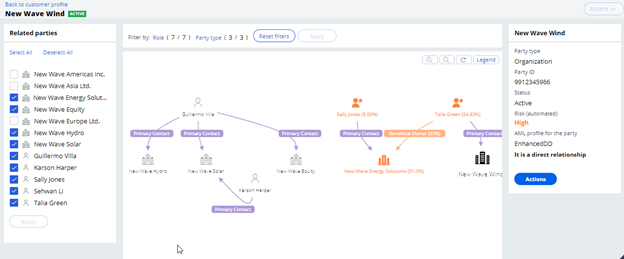
The network of relationships that is associated with a contracting party can be difficult to navigate. Pega CLM provides a viewer that graphically represents these networks. Users can access the relationship visualizer from two different places:
- Journey case: In the Manage Related Parties flow action, click View visualizer to open the visualizer. The content that is displayed matches the list of relationships in the case and reflects changes that occur at the case level (for example, adding or removing related parties) but are not yet synchronized with the Customer Master Profile or System of Record.
- Customer 360: In the header of the Customer 360 view, click View visualizer to open the visualizer and view the relationships that are already confirmed through the case and are synchronized with the Customer Master Profile or System of Record.
The center of the relationship visualizer contains the graphical representation of the network. You can use the left pane to filter different parties. The right pane provides additional information about each node in the graph, either parties or roles, as shown in the following figure:
Maintain Related Party Data Journey
The Maintain Related Party Data (MRPD) Journey enables users to amend active related parties that are not customers and conduct due diligence and screening investigations. When a material change is detected, the system propagates this information to all associated contracting parties.
You can initiate the MRPD Journey from the following points:
- Party search screen
- Customer 360 view for the party
Note: Starting an MRPD Journey for a party is possible only if the party has an Active related party status, no other MRPD Journey is in progress, and there is no ongoing Onboard Party as a Customer Journey for the same party.
The lifecycle of the MRPD Journey reuses the existing Stages of the Onboarding Case Type.
Each Stage plays a specific role in ensuring data accuracy, compliance, and synchronization across systems.
Capture
In the Capture stage of the MRPD Journey, you can edit related party data directly on the Initiate screen.
Enrich
The system skips the Enrich stage.
Due Diligence
During the Due Diligence stage, the system triggers a Global KYC Case for the related party. Because the MRPD Journey focuses on amendments to related party data, other related parties are excluded from Global KYC Case creation. The system triggers screening and adverse media cases in the RP Global KYC Case only when both of the following conditions are met:
- The related party is a KYC significant or deemed controlling party in at least one contracting party.
- The amended data is material to screening and adverse media, or the screening results are invalid.
Fulfillment
In the Fulfillment stage, the Wrap-up Step synchronizes data with the Master Profile and system of record. If the changes are material, the system publishes propagation events to the Event Driven Architecture to trigger associated Contracting Party Review Journeys.
Related party locking mechanism
Because the Pega CLM and KYC application offers multiple ways to update related party details either through the Manage Related Parties (MRP) screen in the Enrich Stage, the Data Collection Stage in Due Diligence Cases, or the MRPD Journey, there is a risk of data integrity issues arising from simultaneous updates by different users. To manage this, a Functional Locking Mechanism has been introduced. This system ensures that party information cannot be updated in the context of another Journey by acquiring a functional lock on the party whose data is being amended.
This functional lock differs from Pega general lock, which manages access to a specific Case, whereas the functional lock restricts data changes to the same party in other Cases.
Functional lock is acquired on the party at the following points within the party Journey:
- During the initiation of any Journey of the customer (including Onboarding and Maintain Journeys) and any Maintain Journeys of an active related party (including Maintain Existing Related Party Data Journey and Onboard Party as Customer Journey).
- Upon clicking the Update button in Edit related party details of MRP screen.
- After the Related Party Global KYC (GKYC) Case creation.
The functional lock is released on the party at the following points within the party Journey:
- After completion of KYC Review Stage in RP GKYC Case.
- Upon completion of all Cases in the Due diligence Stage. However, if the party is both a customer and an active related party, the lock is released at the end of the Fulfillment Stage of the customer Journey.
- When the Journey is abandoned.
Additionally, a Force Release Lock option is available in the MRP screen against locked related parties to forcibly release a lock so that processing can be completed in another Journey based on the business or operational, or both needs of the situation.
Related party data propagation
Changes in party data can affect the overall risk associated with that party and must be reflected across all customers linked to such party when such changes occur. This data propagation is managed through the Event Driven Architecture (EDA) by triggering specific events.
The process starts with a Party Data Change – Identify Impacted Customers (PDC-IIC) event, which identifies customers affected by either a change in any screening hit category flag from False to True or an increase in the overall risk of a party.
For a customer to be identified as impacted by a related party data change, the related party must hold either a KYC Significant or a Deemed Controlling role, or both into the customer.
Once the impacted customers are identified, a Party Data Change – Update Impacted Customer (PDC-UIC) event is triggered. This event creates Cases for each impacted customer based on changes in any screening hit category flag from False to True or an increase in the overall risk of a related party. If the change stems from an active related party, a Quick Review Case is created. Conversely, if the change originates from a party that is both an active related party and a customer, a Full Review Case is created.

Check your knowledge with the following interaction:
This Topic is available in the following Modules:
If you are having problems with your training, please review the Pega Academy Support FAQs.
Want to help us improve this content?