
PDF automation values creation
With the PdfConnector component in Pega Robot Studio, you configure a PDF document type in the Values tab of the Add New Document Type wizard. You define the areas of a PDF document from which you want to extract data to use in an automation. For example, you create automation that processes expense reports provided by an employee. The automation reads the values for the employee name, expense date, expense type, and amount from the PDF and enters the data into the reimbursement system.
In Pega Robot Studio, you define values as one of the following types:
- Form fields
- Text values
- Tables
- Optical marks (requires Pega Optical Character Recognition (OCR) Essentials)
Form fields
Form field values retrieve the data that is entered in a PDF form field. In the following image, click the + icons to learn more about how to collect the data from each area in a PDF form.
Text values
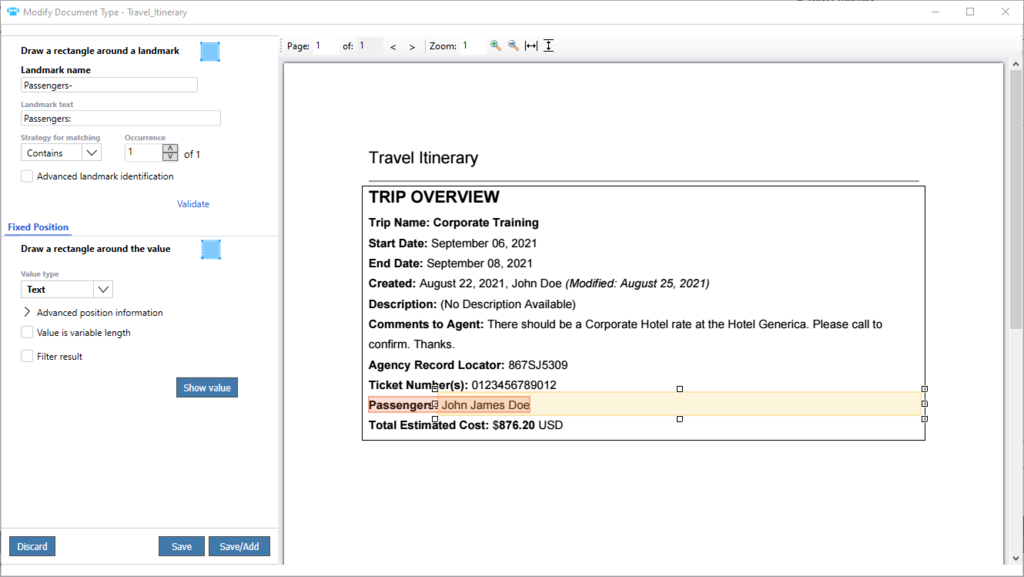
When you collect data for text values, you first define the landmark text that is in a fixed position relative to the value field by drawing a box around it. Then, you define the field value by drawing a box around the value. Landmarks help find the value due to their proximity to one another. The system matches the landmark text, and then you configure the data value that is associated with this landmark to act as the text that is a predefined distance away from the landmark. For example, in the following image, the Passengers: field label is the landmark text, and the data value is the text that is to the right of the label.
As with text identifiers, the default matching strategy for a landmark value is Contains.
Other options for matching text include:
- Exact
- Closest
- RegEx
- StartsWith
- EndsWith
By default, the PdfConnector matches the first occurrence of the text it encounters to use as the landmark for the text value. In the Advanced Landmark Identification section, you adjust the occurrence value if your solution requires a different instance of that text. For example, a customer completes an Emergency Contacts document and returns it for processing. The document has multiple fields for First Name, and each occurrence represents a different person to add as an emergency contact. You add multiple landmark values and adjust the occurrence to match for each landmark value to create individual data values you access in the automation.
Tables
Pega Robot Studio matches tables in a PDF document based on intersecting lines in the PDF. Documents created by Pega OCR do not contain PDF lines. As a result, the Pega OCR-generated documents do not have tables. For more information about creating table values in the PdfConnector, see PDF table configuration for data retrieval.
Optical marks
Optical mark recognition is the process of capturing the presence of human-marked data, such as a signature, from document forms. To capture optical marks values, the target computer requires the installation of Pega OCR Essentials at run time and the development computer requires the installation of Pega OCR Essentials for testing during design time.
The creation of an optical mark value follows the same process as a text value. First, you define the landmark text that is in proximity to the value field. For example, set the landmark text to the Signature field of the document to add an optical mark value for a signature. Then, define the value area to be the area immediately above the signature line.
In the Value type list, the OpticalMark value type creates an optical mark value instead of a text value. The What type of optical mark? list defines the area boundaries for evaluation and has three choices:
- Square
- Circle
- Empty
For example, if you select Square, the OCR engine finds a square in the selected value area and looks for a human-made mark inside the square.

The feature does not interpret handwritten text and identifies only whether the defined area is marked. An optical mark value returns a Boolean: true if there is a mark or value present in the defined area or false if the defined area contains white space.
Check your knowledge with the following interaction:
This Topic is available in the following Module:
If you are having problems with your training, please review the Pega Academy Support FAQs.
Want to help us improve this content?