

Processes and Process Flows
In Pega, a Process is defined as a series of Steps that are expected to occur in a logical, sequential order. Because business processes do not often follow a sequential path towards completion, Pega has implemented the concept of Process Flows, which allow you, as a Business Architect, to control the path a Process takes toward resolution.
In the topic, you examine the relationship between Processes as defined in the Case Lifecycle designer and Process Flows.
Processes in the Case Lifecycle
In the Case Lifecycle, every Case must have at least two Stages. The Create Stage and the Resolution Stage. Every Stage must have at least one Process, and every Process must have at least one Step.
Processes contain a series of Tasks, or Steps, that users complete as they work on the Case. When a Processes is added to a Case Type, the Steps are configured in a logical order that follows the typical sequence to completion for the Process.
For the Steps of a Process to deviate from the logical order in which they have been configured, alternatives must be configured in the Process Flow.
Process Flows
In a Pega Platform application, a Process Flow is a sequence of events that models a Process in the Case Lifecycle. Whereas the Process in the Case Lifecycle designer depicts the sequence of events as Steps, the Process Flow uses graphical shapes and connectors to define the sequence of events. The shapes and connectors, the link between shapes, depend on the types of Steps that make up the Process and the order in which the Steps occur.
The following image displays a Process in the Case Lifecycle:
The following image displays a Process Flow:

Just as each type of Step in the Case Lifecycle has its icon and color, each shape in the Process Flow has an associated color and shape. For example, a green clipboard represents a Collect information Step in the Case Lifecycle, and the corresponding shape in the Process Flow is a green rectangle. Yellow rectangles represent Automation shapes, such as Create Case, Send email, or Change Stage. Decision shapes use orange diamonds, and Subprocesses, such as the Approve/Reject Step, are blue rectangles.
Some shapes are accessible from the Process Flow only, such as the Decision shape.
By default, every Process Flow includes a Start shape (green circle) and an End shape (red circle).
Note: For more information about the shapes that you can use in a Process Flow, see Process shapes.
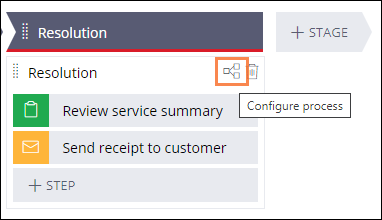
As seen in the following image, you access the Process Flow by clicking the Configure Process icon located in the Process in the Case Lifecycle.
Check your knowledge with the following interaction:
This Topic is available in the following Modules:
If you are having problems with your training, please review the Pega Academy Support FAQs.
Want to help us improve this content?