

Setting a visibility condition for form content
1 Aufgabe
5 Min.
Anfänger
User Experience
Englisch
Szenario
The GoGoRoad application allows customers to enter the service address by entering information in fields or selecting the location from a map. To customize the user experience by channel, the UI consultant has requested the following functionality: Users on a non-mobile device use the fields to enter the service address. Users on a mobile device select the location from a map. Configure the Identify location form to hide the redundant content depending on the device that is in use.
The following table provides the credentials you need to complete the challenge.
| Role | User name | Password |
|---|---|---|
| Application Developer | author@gogoroad | pega123! |
Hinweis: Your practice environment may support the completion of multiple challenges. As a result, the configuration shown in the challenge walkthrough may not match your environment exactly.
Challenge-Schritte
Genaue Übungsschritte
1 Set visibility conditions on the Identify location step
- In the Pega instance for the challenge, enter the following credentials:
- In the User name field, enter author@gogoroad.
- In the Password field, enter pega123!.
- In the navigation pane of App Studio, click Case types > Assistance Request to open the Assistance request case type.
- Click Save and run to run a new case instance.
- Advance the case to the Identify location step.
- Hover over the Service address section, and then click the Configure this view icon.
- In the configuration pane on the right, verify that the section with the Street, City, and State fields is open.
- Click Settings to open the configuration pane for that section.
- On the General tab, in the Visibility list, select Condition (when rule).
- In the Condition for visibility field, enter or select pyIsNotMobile.
- In the Caption area, select None.
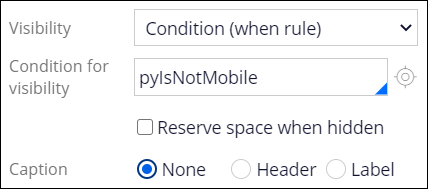
- At the top of the section configuration pane, click Apply to set the configurations on the section.
- Close the section configuration pane.
- In the configuration pane, in the Default list, select Identify location to open the configuration pane for the Identify location section.
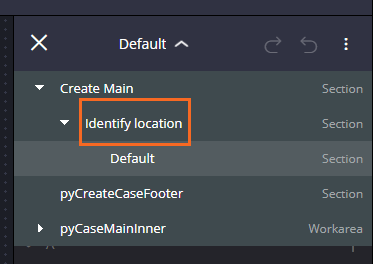
- In the Identify location configuration pane, hover over Location Field (Optional), and then click the Edit this "Section" icon.

- Click Settings to open the configuration pane for that section.
- On the General tab, in the Visibility list, select Condition (when rule).
- In the Condition for visibility field, enter or select pyIsMobile.

- Click Apply to set the visibility configuration.
- Click Close to exit the Configure mode.
Wenn Probleme mit den Lerninhalten auftreten, lesen Sie bitte die Pega Academy Support FAQs.
Möchten Sie uns dabei helfen, diesen Inhalt zu verbessern?