
Configuring a Case suggestion
Archived
5 Tâches
15 mins
Débutant
Anglais
Scénario
Customers of U+ Bank initiate a chat session with a live CSR and request to make a payment. The expected outcome is that Messaging AI analyzes the conversation, and then suggests the CSR the best Payment case to serve the customer request.
Use the following credentials to log in to the exercise system:
| Role | User name | Password |
|---|---|---|
| Self-Service Application Administrator | Eduselfserviceadmin | rules |
| Customer Service Representative | CACSR | password123! |
Your assignment consists of the following tasks:
Task 1: Add Payment case type
On the Configuration tab of your Digital Messaging interface, add the Payment case type.
Task 2: Configure text analysis
On the Text analysis tab, add words for the Messaging AI to use to trigger the Payment case.
Task 3: Make a CSR available
Log in to the Interaction Portal as a CSR, and then make the CSR available to service customer requests.
Task 4: Initiate a chat with a CSR
Log in to the U+ Bank website, and then initiate a live chat with a CSR.
Task 5: Confirm your work
On the Interaction Portal, confirm that the Messaging AI analyzes the conversation, and then suggests the Payment case to the CSR to serve the customer request.
Présentation du défi
Détail des tâches
1 Before you begin
If you have requested a new Pega instance, ensure that you complete the Creating a Digital Messaging interface challenge before you continue to the next task.
2 Add Payment case type
- Log in as a system architect with User name Eduselfserviceadmin and Password rules.
- In the navigation pane of App Studio, click Channels to open the Retail bank Digital Messaging interface.
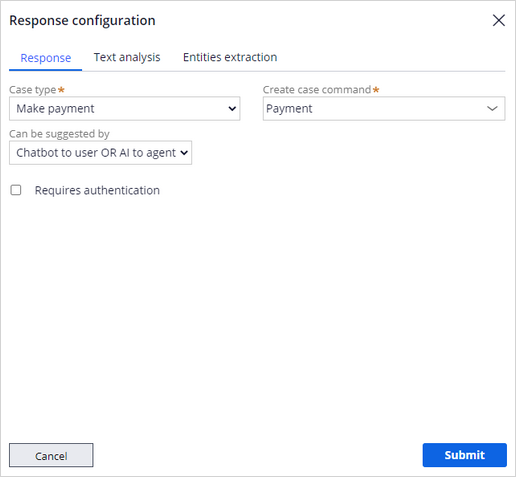
- On the Configuration tab of the Digital Messaging interface, in the Content section, click Add case type to add the Payment case type.
- Configure the Response section for the case type by entering the following information:
- Case type: Make Payment
- Create case command: Payment
- Can be suggested by: Chatbot to user OR AI to agent
3 Configure text analysis
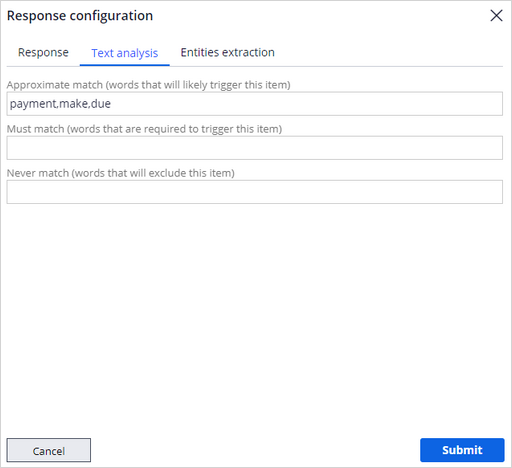
- Click the Text analysis section.
- In the Approximate match field, enter the words that can trigger the case suggestion, such as payment, make, due.
- Click Submit to update the configuration.
- In the upper-right corner, click Save to save your updates.
4 Make a CSR available
- Log in to the Interaction Portal, using the User name CACSR and the Password rules.
- In the header, click the Chat icon to make the CSR available.
- Click Manage queues, and then select the queues to receive requests from customers.
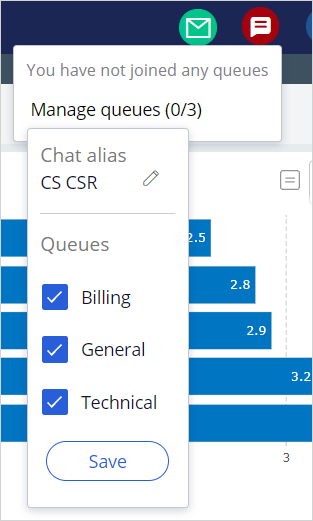
- Click Save to make the CSR join the queues.
- Click Make me available to enable the CSR availability for a live conversation with customers.
5 Initiate a chat with a CSR
- On the Pega Enablement tab, select U+ Bank to open the U+ Bank website.
- Click the chat icon to open the chat widget.
- Start a conversation by entering Live person in the chat window to connect with a live CSR.
Note: You can also enter Help, chat with agent, human, real person to connect with a live CSR.
- Select the I have a billing questions option, and then proceed to initiate a chat with a live CSR.
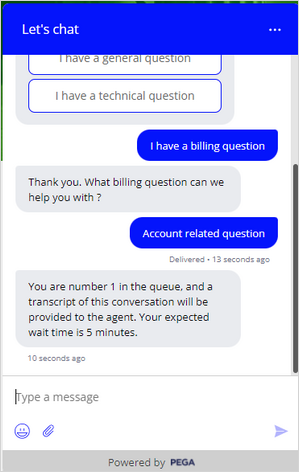
- Accept the call to make a payment.