
Creating a SOAP connector
4 Tâches
20 mins
Intermédiaire
Data Integration
Anglais
Scénario
Human Resources (HR) business partners use a legacy application to locate discount services available to employees near their home location. This application requires a longitude and latitude value to find the discount services. To help facilitate the use of this legacy application, HR business partners have asked to extend the HR Apps application functionality to identify the latitude and longitude for a given ZIP code.
Create a SOAP Integration Rule and configure a Data Page to invoke the SOAP connector:
- Create a SOAP integration Rule to connect to a ZIP code lookup service.
- Create an XML parse Rule to extract the latitude and longitude values from the SOAP connector response.
- Create Application Settings to store endpoint URL, response timeout, and Authentication Profile.
- Create and configure a Data Page to invoke the SOAP connector.
The following table provides the credentials you need to complete the exercise.
| Role | User name | Password |
|---|---|---|
| Senior System Architect | SSA@TGB | pega123! |
Note: This challenge does not have a demo video. Please refer to the Detailed Tasks for step-by-step instructions to complete the challenge.
Détail des tâches
1 Create a SOAP Integration Rule to connect to a ZIP code look up service
- In the Pega instance for the challenge, enter the following credentials:
- In the User name field, enter SSA@TGB.
- In the Password field, enter pega123!.
- In Dev Studio, click Configure > Integration > Connectors > Create SOAP Integration to open the New SOAP Integration form.
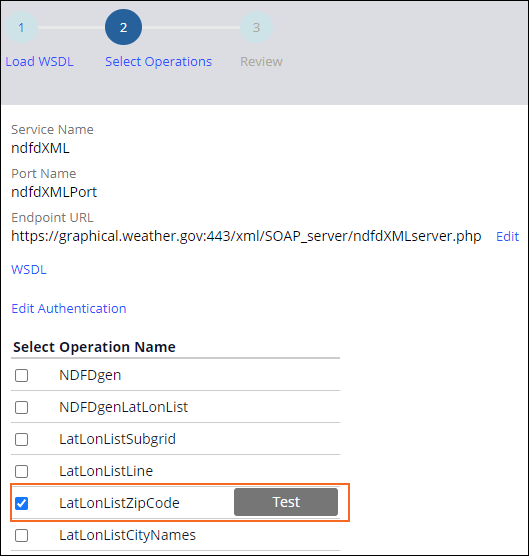
- On the New SOAP Integration form, click Upload WSDL from URL to enable the option to connect to a URL.
- In the Upload WSDL from URL field, enter https://graphical.weather.gov/xml/SOAP_server/ndfdXMLserver.php?wsdl.
- Click Next to proceed to the Select Operations step.
- Update the Endpoint URL to https://graphical.weather.gov/xml/SOAP_server/ndfdXMLserver.php.
- Clear any enabled operations check boxes and select LatLonListZipCode to enable the operation.
- Click Next to proceed to the Review step.
- In the Name field, enter LatLongLkp to provide the class name and identifier for the service.
- In the Parent class field, confirm that the value is TGB-Int.
- Confirm that the HR Apps Application Layer is selected.
- In the Add to Ruleset section, click Existing to enable the Ruleset name and version options.
- Select New Version of the HRAppsV2Int Ruleset.

- Click Create to create all the relevant Rules for the new SOAP integration.
2 Create an XML parse Rule to extract the latitude and longitude values from the SOAP connecter response
- On the Records Explorer, click Integration-Connectors > Connect SOAP to view a list of SOAP connector Rule instances.
- Filter the Service Name column to locate and open the newly created LatLonListZipCode SOAP connector.
- On the Service tab under Service properties, set Style and use to RPC/ literal.
- On the Request tab under Request parameters, verify the first Map from Key parameter field is configured with the .LatLonListZipCodeZipCodeList property.
- On the Response tab, in the Response parameters section, in the Map to list, select XML Parse Rule.
- In the Map to key field, enter ParseLatLongResponseXML to provide a name for the new parse XML Rule.

- Click the Open icon next to ParseLatLongResponseXML field to create the Parse XML record.
- In the Root Element Name field, enter dwml to identify the XML root element from the service response.
- From the Add to Ruleset list, select HRAppsV2Int and the highest available version.
- Create and open the Parse XML Rule.
- On the Mapping tab, select dwml and click Add Element to add a new child element.
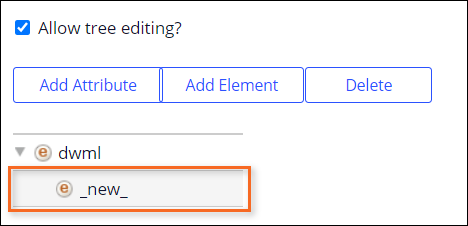
- Double-click the _new_ element to open the User Data dialog for the element.
- In the Node Name field, enter latLonList.
- In the Property field, enter or select .LatLonListZipCodeListLatLonOut.
 Tip: The XML Rule is now ready to parse the incoming XML response and can extract the information contained between < latLonList> and </latLonList>.
 - Save your changes to the Parse XML Rule.
- Return to the LatLonListZipCode Connect SOAP Rule tab.
- On the Response tab, in the Response parameters section, in the Map to key field, enter or select ParseLatLongResponseXML dwml as the new value.

- Check out and save the SOAP connector Rule.
- On the SOAP connector, in the warnings section, click to view the guardrail warnings.
 Note: The two guardrail warnings detailed above get addressed in the following section.
3 Creating Application Settings
- Click Create > SysAdmin > Application Settings to create an Application Settings record.
- In the Label field, enter Service endpoint URL.
- In the Owning Ruleset field, enter HRAppsV2Int.
- In the Add to Ruleset field, select HRAppsV2Int, and then select the highest available unlocked version of a Ruleset.

- Click Create and open to open the Application Settings form.
- In the Category field, press the Down arrow key, and then select SOAP connector from the list.
- In the Value fields for 2- Development, 3 - Quality assurance, 4 - Staging, and 5 - Production, enter https://graphical.weather.gov:443/xml/SOAP_server/ndfdXMLserver.php.
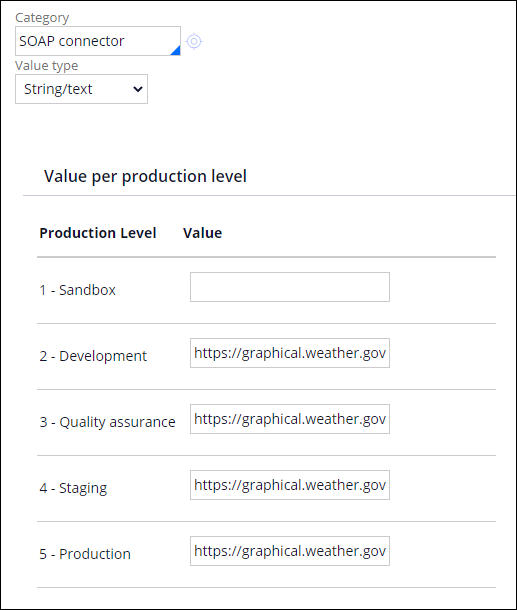 Note: You can edit the production level values if the specified value changes for different environments.
 - Save your changes to the Application Settings.
- Repeat steps 2-9 to create two new Application Settings with the details in the following table.
Label Value for Production level Response timeout 120000 Authentication Profile <blank> - Return to the LatLonListZipCode Connect SOAP Rule tab.
- On the Service tab, in the Connection section, in the Service endpoint URL field, enter =D_pxGetApplicationSettingValue[OwningRuleset:HRAppsV2Int, Purpose:ServiceEndpointURL].pySettingValue.
The data page D_pxGetApplicationSettingValue Rule requires two parameters OwningRuleset and Purpose.
- Repeat step 11 for the Response timeout and Authentication Profile fields using the details in the following table.
OwningRuleset Purpose HRAppsV2Int ResponseTimeout HRAppsV2Int AuthenticationProfile 
- Save the SOAP connector Rule to verify that the warnings are clear.
4 Create and configure a Data Page to invoke the SOAP connector
- In Dev Studio, click Create > Data Model > Data Page to launch the Data Page Record Configuration form.
- In the Label field, enter LatLongLookup.
- In the Apply to field, enter or select TGB-Int-LatLongLkp-ndfdXML to create the Data Page in the same context as the SOAP connector.
- In the Add to Ruleset list, select HRAppsV2Int and the highest available Ruleset version.
- Create and open the Data Page.
- On the Definition tab, in the Data sources section, in the Type list, select SOAP.
- In the Name field, enter or select LatLonListZipCode.
- In the Request Data Transform field, enter LatLongRequest.
- Click the Open icon to create a new Data Transform.

- Create and open the Data Transform.
- On the Definition tab, configure Step 1 with the following property values.
Property Name Value Action Set Target .LatLonListZipCodeZipCodeList Relationship equal to Source Param.ZipCode - Save your changes to the Data Transform.
- Return to the Edit: LatLongLookup Data Page tab.
- In the Data sources section, under the Request Data Transform field, click Parameters.

- In the Parameters for LatLongRequest dialog box, select Pass current parameter page to enable the parameters for the Request Data Transform.
- Click Submit.
- In the Parameters tab add a new parameter that uses the following information:
Field Value Name ZipCode Description Please enter a zip code for which you want to fetch the latitude and longitude Data type String Required Yes In/Out In - In the Load Management tab, select Limit to a single Data Page.
- Save your changes to the Data Page.
Disponible dans la mission suivante :
If you are having problems with your training, please review the Pega Academy Support FAQs.
Want to help us improve this content?