
Sizing a Pega Platform project
2 タスク
15 分
初級
Low-Code App Development
英語
シナリオ
Prior to beginning work on the Roadside Assistance application, stakeholders have requested an estimate of the project size and scope. The estimate is used to consider staffing models and provide an approximate delivery date. Using the Case Designer, assign releases to the channels and data objects associated with the Assistance Request and Service case types. Then, run the Estimator tool to calculate the sizing estimate for the MLP 1 release.
The following table provides the credentials you need to complete the challenge.
| Role | User name | Password |
|---|---|---|
| Application Developer | author@gogoroad | pega123! |
補足: Your practice environment may support the completion of multiple challenges. As a result, the configuration shown in the challenge walkthrough may not match your environment exactly.
チャレンジ ウォークスルー
詳細なタスク
1 Assign a release to the channels
- In the Pega instance for the challenge, enter the following credentials:
- In the User name field, enter author@gogoroad.
- In the Password field, enter pega123!.
- In the navigation pane of App Studio, click Case types > Assistance Request to open the Assistance Request case type.
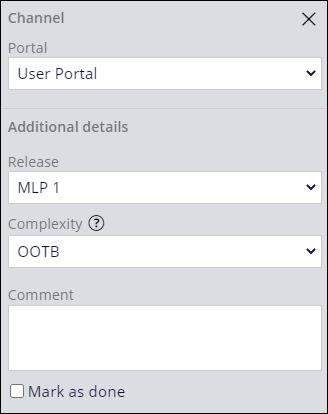
- In the Create stage, under Personas & Channels, click User Portal for the CSR persona.
- In the Channel properties pane, in the Release list, select MLP 1.
- In the Complexity list, select OOTB.
- Repeat steps 2-4 to update the remaining channels using the values in the following table.
注: Save your changes to the Assistance Request case type before implementing the changes for the Service case type.
Case type Stage Persona Portal Release Complexity Mark as done Assistance Request Create User User Portal MLP 1 OOTB Assistance Request Create User User Mobile App MLP 2 Medium Assistance Request Validation User User Portal MLP 1 OOTB Assistance Request Service User User Portal MLP 1 OOTB Assistance Request Resolution User User Portal MLP 1 OOTB Assistance Request Approval Rejection CSR User Portal MLP 1 OOTB Assistance Request Approval Rejection User User Portal MLP 1 OOTB Assistance Request Approval Rejection User User Mobile App MLP 2 Medium Service Service CSR User Portal MLP 1 OOTB x Service Service Service provider User Portal MLP 1 OOTB x - Click Save.
ヒント: Complexity indicates how much time the development team needs to implement the channel. Implementing a channel includes completing all the actions necessary for a persona to begin using a channel. Even OOTB personas and channels require further configuration and testing before they can be marked as done.
2 Assign a release to the data objects
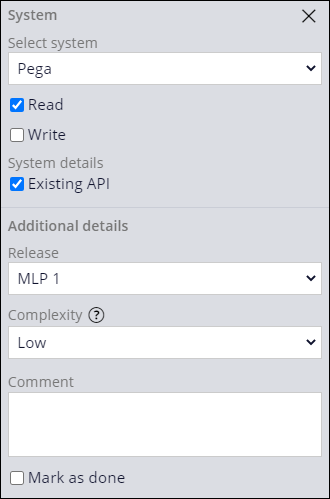
- In the Create stage of the Assistance Request case type, under Data & Interfaces, in the Customer data object, click Pega.
- In the configuration pane, select the Read check box.
- In the System details section, select the Existing API check box.
- In the Release list, select MLP 1.
- In the Complexity list, select Low.
- Repeat steps 2-5 to update the remaining data objects using the values in the following table.
注: Save your changes to the Assistance Request case type before implementing the changes for the Service case type.
Case type Stage Data object Data source Read Write Existing API Release Complexity Mark as done Assistance Request Create Service address Pega MLP 1 Low Assistance Request Create Vehicle information Pega MLP 1 Low Assistance Request Create Payment information Pega MLP 1 Low Assistance Request Service Service provider Pega x x MLP 1 Low Assistance Request Resolution Services offered Pega MLP 1 Medium Assistance Request Approval Rejection Customer Pega x x MLP 1 Low Assistance Request Approval Rejection Payment information Pega MLP 1 Low Service Service Services offered Pega x x MLP 1 Low x - In the Create stage of the Assistance Request case type, in the NHTSA Model data object, click Pega.
- In the configuration pane, in the Select system list, select Create new.
- In the Name field, enter NHTSA vPIC.
- Click Submit.
- Update the NHTSA Model data object using the values in the following table.
Case type Stage Data object Data source Read Write Existing API Release Complexity Mark as done Assistance Request Create NHTSA Model data NHTSA vPIC x x MLP 1 High - Click Save.
トレーニングを実施中に問題が発生した場合は、Pega Academy Support FAQsをご確認ください。