
Channel interfaces
Examples of a Channel include a messaging service, voice service, web portal, or mobile portal. Customers interact with Pega Platform™ applications through a variety of Channels. Pega Platform provides options for configuring interfaces for each Channel. A Channel interface allows you to adjust your application to your specific business needs by creating tailored and interactive user interfaces. Channels are created from templates that include predefined layouts and navigation for use in your application.
Conversational channels
Conversational Channels help organizations reach additional users. With conversational Channels, application users can interact with a Pega Platform application to obtain help, request a service, and report or solve an issue by using the following digital Channels:
- Facebook Messenger
- WhatsApp Messenger
- Apple Messages for business
- SMS/MMS (Twilio)
- Embedded chat window
- Amazon Alexa
Channels also allow users to interact with your application by using Pega Intelligent Virtual Assistant™ (IVA) and Pega Email Bot. Pega Intelligent Virtual Assistant understands intent and conversational language for dynamic conversations with your customers regardless of the Channel in which they start or end. Pega Email Bot can automatically detect the intent of an email and picks up relevant information to automate the processing with a personalized response. You can configure additional IVA functionality through the DX API.
補足: After you configure a webchat or Alexa Channel, provide users with a Channel for communicating with IVA and, indirectly, with the application, through a simple question and answer form to collect information from users. To learn more about IVA, see Implementing an intelligent virtual assistant for a conversation channel. To learn more about building a conversational Channel, see Conversational channels.
Configure Channels
The Channels landing page allows you to create, view, and edit all types of Channel interfaces. You can download new components (such as the Alexa Channel component) from Pega Marketplace as well. The Lock icon on a Channel indicates that the Channel component is not yet added to the application.
In the following image, click the + icons to learn more about the types of Channels you can create:
Channel configuration on Case Types
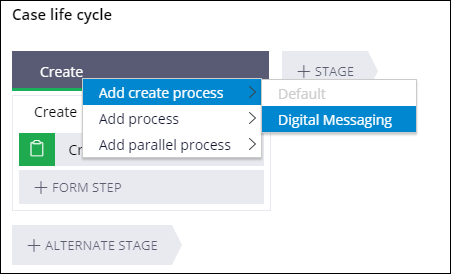
You can also create a Channel-specific IVA Process in Stages within a Case Life Cycle.
For example, you may want to add a Process for users who interact with your application through Facebook messenger. You can add a Channel Process so that when users enter a specific command in Messenger a Case opens in your application. You can select any Case that is defined for your Pega Platform application.
補足: Once you click the More icon on the stage, the Add create process or Add channel process options list only those channels that you have previously added to your application. To learn more about adding channels to a stage, see Adding a conversational Channel to a Case Type Process.
Channels and Personas
Users have different needs that align with the roles they play within the Case Management process. To improve their experience, you can design a web interface that provides them with the information and functionalities they need, but hides options that are not relevant to their role. This method contributes to a cleaner user interface and makes navigation quicker and more convenient.
To ensure that the participants of your Microjourney® interact with your application in the most relevant way, create draft relationships between Personas and Channels in the Case Lifecycle. When you associate Personas with Channels, you clearly visualize what means of communication your development team needs to implement to deliver an efficient and flexible application. You can associate a Persona with multiple Channels, and then assign the Channels to different releases, such as MLP1.
For example, for a hiring process, you can associate an HR worker with a Web Channel and a mobile Channel. In the first release of your application, the HR worker can process Cases by using a Web Portal. In the second release, the HR worker can then also work on a mobile device. In the following image, a Case Lifecycle displays the HR worker Persona with a list of associated Channels:

By defining different types of Channel access, you can monitor the actions that your team performs. For example, you can ensure that only the Personas that represent managers can access the Manager Portal by assigning the Manager Persona when configuring the Portal.
ヒント: Drafting Persona and Channel associations in the Case lifecycle does not configure the Persona's Channel access. By default, a Persona has access to all pages in your application.
Check your knowledge with the following interaction:
このトピックは、下記のモジュールにも含まれています。
トレーニングを実施中に問題が発生した場合は、Pega Academy Support FAQsをご確認ください。