

Adding products to an application
You can add products to your application using the actions available on the Products page.
Follow these steps to access the Products page.
- Log in to your application as a sales operation user.
- On the left, from the Explorer panel, click Products to open the Products page.
The Products page shows all the products available to your sales team.
To view products by the associated parent product, from the Action menu on the top right, click Group, then select Parent Product > Name.

To view product details, click on a product name.
Adding a product
As sales manager, you want to add a new VPN service offering to the Acme Business One Team product.
- From the Products page, click Create > product. The Create product dialog is displayed.
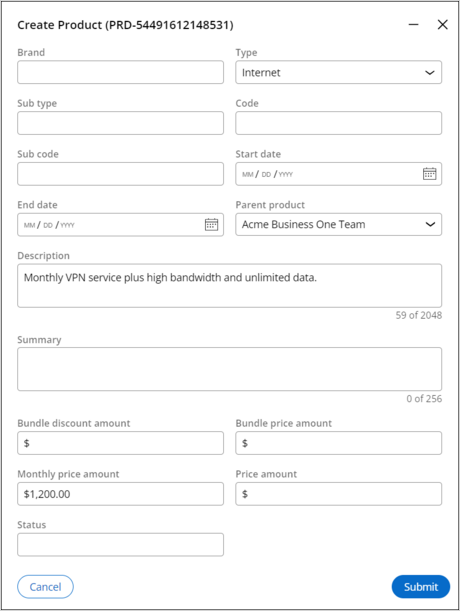
- In the Create product dialog, enter the following information.
- Name: VPN Plus
- Type: Internet.
- Parent: Acme Business One Team
補足: You can select any existing product as the parent product, which allows you to use a parent product as a category or group for related products.
- Description: Monthly VPN service plus high bandwidth and unlimited data.
- Monthly price amount: $1200
- Click Submit to save product details. The system assigns a new product ID (PRD-54491612148531) to the VPN Plus product

このトピックは、下記のモジュールにも含まれています。
トレーニングを実施中に問題が発生した場合は、Pega Academy Support FAQsをご確認ください。