
Automating Decisions with Decision trees
2 Tarefas
10 min
Beginner
Case Management
Inglês
Scenario
GoGoRoad is expanding its services and providing towing requests to its customers. Customers initiate a towing request and enter their vehicle type and miles to be covered. Configure a Decision tree and Declare Expression so that the towing cost is determined automatically based on the vehicle type and miles entered.
The following table provides the credentials you need to complete the challenge.
| Role | User name | Password |
|---|---|---|
| Application Developer | author@gogoroad | pega123! |
Nota: The challenge walkthrough video is coming soon.
Detailed Tasks
1 Configure the Towing cost calculation Decision tree
- In the Pega instance for the challenge, enter the following credentials:
- In the User name field, enter author@gogoroad.
- In the Password field, enter pega123!.
- From the navigation pane of Dev Studio, click App.
- Right-click and click Create > Decision > Decision Tree.
- In the Label field, enter Towing cost calculation tree.
- Click Create and open to create the Decision tree.
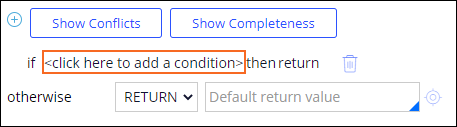
- Click <click here to add a Condition> to add a Condition.
- In the first empty field, enter or select .Miles.
- Change the operator value to >.
- In the second empty field, enter 20.
- Click the return drop-down and select continue. An indented, nested Condition is displayed.
 Nota: If the Conditions do not display, save and refresh the Decision tree.
 - Click the nested Condition and repeat steps 6-9 to specify the Condition if .VehicleType = "Sedan" return 80.

- With the nested Condition selected, click Add Row twice to add two additional nested Conditions.

- Repeat steps 6-9 to define all the following Conditions:
Miles > Vehicle type = Return if 20 Sedan 80 if 20 Crossover 88 if 20 Truck 96 
- Select the first top-level Condition and click Add Row two times to add two additional top-level Conditions.
- Repeat steps 6-12 to define the following Conditions:
| Miles > | Vehicle type = | Return | |
|---|---|---|---|
| if | 10 | Sedan | 40 |
| if | 10 | Crossover | 44 |
| if | 10 | Truck | 48 |
| if | 0 | Sedan | 20 |
| if | 0 | Crossover | 22 |
| if | 0 | Truck | 24 |
16. In the otherwise row, enter the default return value of 0.

17. Click Save to save the Decision tree.
2 Configure Towing cost Declare Expression
- From the navigation pane, right-click and click Create > Decision > Declare Expression.
- In the Target Property field, enter or select .TowCost.

- Click Create and open.
- In the Build Expressions section, in the Value of drop-down, select Result of Decision Tree.
- In the empty field to the right, enter or select TowingCostCalculationTree.

- Click Save.
Este Desafio serve para praticar o que você aprendeu nos seguintes Módulo:
Disponível na seguinte missão:
If you are having problems with your training, please review the Pega Academy Support FAQs.
Quer nos ajudar a melhorar esse conteúdo?