

Fields
Pega Platform™ applications collect and process important Case data. By defining the fields that are displayed at runtime, applications can collect information from users or present Case information for review. For example, when providing search criteria to book accommodations, users enter each criterion in a separate field. The criteria return results that are displayed as read‑only information.
Fields model individual instances of data that are required to resolve a Case. Each field consists of a name and a Field Type. The Field Type defines the expected format of the information to help ensure data accuracy. Fields are used to define the attributes of a Data Object, and single‑value fields can also be added directly to a Case form to collect information from users.
Fields
Fields are named, reusable UI components that collect, display, and store single pieces of information that are required when processing a Case. Fields can be added directly to a Case Type to capture information input by a user that is important to the resolution of a Case, or fields can be used to describe a Data Object.
In the following figure, the Customer Data Object consists of fields including First Name, Last Name, E-mail, Phone number, Address and Globally unique ID (which is automatically generated):
Primary fields
Primary fields are the fields that capture the most relevant business information for a Case Type or Data Object. You can mark fields as Primary from the Case Type Data Model or the Data Object to highlight the information that is essential to understanding and processing the Case or record.
By default, the Label and Description fields are automatically marked as Primary in the Case Type Data Model.
Primary fields are automatically displayed in standard Views such as Create, Edit, List, and Details. This default behavior reduces the need for additional UI configuration and ensures that key business information is consistently visible to users.
Field Types
When you create a field, you also assign a Field Type. The Field Type determines the format of the data that can be entered into the field, and, as a result, the type of information that is stored in the system. Field Types also determine the type of control that is automatically paired with the field in the user interface. By assigning a Field Type, you ensure that users provide valid information in the field and that the system displays data in the correct format.
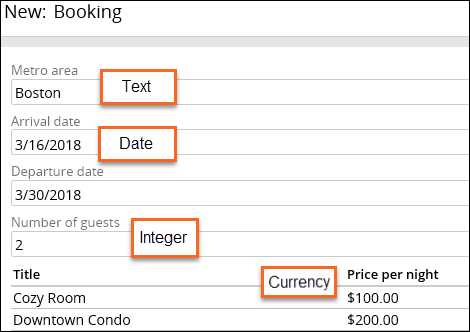
For example, a field named Metro area would be assigned a Field Type of Text and store the value Boston, as shown in the following Booking form:
Check your knowledge with the following interaction:
Simple Field Types
You can assign a simple Field Type to a field. A simple field captures one basic value and maps directly to a single scalar property.
The following table shows a list of simple Field Types and the information each type stores:
| Field Type | Type of Data | Field Example |
|---|---|---|
| Text (single-line) | Any single line of text. |

|
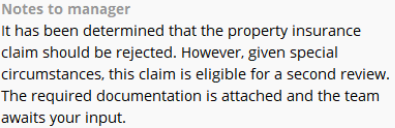
| Text (paragraph) | A large text box that accepts multiple lines of text. |
|
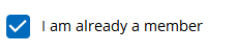
| Boolean | Allows users to select a check box to indicate one of two possible responses. |
|
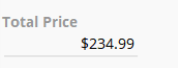
| Currency | Currency symbols and value are stored based on the default currency type. |
|
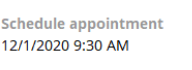
| Date & time | UTC (Coordinated Universal Time) value normalized to Greenwich Mean Time (GMT). Date automatically displays in a localized format. |
|
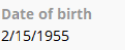
| Date only | Calendar date with a localized format. |
|
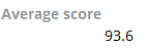
| Decimal | Numbers with a fractional component. Use this Field Type when fractions are needed. |
|
| Valid email format with an @ symbol. An email field is an action-oriented control, meaning the value stored in the field is displayed as a link. For an email, the link initiates users' default email application. |
|
|
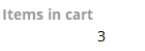
| Integer | Positive and negative whole numbers, including the value zero (0). |
|
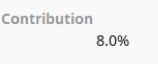
| Percentage | Positive and negative decimal numbers entered as a decimal and displayed as a percentage. For example, .5 displays as 50%. |
|
| Phone | Digits display in a localized format. A phone field is an action-oriented control, meaning the value stored in the field displays as a link. For example, if users access the application on a mobile device, the phone number link initiates a phone call. |
|
| Time only | UTC (Coordinated Universal Time) value normalized to Greenwich Mean Time (GMT). |

|
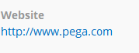
| URL | Web address. A URL field is an action-oriented control, meaning the value stored in the field displays as a link. For a URL, the link initiates the user's default browser and opens the target web page. |
|
Tip: An integer field stores only the value that begins at the first non-zero digit. For values that do not require arithmetic calculations, use a text Field Type.
Complex Field Types
A complex field represents more than one value or a structured object. It is typically composed of multiple simple fields or references to external data.
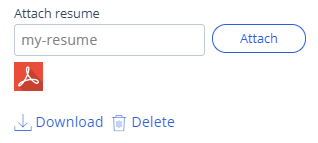
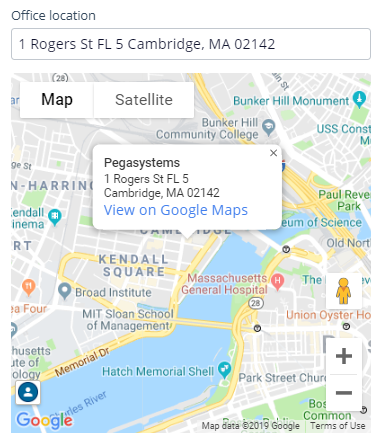
Users can add an address, and the system responds by displaying a map. The system can also display controls to attach a document or display a field to enter or select an existing user ID. The following table shows a list of complex Field Types and the information each type stores:
| Field type | Type of data | Example |
|---|---|---|
| Picklist | Select a value from a list of valid options. |

|
| Attachment | Documents or files. |
|
| Location | Address input or automatic geolocation. |
|
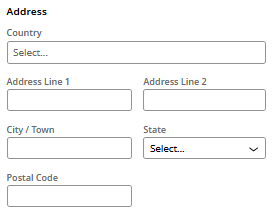
| Address | A region-specific address format. The UI displays the Country field as a dropdown list. Depending on that selection, the UI displays a set of country-specific fields. |
|
| Prediction |
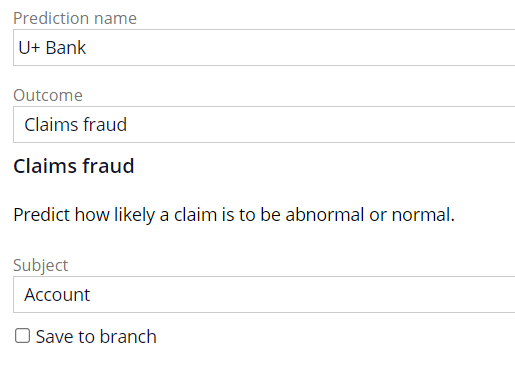
Displays the results of a Prediction. Predictions contain fields, which you can configure on the UX tab as standard text and decimal fields. If you have access to Prediction Studio, the Prediction field displays a link to the source Prediction. Note: Ensure that decision nodes are present in your system. For more information about installing Pega Process AI™, see Installation.
|
|
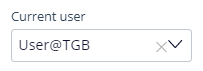
| User reference | Enter or select a user ID that exists in the system. The drop-down or search field shows a list of every operator mapped to the current application Rule. |
|
| Case reference | Holds instances of a selected Case Type. |

|
| Data reference | Used when the data needed in a Case is sourced either from locally stored Data Records or from data accessed from an external system of record. |

|
| Embedded Data |
Collects user input or a user action that is made directly inside a Case instance. The data in an Embedded Data Field Type is stored within a Case instance instead of sharing a data source. The data in an Embedded Data Field Type forces all usage of the field to be in a common format across the application. Note: Embedded fields configured as tables support adding attachments at runtime, allowing users to add multiple attachments within each row.
|


|
| Query | Retrieves data that is stored in an external system by referencing a Data Page. The Data Page defines parameters that the Query data relationship is configured to use. |  |
Out-of-the-box UI controls
User interface elements (such as text inputs and layouts) present information and actionable items. The system pairs the field automatically with the optimal out-of-the-box control.
The UI elements include basic controls that you can use out of the box, including:
- Autocomplete controls
- Check boxes
- Drop-down lists
- Links
- Rich-text editors
- Text input
Check your knowledge with the following interaction:
This Topic is available in the following Module:
If you are having problems with your training, please review the Pega Academy Support FAQs.
Want to help us improve this content?