

Validating data against a pattern
3 Tasks
10 mins
Intermediate
Data Integration
English
Scenario
TGB has decided to open a branch office in India. Candidates from India must provide an Aadhaar ID for identification purposes. Ensure that candidates located in India enter an Aadhaar ID that satisfies the following requirements:
- The ID does not contain alphabetic or special characters.
- The ID consists of three groups of four numbers, with a space separating each group of four.
- The ID does not start with either a "0" or "1".
Configure the Candidate information layout on the Collect personal details Step to display a field for the Aadhaar ID. Configure the form so that the field is displayed and is required only if the user selects country as India (IND).
Note: For more information about the Aadhaar ID program, see https://en.wikipedia.org/wiki/Aadhaar.
The following table provides the credentials you need to complete the challenge.
| Role | User name | Password |
|---|---|---|
| Senior System Architect | SSA@TGB | pega123! |
Note: This challenge does not have a demo video. Please refer to the Detailed Tasks for step-by-step instructions to complete the challenge.
Detailed Tasks
1 Create an Edit Validate Rule to test the Aadhaar ID pattern
- In the Pega instance for the challenge, enter the following credentials:
- In the User name field, enter SSA@TGB.
- In the Password field, enter pega123!.
- In Dev Studio, on the Create menu, click Data Model > Edit Validate to display the Create Edit Validate form.
- On the Create Property form, in the Label field, enter Validate Aadhaar ID.
- Click Create and open to create the Edit Validate Rule.
- On the Validate Aadhaar ID Edit Validate form, in the Java Source field, enter the following Java code:
// Regex to check valid Aadhaar number
String regex= "^[2-9]{1}[0-9]{3}\\s[0-9]{4}\\s[0-9]{4}$";// Compile the ReGex
java.util.regex.Pattern p = java.util.regex.Pattern.compile(regex);// If the string is empty, return false
if (theValue == null || theValue.trim().equals("")) return false;// Pattern class contains matcher() method to match the given string and the regular expression
java.util.regex.Matcher m = p.matcher(theValue);// Return if the string matched the ReGex
return m.matches(); - Click Save to complete the configuration of the Edit Validate Rule.
2 Create the Aadhaar ID property
- On the Create menu, click Data Model > Property to display the Create Property form.
- On the Create Property form, in the Label field, enter Aadhaar ID.
- In the Apply to field, enter TGB-FW-HR-Data-Candidate.
- Click Create and open to create the property Rule.
- On the Aadhaar ID property form, click Convert to advance configuration.
- On the Advanced tab, in the Max length field, enter 14 to prevent the user from entering a value longer than 14 characters.
- In the Expected length field, enter 14.
- In the Use validate field, enter or select ValidateAadhaarID to apply the Validate Aadhaar ID Edit Validate Rule when the user provides a value for the property.
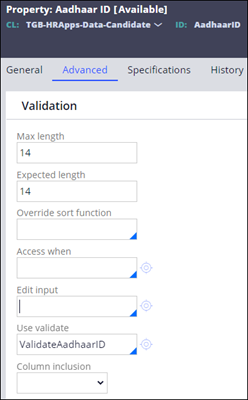
- Click Save to complete the configuration of the Aadhaar ID property.
- Mark the property as a relevant record.
3 Add the Aadhaar ID field to the Collect personal information Step
- In the App Studio, select the Candidate Case Type.
- In the Collect Personal Details Step, click Configure User Action to update the view.
- Click the Candidate Embedded Data field to update the Candidate View and add Aadhaar ID property.
- On the Aadhar ID property, click the Configure icon to configure the visibility and required conditions.
- In the Required field, select Custom Condition and click Configure Required Condition.
- In the Condition Builder, Set Field as Country by Code, Conditional operator as is equal to, and Value as IND.

- In the Visibility field, select Custom Condition and click Configure Visibility Condition.
- Repeat step 6.

- Click Save to save the required and visibility conditions on the Aadhaar property.
- Rearrange the fields as shown in the following image.

- Save the Candidate Case Type.
Available in the following mission:
If you are having problems with your training, please review the Pega Academy Support FAQs.
Want to help us improve this content?